

Create variants for products that come in different options like colors, calibers, or configurations.
Understanding Variants
Variants are different versions of the same product:
| Product | Option | Variants |
|---|---|---|
| Glock 19 Gen 5 | Color | Black, FDE, Gray |
| AR-15 Lower | Configuration | Stripped, Complete |
| 9mm Ammo | Quantity | 50 rd, 500 rd, 1000 rd |
When to Use Variants
Use variants when:
- Same product with different options (color, size, caliber)
- Customers select an option on the product page
- You want one product page for all options
Create separate products when:
- Fundamentally different products
- Different descriptions needed
- Different images entirely
Creating Variants
Step 1: Add Options
- Edit the product
- Scroll to the Options card
- Click Add Option
- Enter the Option Name (e.g., “Color”)
- Fill in Option Value 1, then click Add Value for each further value (e.g., “Black”, “FDE”, “Gray”)
- Click Save Option
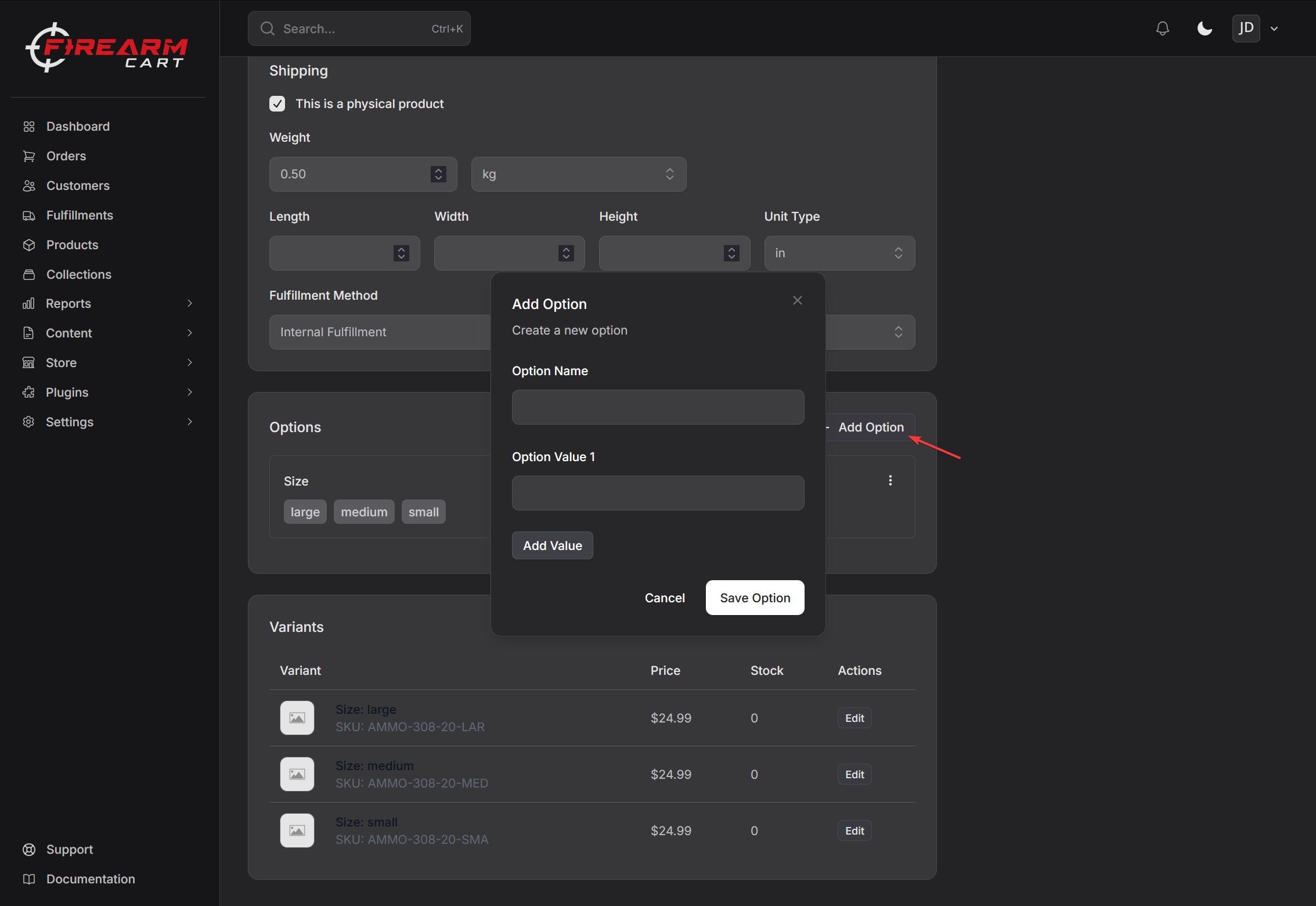
Step 2: Variants Are Created
After saving options, variants are automatically generated:
| Options | Variants Created |
|---|---|
| 3 colors | 3 variants |
| 3 colors × 2 sizes | 6 variants |
Each variant is named from its option values — a variant of a Color option shows as Color: Black, and a variant with two options shows as Color: Black / Size: Large.
Limit: Maximum 3 option types per product. Once three options exist, the Add Option button no longer appears.
Note: You can only add options and variants on products you source yourself. Firearms-distributor listings are single-SKU and do not show the Options and Variants cards. Print-on-demand products imported from Printify arrive with their size and color variants already created — those stay in sync with Printify and cannot be edited as custom options.
Editing Variants
Click a variant in the Variants table (or its Edit button) to open the Edit Variant page, then click Save Variant when done:
| Field | Description |
|---|---|
| SKU (Stock Keeping Unit) | Generated as the product SKU plus the first three letters of each option value (e.g. GLK19-BLA), and editable |
| Price | Can differ from base price |
| Compare at price | Sale pricing |
| Cost per item | Your cost |
| Barcode (ISBN, UPC, GTIN, etc.) | UPC/EAN |
| Track inventory | Enable stock tracking for this variant |
| Stock on hand | Inventory for this variant |
| Continue selling when out of stock | Allow backorders for this variant |
| Weight | Can override product weight |
| Dimensions | Can override product dimensions |
Shipping fields are inherited from the product by default — clear Inherit shipping dimensions from product to set the variant’s own weight and dimensions.
Pack Variants
Turn on Pack — shares product stock when the variant is a multi-unit pack of the same item. A pack variant holds no stock of its own: it draws from the parent product’s on-hand quantity, and each order decrements Units per pack × ordered quantity. The Variants table then shows how many whole packs are available.
Variant Pricing
Each variant can have its own price:
| Variant | Price |
|---|---|
| Color: Black | $549.99 |
| Color: FDE | $569.99 |
| Color: Gray | $569.99 |
Variant Inventory
Track stock separately for each variant:
| Variant | SKU | Stock |
|---|---|---|
| Color: Black | GLK19-BLA | 25 |
| Color: FDE | GLK19-FDE | 8 |
| Color: Gray | GLK19-GRA | 0 |
Variant Images
Each variant carries one image, set from the Variant Image card on the Edit Variant page:
- Select Image from Product — pick one of the images already uploaded to the product
- Or drop a new image onto the card to upload it (it is added to the product and assigned to this variant)
Either choice applies immediately; use the remove button on the card to unassign it. When customers select a variant, its image displays.
Variant Fulfillment
Each variant can have its own fulfillment settings:
- Inherit fulfillment method from product (default) — use the product’s fulfillment route
- Turn the switch off to pick a Fulfillment Method for this variant: Internal Fulfillment, or one of your team’s active fulfillment plugins
Managing Options
Editing Options
- Find the option in the Options card
- Open its ⋮ menu and choose Edit
- Change the name or values
- Click Update Option
Deleting Options
- Open the option’s ⋮ menu and choose Delete
- Confirm deletion
Warning: Deleting options removes associated variants and their data.
Examples
Firearm with Color Options
Product: Glock 19 Gen 5
| Option | Values |
|---|---|
| Color | Black, FDE, Gray |
Creates 3 variants with individual pricing and stock.
Ammunition with Quantity Options
Product: Federal 9mm
| Option | Values |
|---|---|
| Quantity | 50 Rounds, 500 Rounds, 1000 Rounds |
Creates 3 variants with different prices per quantity.
Related Documentation
- Creating Products - Basic product setup
- Inventory - Stock management
- Product Media - Images for variants