

Sections are modular building blocks that make up your store’s pages. Add, configure, and rearrange sections to create your perfect layout.
Theme Compatibility
FirearmCart supports modern themes that compose their layout via section groups — headers, footers, and body areas built from reusable sections. Legacy themes that include individual sections directly in their base layout can’t be imported.
An importable theme needs all of the following:
- A
layout/theme.liquidbase layout that pulls in section groups rather than naming individual sections - A
templates/folder with JSON page templates - A
sections/folder containing the section files
If a custom theme fails validation during import, a mismatched layout format is the most common cause. Newer themes (2024+) typically meet the requirement out of the box.
Section Overview
What Are Sections?
Sections are:
- Modular - Self-contained page components
- Configurable - Each has its own settings
- Reorderable - Drag to rearrange
- Reusable - Use the same section type multiple times
Section Types
The section picker groups entries into categories that come from the theme itself, so the exact list depends on which theme you are using. Common groupings are:
| Category | Examples |
|---|---|
| Header/Footer | Header, announcement bar, footer |
| Hero | Slideshow, image banner, video |
| Products | Featured product, product list |
| Collections | Collection list, collection links |
| Content | Rich text, media with content, divider |
| Marketing | Newsletter, marquee |
| Custom | Custom Liquid |
Adding Sections
From the Visual Editor
- Open the Visual Editor
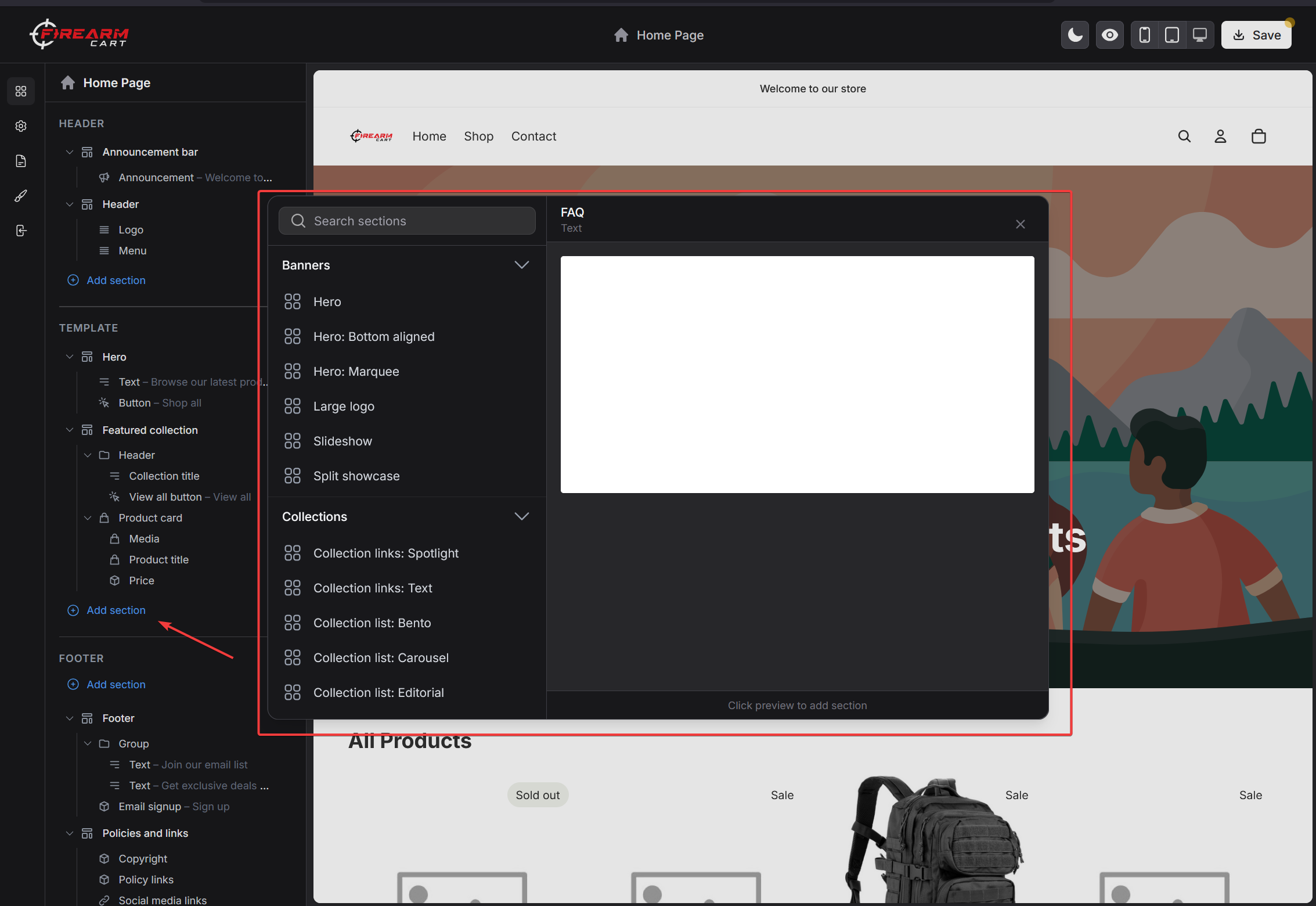
- Click Add section in the sidebar — each region (header, template, footer) has its own button
- Browse available sections
- Click a section to add it
- Configure its settings
A section can offer more than one preset — a preset is a pre-arranged starting point, and each one is listed as its own entry in the picker. Picking one starts the section with that preset’s settings and blocks.
Section Placement
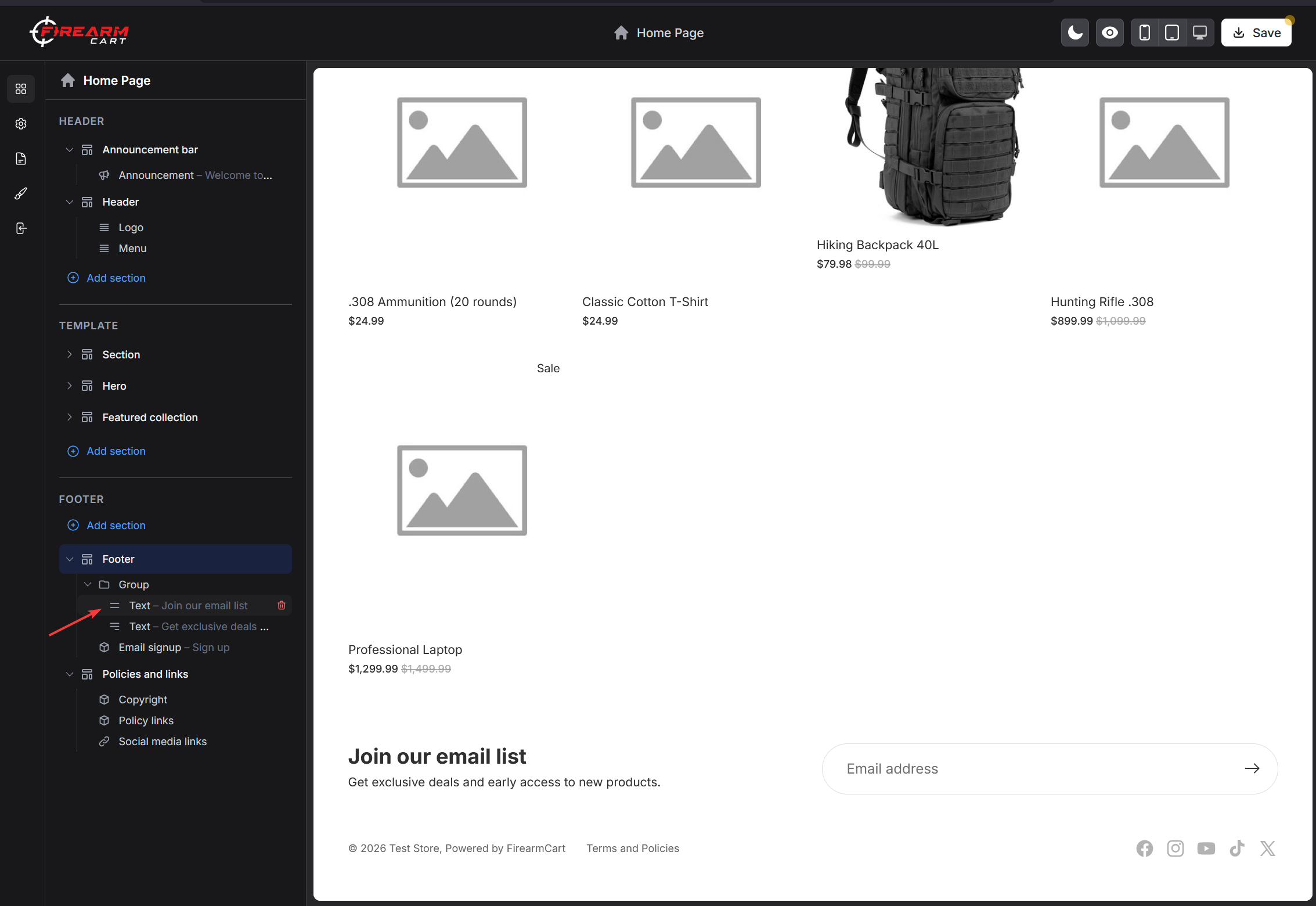
New sections are added at the bottom of the region you added them to. To position:
- Drag the section in the sidebar
- Drop at desired position
- Section moves in preview
Sections can also declare which regions they are allowed in, so a section built for the footer will not be offered when you add to the page body.
Adding Multiple Sections
You can add the same section type multiple times:
- Multiple image banners
- Multiple product grids
- Multiple text blocks
Each instance has independent settings.
Section Settings
Accessing Settings
- Click on a section in the sidebar
- Settings panel opens
- Make changes
- Preview updates in real-time
Common Settings
Most sections include:
| Setting | Description |
|---|---|
| Heading | Section title |
| Subheading | Secondary text |
| Color scheme | Color palette for section |
| Padding | Top/bottom spacing |
| Full width | Extend to edge |
Setting Types
A section declares each of its settings with a type, and the editor renders the matching control. These are the types the editor can edit:
| Type | Control |
|---|---|
text |
Single-line text input |
textarea |
Multi-line text |
richtext |
Formatted text editor |
liquid |
Liquid code field |
number |
Numeric input |
range |
Slider |
checkbox |
On/off toggle |
select |
Dropdown |
text_alignment |
Left/center/right control |
color |
Color picker |
color_scheme |
Picks one of the theme’s color schemes |
image_picker |
Opens the media library |
video / video_url |
Video picker or video URL |
url |
URL field |
link_list |
Picks one of your navigation menus |
product / product_list |
Product picker(s) |
collection / collection_list |
Collection picker(s) |
blog |
Blog picker |
page |
Page picker |
header / paragraph |
Not inputs — labels and help text that group the panel |
font_picker |
Font picker (theme settings only) |
If a section declares a setting type not in this list, the editor shows no control for it and the value can only be changed in the theme’s code.
Settings can also carry a visible_if condition, so options appear only when they are relevant — for example a “Video URL” field that shows only once you set the media type to video.
Available Sections
Available sections depend on your active theme. Open the Visual Editor’s Add section panel to see what your theme provides — each section exposes its own settings panel when selected in the sidebar.
A section only appears in the picker if the theme gives it at least one preset. Sections built for a specific page (the main product section, the search results section, and so on) deliberately have none, which is why you cannot add a second copy of them.
Some sections come from FirearmCart plugins rather than your theme — product reviews, events, back-in-stock and subscription options. They appear in the picker when the plugin is active. See Integrations.
Section Blocks
What Are Blocks?
Blocks are repeatable elements within sections:
- Slides in a slideshow
- Columns in a multicolumn
- FAQ items in collapsible content
Adding Blocks
- Open a section with blocks
- Click Add block
- Select block type
- Configure block settings
Managing Blocks
| Action | How |
|---|---|
| Add | Click the + between blocks, or Add block |
| Edit | Click on the block in the sidebar, or on the block itself in the preview |
| Reorder | Drag and drop |
| Delete | Click the trash icon and confirm |
Some blocks are fixed parts of their section and show a padlock instead of a drag handle — those cannot be moved or deleted.
There is no duplicate action for blocks. To repeat one, add a new block of the same type and re-enter its settings.
Block Limits
A section can cap how many blocks it accepts. When you hit that cap, the editor refuses to add another and tells you the maximum. The limit is set by the theme, so it varies by section.
Reordering Sections
Drag and Drop
- Hover over section in sidebar
- Grab the drag handle
- Drag to new position
- Drop to place
Section Groups
The sidebar splits sections into three regions:
- Header - Top of page
- Template - The current page’s own sections, the area you usually work in
- Footer - Bottom of page
Sections reorder within their region, not across regions. The header and footer render on every page, so a change there affects your whole storefront — not just the page you happen to be previewing.
Duplicating Sections
How to Duplicate
- Hover the section in the live preview
- Click the duplicate button in the toolbar that appears
- A copy is added with the same settings
Duplicate is only available from the preview toolbar, not from the sidebar list.
Use Cases
- Create similar sections with different content
- Test variations
- Backup before major changes
Removing Sections
How to Remove
- Click the trash icon on the section in the sidebar (or in the preview toolbar)
- Confirm the prompt
Restoration
Removed sections cannot be recovered. If you need it back:
- Add the section type again
- Reconfigure settings
- Or leave the editor without saving, which discards every change since your last save
Section Visibility
Hiding Sections
Every section in the sidebar has an eye icon:
- Click the eye icon on the section
- The section stops rendering on your storefront
- It stays in the list, greyed out, with its settings intact
- Click again to show it
Hiding is available for sections. Blocks have no equivalent toggle — remove a block you don’t want.
Section Presets
What Are Presets?
Pre-configured section setups:
- Ready to use
- Professional designs
- Customizable after adding
A preset can carry both settings and a starting set of blocks, so a “Slideshow” preset might arrive with three slides already in place.
Using Presets
- Click Add section
- Sections with several presets appear as several entries, one per preset
- Click the one you want
- Customize as needed
Firearm-Specific Features
Product Specifications
Firearm specifications — caliber, action, barrel length, capacity, weight — are entered on the product and rendered by the {{ product.specifications }} variable, which outputs a specification table. This is a Liquid variable rather than a section, so it is available anywhere the theme has a product. See Liquid Variables.
FFL Transfers
FFL selection happens during checkout, which FirearmCart hosts — it is not a theme section and cannot be added from the editor. See FFL Compliance.
Age Verification
The age gate is a plugin, not a section. Turn it on and write its copy under Plugins > Age Verification; it is then injected into every storefront page, and a customer who confirms (or optionally enters a date of birth) is remembered by a cookie. Themes cannot restyle, move or opt out of it. See Age Verification.
Custom CSS
Every section’s settings panel has a Custom CSS accordion at the bottom. Rules you write there are scoped to that section automatically, so a selector like .my-class { color: red; } cannot leak into the rest of the page.
Use it for one-off tweaks. Anything you want on several pages belongs in the theme’s stylesheet instead — see Editing theme code.
Mobile Responsiveness
Adapting to Mobile
Well-built themes adapt their sections to smaller screens — stacked layouts, fewer columns, a collapsed menu. This is the theme’s doing rather than something the platform applies, so always check the result with the editor’s mobile and tablet preview modes.
Mobile-Specific Settings
Many sections expose their own mobile options. What you get depends on the theme; commonly seen examples include:
| Setting | Description |
|---|---|
| Mobile columns | Fewer columns on mobile |
| Mobile card size | Smaller cards on mobile |
| Stack media on mobile | Stack side-by-side media vertically |
| Custom mobile media | A different image or video for mobile |
| Full width on mobile | Let the section run edge to edge |
Performance Considerations
Image Optimization
For sections with images:
- Use appropriately sized images
- Prefer WebP format
- Don’t use images larger than needed
- Images are resized on request by the theme’s own image filters, so a section that asks for the right width costs far less than one that loads the original file
Section Count
| Concern | Recommendation |
|---|---|
| Too many sections | May slow page load |
| Heavy sections | Limit per page |
| Video sections | Use sparingly |
Best Practices
- Keep home page focused
- Use appropriate section types
- Optimize all images
- Test page speed
Troubleshooting
Section Not Appearing
Symptoms: Added section not visible
Solutions:
- Check visibility settings
- Scroll to find it on page
- Verify content is added
- Check if hidden on current device
Settings Not Saving
Symptoms: Changes revert after save
Solutions:
- Ensure clicking Save button
- Check for validation errors
- Try refreshing and re-editing
- Clear browser cache
Saved Changes Not Live
Symptoms: The editor preview is right, your storefront is not
Solutions:
- Confirm you edited the theme that is actually published — a library theme only goes live when you publish it
- Storefront pages are cached; enable Dev Mode from Theme options to bypass caching while you work
Layout Issues
Symptoms: Section looks wrong
Solutions:
- Check all required settings
- Verify images are uploaded
- Review color scheme
- Compare with theme demo
Mobile Display Problems
Symptoms: Section looks bad on mobile
Solutions:
- Use responsive preview
- Check mobile-specific settings
- Reduce content if needed
- Test on actual device
Best Practices
Design
- Consistent styling - Use color schemes
- Visual hierarchy - Important content first
- White space - Don’t overcrowd
- Clear CTAs - Obvious buttons
Content
- Quality images - High resolution
- Concise text - Get to the point
- Relevant products - Curated selections
- Updated content - Keep fresh
Organization
- Logical order - Sensible flow
- Limit sections - Quality over quantity
- Test thoroughly - All devices
- Regular review - Keep current
Related Documentation
- Visual Editor - Editor overview
- Liquid Variables - Template variables
- Product Media - Image guidelines
- Collections - Collection setup