

Visual Editor
Use the Visual Editor to customize your theme with a live preview.
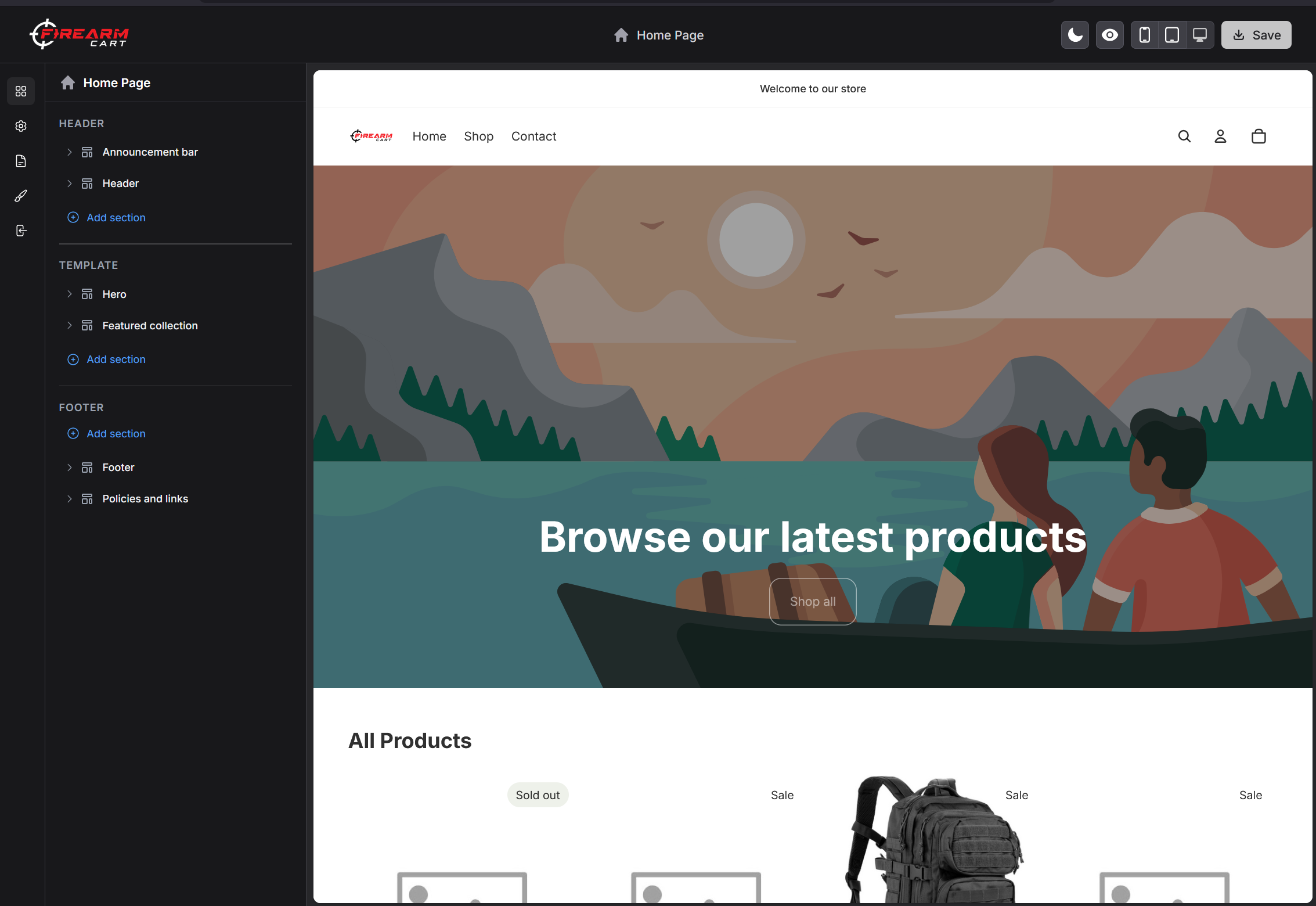
Accessing the Visual Editor
- Navigate to Themes in the sidebar
- Find your theme
- Click Customize
The Visual Editor opens with a sidebar on the left and a live preview on the right.
Editor Layout
| Area | Description |
|---|---|
| Left sidebar | Settings, sections, and navigation |
| Preview area | Live preview of your store |
| Page selector | Switch between pages |
| Device modes | Desktop, tablet, mobile preview |
| Save button | Save your changes |
Theme Settings
Click Theme settings in the sidebar to access global settings:
- Colors
- Typography
- Layout options
- Other theme-specific settings
Changes apply across your entire store.
Page Editing
Switching Pages
Use the page selector to edit different page templates:
- Home page
- Product pages
- Collection pages
- Cart page
- Other pages
Working with Sections
The sidebar shows all sections on the current page:
- Click a section to edit its settings
- Drag sections to reorder
- Click Add section to add new sections
- Click the hide/show toggle to control visibility
See Theme Sections for detailed section documentation.
Header Customization
Click the Header section to customize:
- Logo image and size
- Navigation menu
- Announcement bar
- Search and cart icons
Footer Customization
Click the Footer section to customize:
- Footer menus
- Newsletter signup
- Social links
- Copyright text
Live Preview
Preview Features
- Real-time updates as you make changes
- Desktop, tablet, and mobile views
- Interactive preview (click and navigate)
Device Modes
Switch between device views to see how your store looks on different screens.
Saving Changes
- Make your changes
- See them in the live preview
- Click Save in the top right
- Changes are published immediately
Developer Mode
For advanced users making frequent changes:
- Navigate to Themes
- Click ... menu on your theme
- Select Enable dev mode
Developer mode:
- Bypasses template caching
- Shows changes immediately
- Auto-expires after 1 hour
Media Library
Click any image picker to access the media library:
- Upload new images
- Choose from existing images
- Search stock images (for collections)
Related Documentation
- Theme Sections - Managing sections
- Liquid Variables - Template variables
- Store Information - Logo and branding