

Billing
Manage your FirearmCart subscription, update payment methods, and view your invoices.
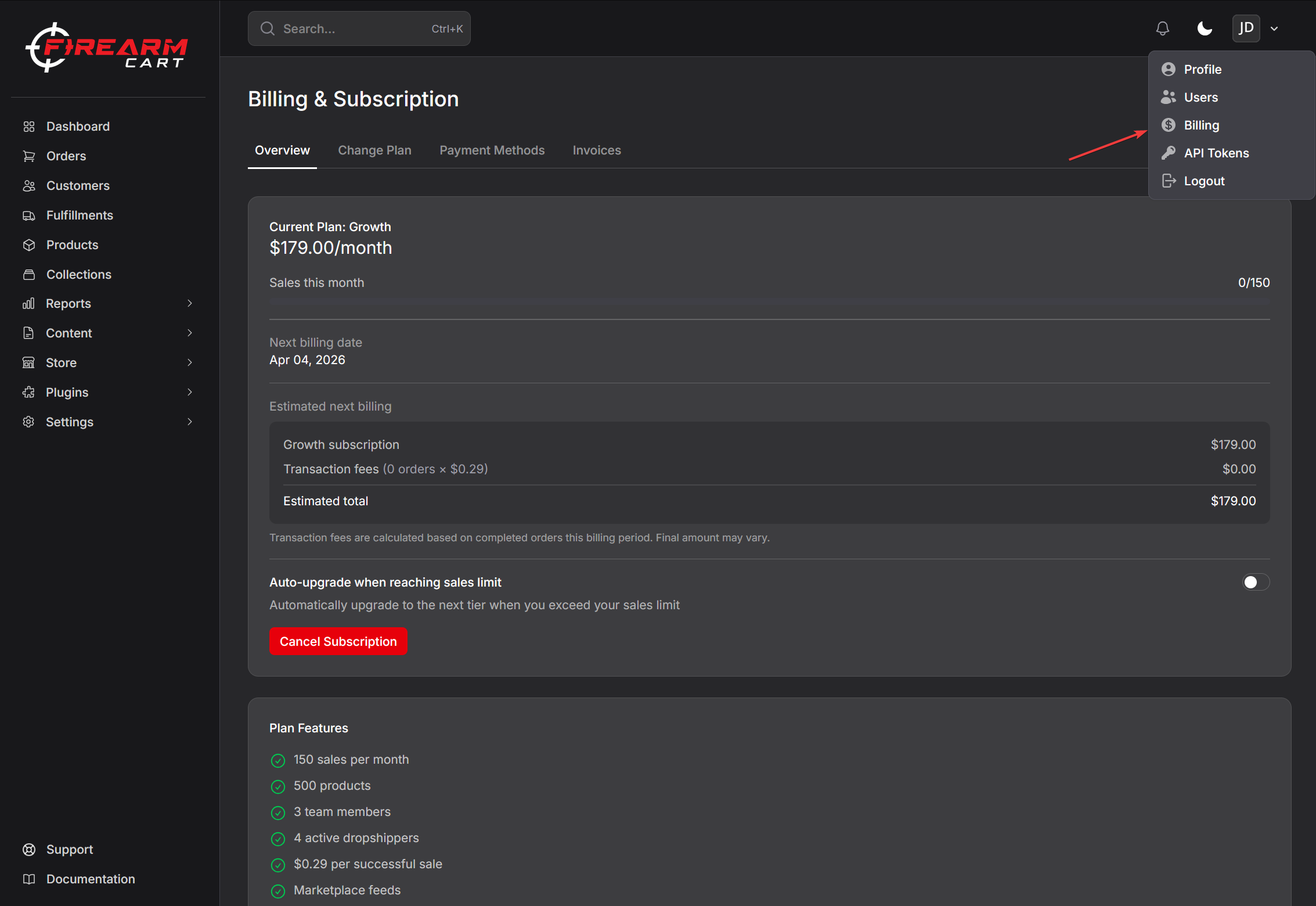
Your Subscription
Viewing Your Plan
Go to Settings > Billing to see:
- Your current plan and price
- Your product and distributor allowances
- Your distributor sync window
- Your next billing date
- Subscription status
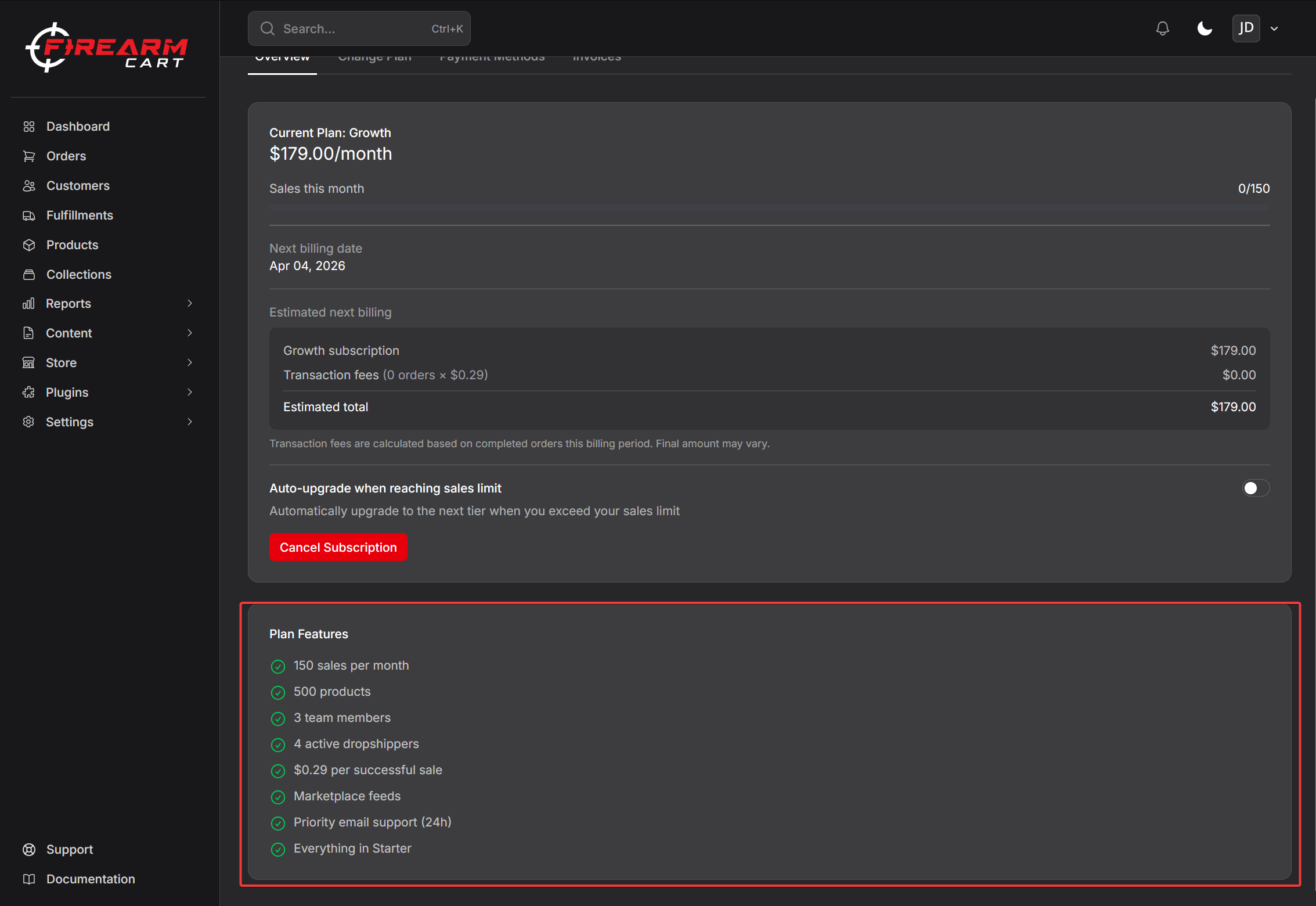
Distributor Sync Window
Each plan syncs your connected distributor catalogs (inventory and pricing) on a set cadence:
- Starter — every 12 hours
- Growth — every 6 hours
- Pro — hourly
Higher plans keep your catalog fresher between syncs.
Subscription Plans
Available Plans
| Plan | Price | Products | Distributor sync |
|---|---|---|---|
| Starter | $79/month | 1,000 | Every 12 hours |
| Growth | $179/month | 5,000 | Every 6 hours |
| Pro | $349/month | Unlimited | Hourly |
What's Included
| Feature | Starter | Growth | Pro |
|---|---|---|---|
| Products | 1,000 | 5,000 | Unlimited |
| Active distributors | 2 | 4 | Unlimited |
| Distributor sync | Every 12h | Every 6h | Hourly |
| Team members | Unlimited | Unlimited | Unlimited |
| Transaction fee | $0.49/sale | $0.29/sale | $0.15/sale |
| Support | Email (48h) | Priority (24h) | Priority (4h) |
Changing Your Plan
Upgrading
To move to a higher plan:
- Go to Settings > Billing
- Click the Plans tab
- Select the plan you want
- Confirm the upgrade
You'll be charged a prorated amount for the rest of your billing period.
Downgrading
To move to a lower plan:
- Go to Settings > Billing
- Click the Plans tab
- Select the plan you want
- Confirm the downgrade
The change takes effect at your next billing date.
Payment Methods
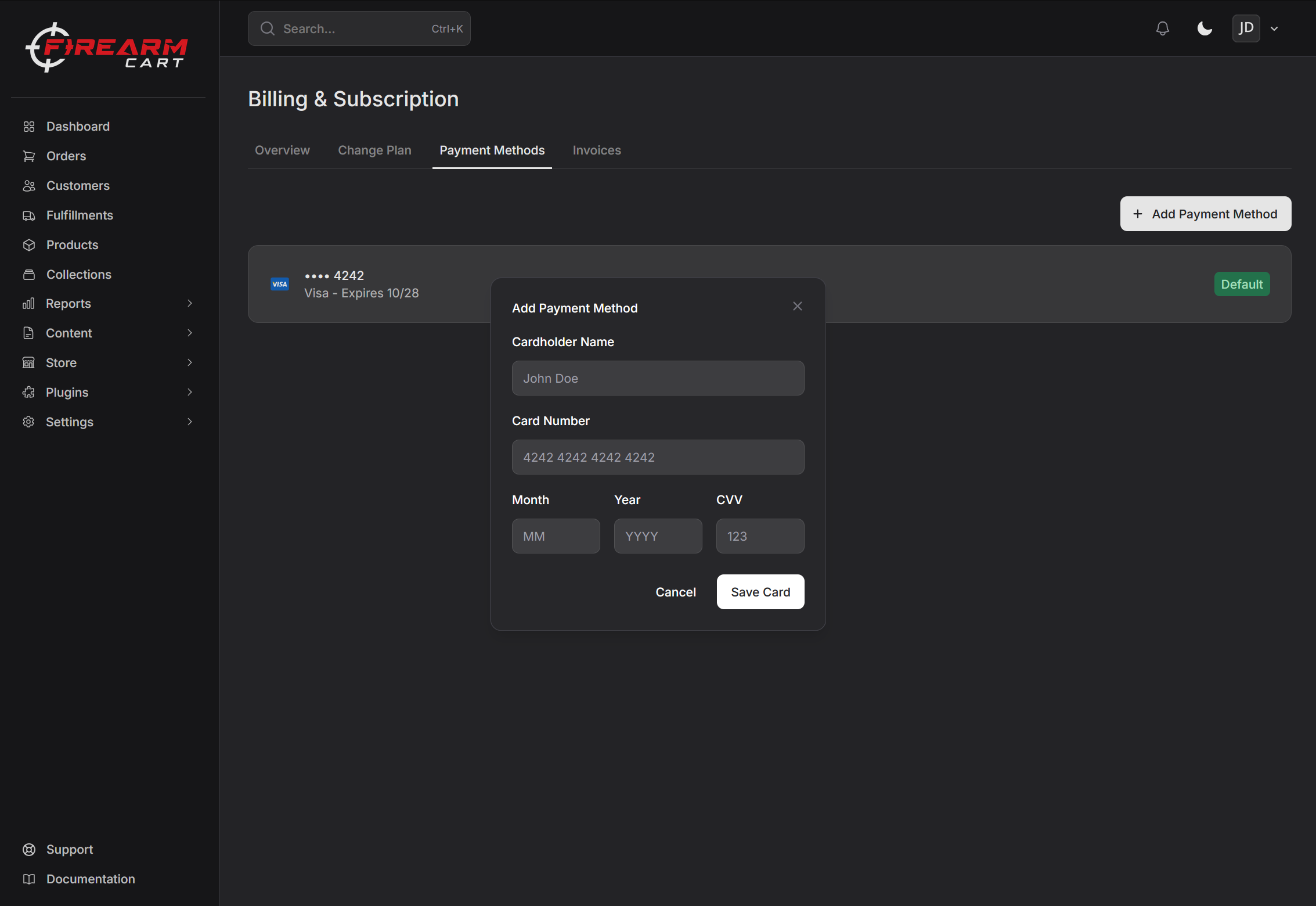
Adding a Card
- Go to Settings > Billing
- Click the Payment Methods tab
- Click Add Payment Method
- Enter your card details
- Save
Accepted Cards
- Visa
- Mastercard
- American Express
- Discover
Setting Your Default Card
If you have multiple cards:
- Go to Settings > Billing
- Click the Payment Methods tab
- Find the card you want to use
- Click Set as Default
Removing a Card
- Go to Settings > Billing
- Click the Payment Methods tab
- Find the card you want to remove
- Click Delete
Note: You must always have at least one payment method on file.
Invoices
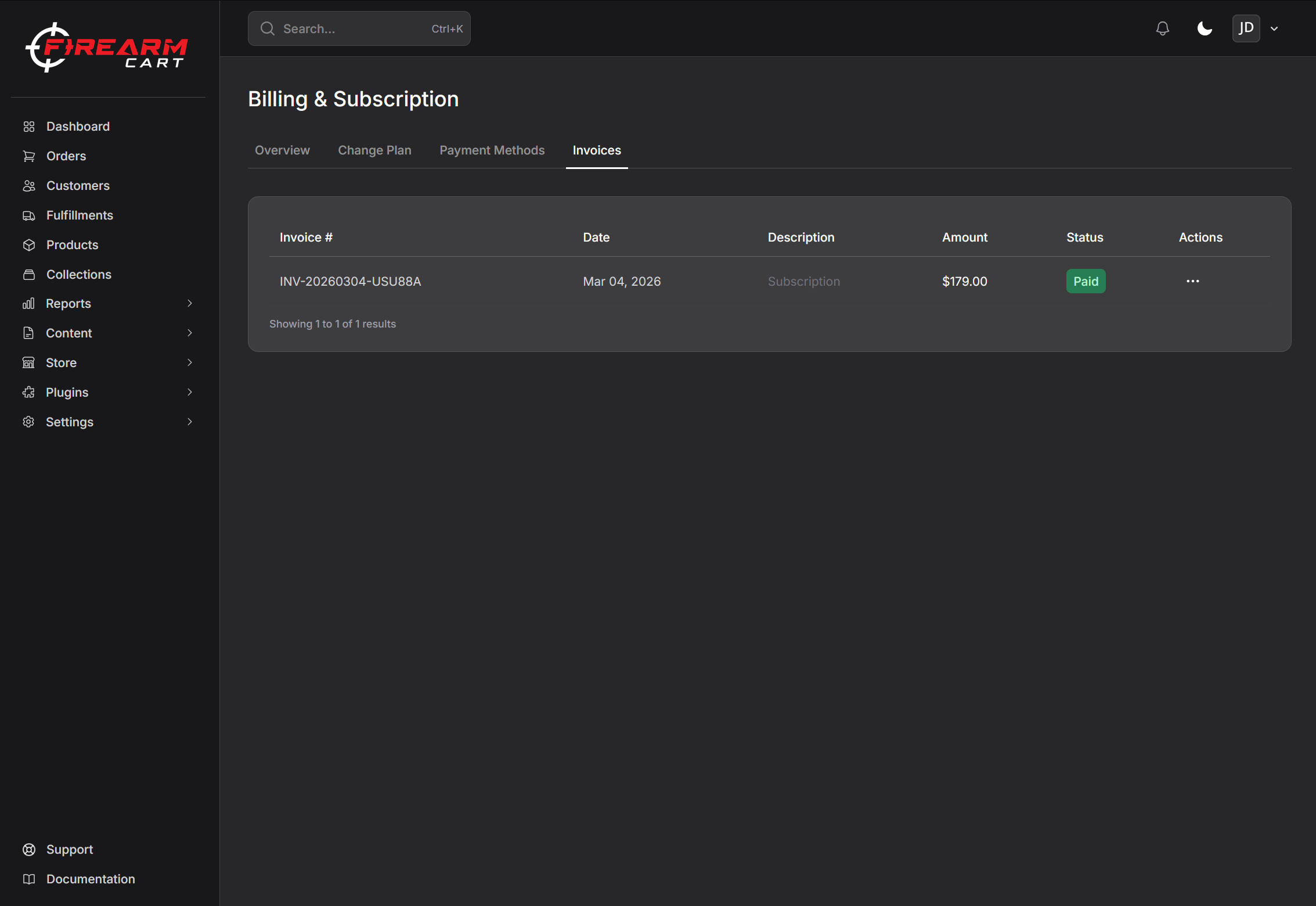
Viewing Your Invoices
- Go to Settings > Billing
- Click the Invoices tab
- See all your past invoices
Each invoice shows:
- Invoice number
- Date
- Amount
- Status (Paid, Failed, Pending)
Invoice Statuses
| Status | Meaning |
|---|---|
| Paid | Payment successful |
| Pending | Payment processing |
| Failed | Payment didn't go through |
Failed Payments
What Happens
If your payment fails:
- You'll see a notice on the billing page
- Your account may be marked as "Past Due"
- You'll need to update your payment method or retry
Fixing a Failed Payment
- Go to Settings > Billing
- Make sure you have a valid payment method
- Click Retry Payment on the failed invoice
Common Reasons for Failure
- Card expired
- Insufficient funds
- Card declined by bank
If your card keeps failing, try adding a different card.
Cancelling Your Subscription
How to Cancel
- Go to Settings > Billing
- Click Cancel Subscription
- Confirm cancellation
What Happens After Cancelling
- You keep access until the end of your billing period
- Your store goes offline after that
- You can resubscribe anytime
Reactivating
If you cancelled but want to come back:
- Go to Settings > Billing
- Click Resume Subscription
- Your subscription continues
Common Questions
Why was I charged a different amount?
If you upgraded mid-month, you're charged a prorated amount for the remaining days in your billing period.
Can I get a refund?
Contact support through a support ticket to discuss refund requests.
Can I sync my distributor catalog more often?
Sync frequency is set by your plan — Starter every 12 hours, Growth every 6 hours, and Pro hourly. Upgrade to a higher plan for a tighter sync window.
My payment keeps failing
- Check that your card hasn't expired
- Make sure you have sufficient funds
- Try a different card
- Contact your bank if the issue persists
Related Documentation
- Team Members - Managing team access
- Getting Started - Initial setup