

Collections
Collections help customers browse and find products by grouping them together.
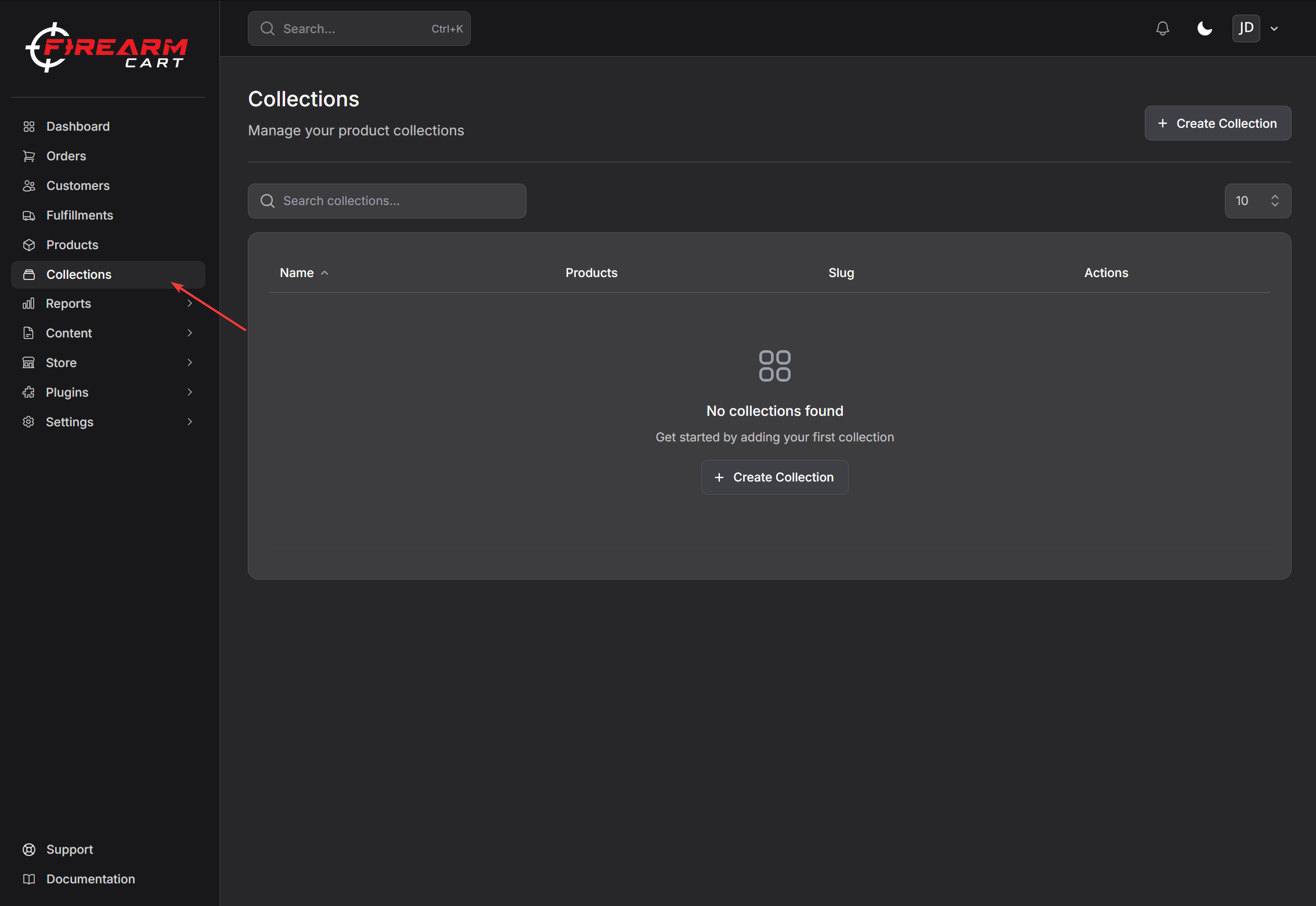
Viewing Collections
- Navigate to Products > Collections
- See all your collections with product counts
- Search collections by name
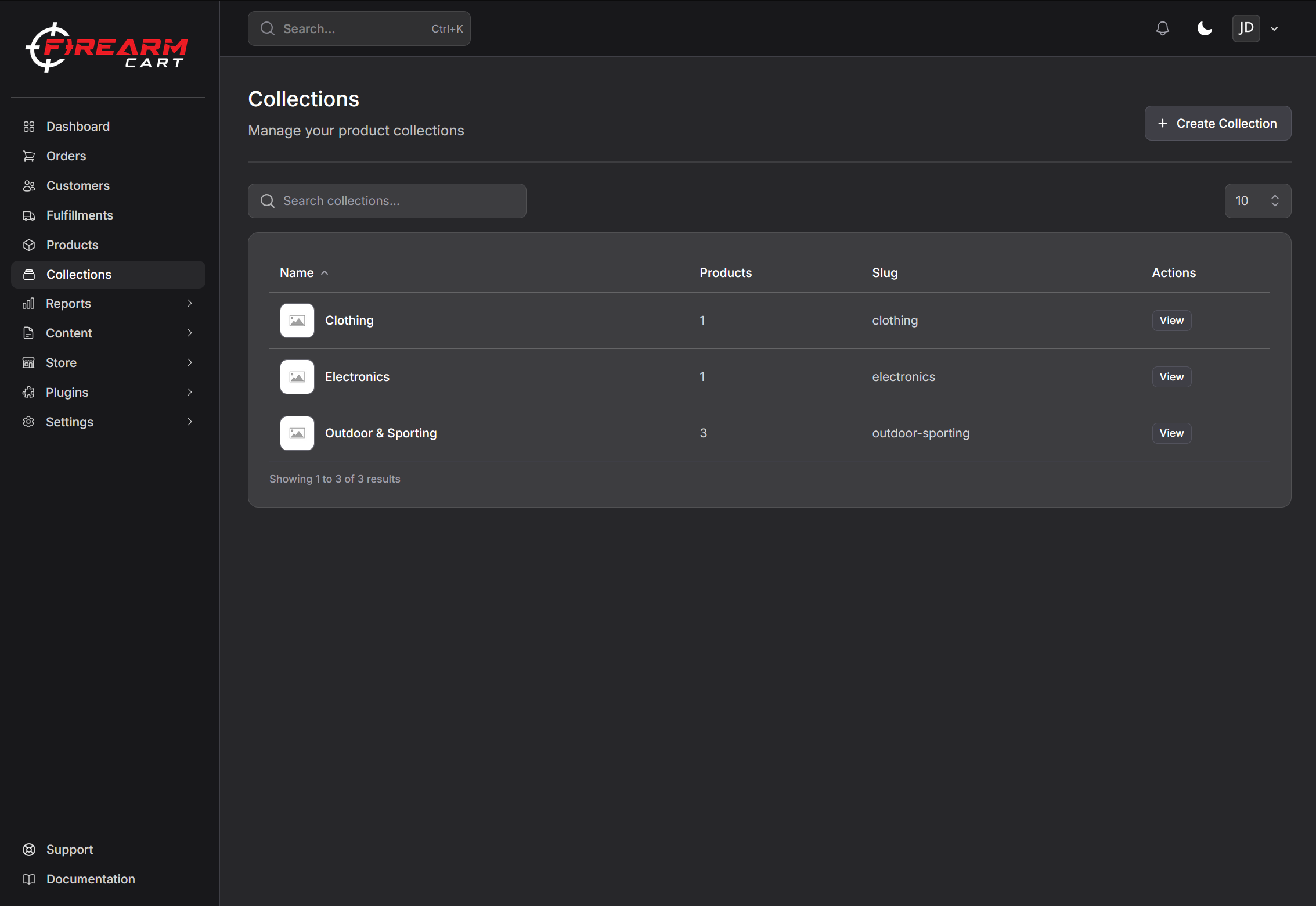
Creating a Collection
- Go to Products > Collections
- Click Add Collection
- Enter a collection name
- Click Create
The URL slug is automatically generated from the name.
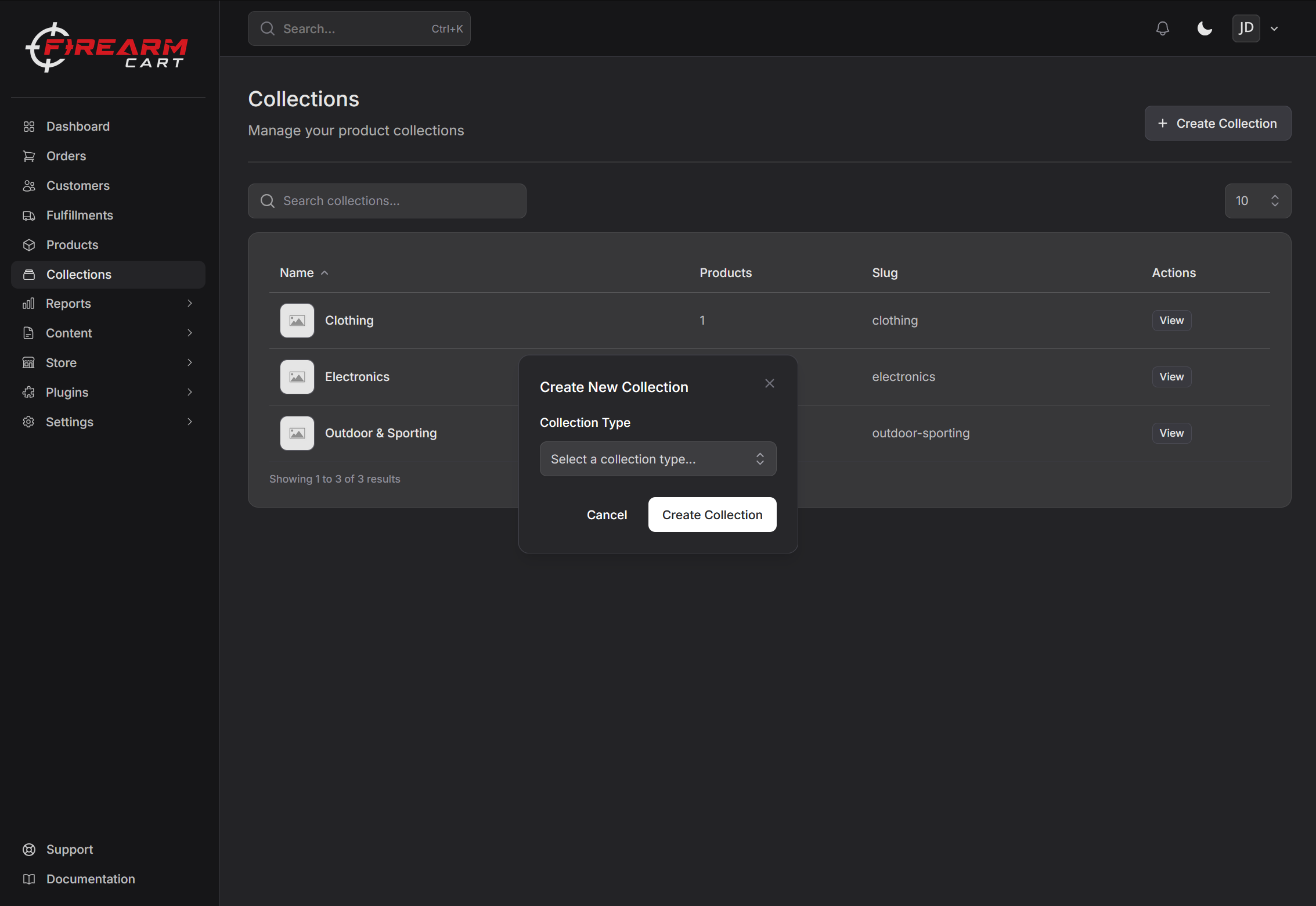
Collection Details
Open a collection to manage it:
Name and Slug
- Name - Displayed to customers
- Slug - URL path (auto-generated, editable)
Note: Changing the slug after publishing will break existing links.
Cover Image
Add a cover image for the collection:
- Click the cover image area
- Choose an option:
- Upload - Upload a new image
- Media Library - Choose from existing images
- Stock Images - Search Pixabay for free images
- Save
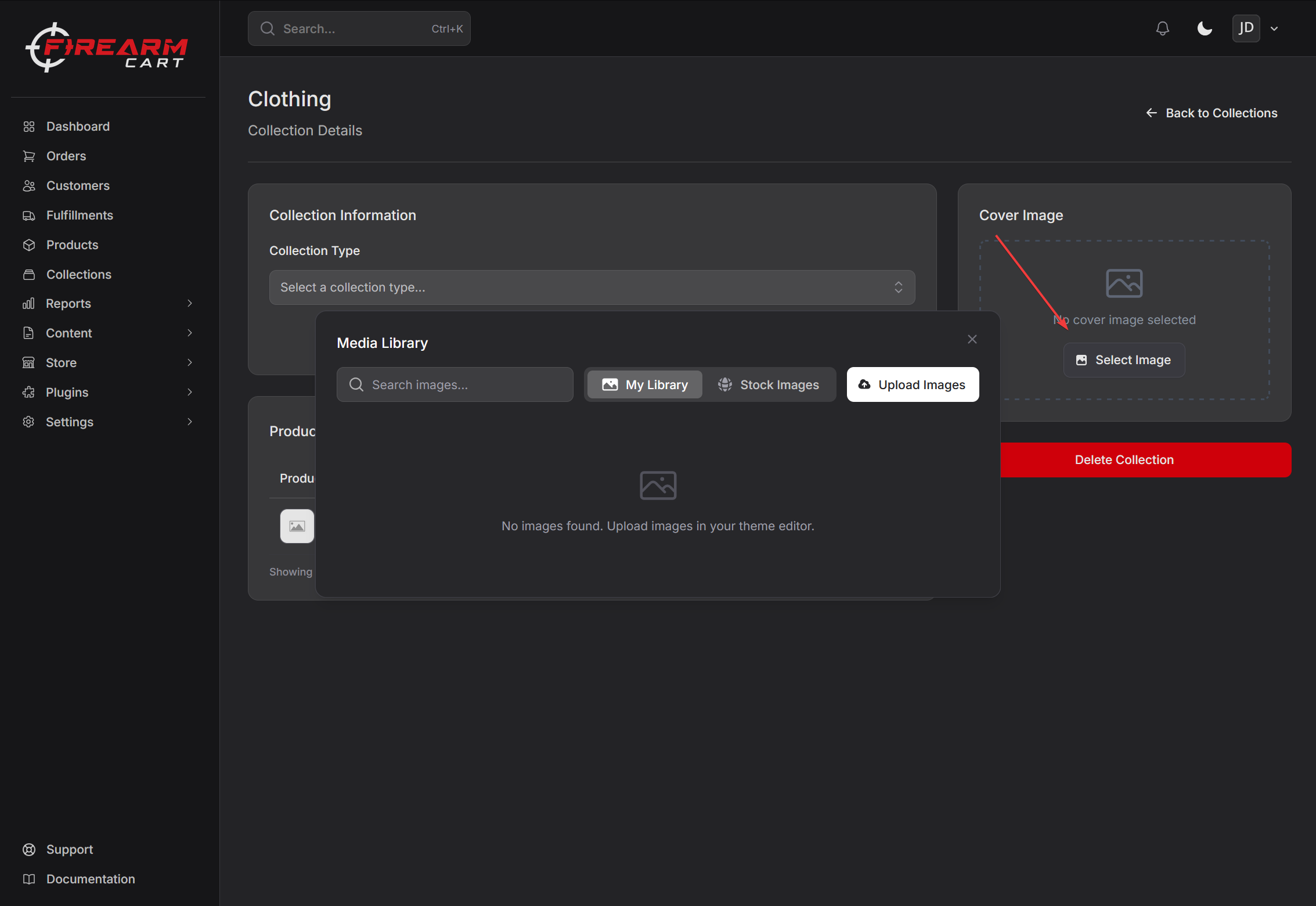
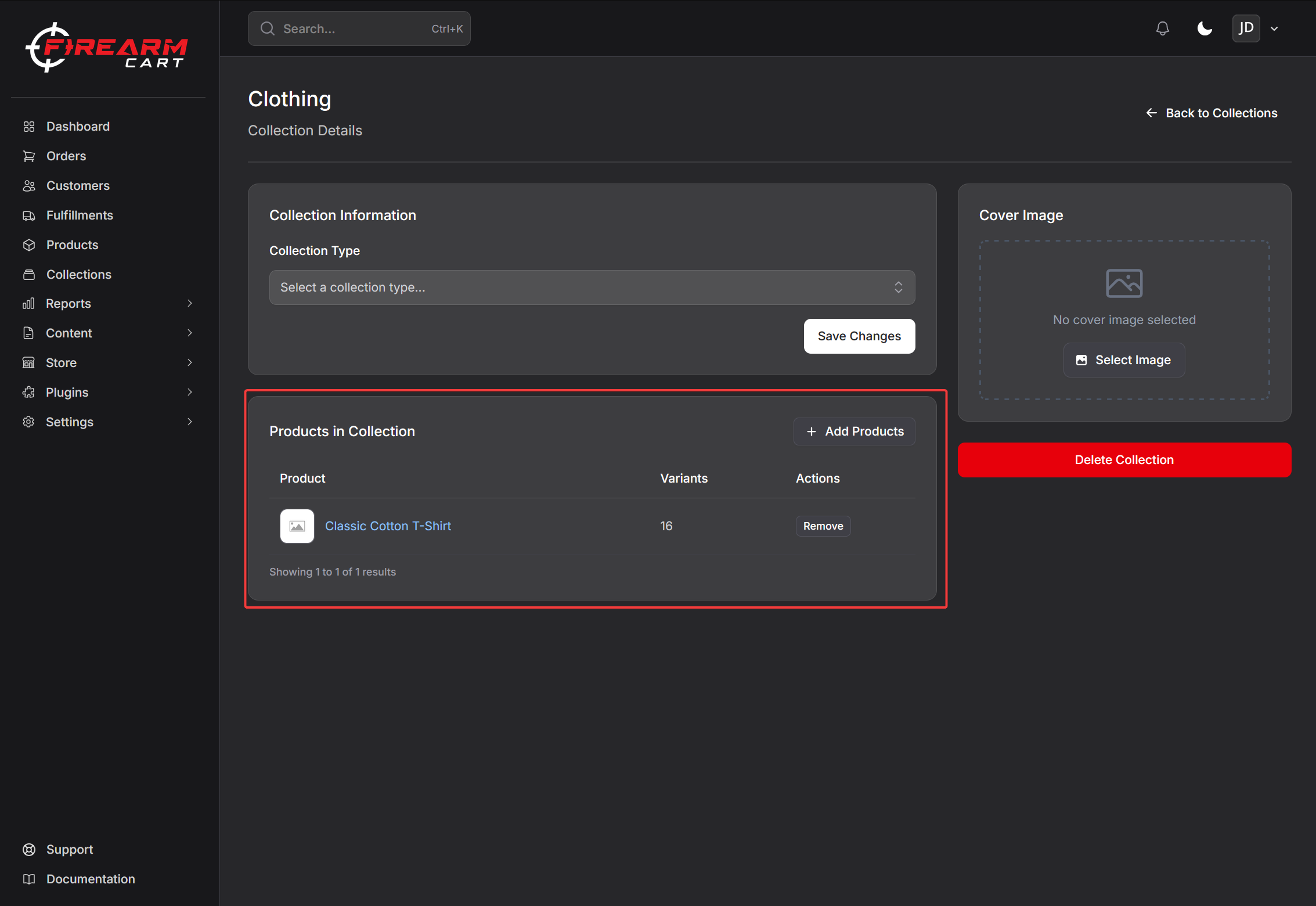
Managing Products
Adding Products
- Open the collection
- Click Add Products
- Search for products
- Select products to add
- Click Add
Removing Products
- Open the collection
- Find the product in the list
- Click the remove button
- Confirm removal
Deleting a Collection
- Open the collection
- Click Delete
- Confirm deletion
Products in the collection are not deleted, just unassigned.
Collection Examples
| Collection | Purpose |
|---|---|
| Handguns | All pistols and revolvers |
| Rifles | All long guns |
| Ammunition | All ammo types |
| On Sale | Discounted products |
| New Arrivals | Recently added products |
Related Documentation
- Creating Products - Add products to collections
- Visual Editor - Display collections on your store