

Scheduling Articles
Schedule articles to publish automatically at a future date and time.
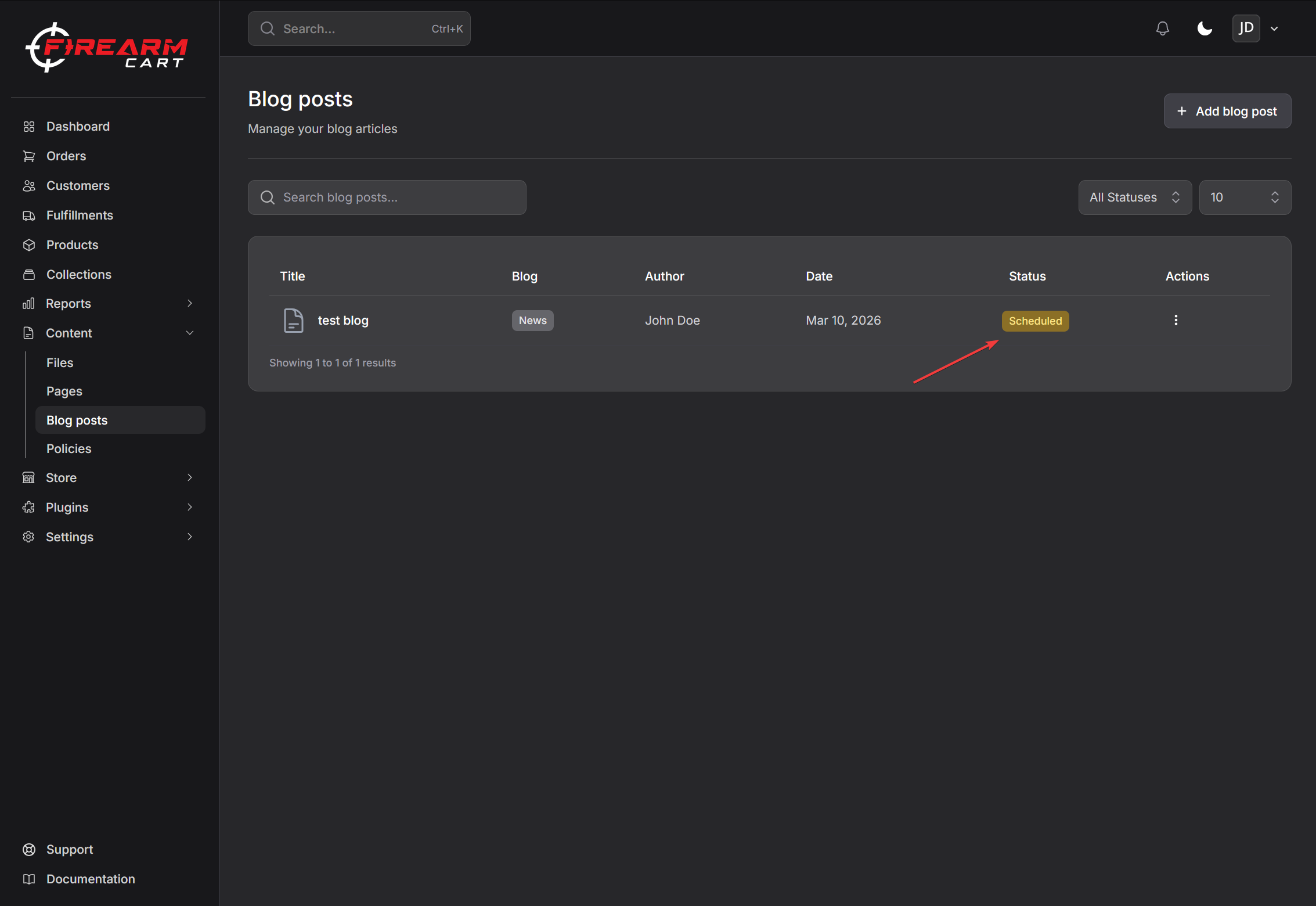
Overview
Article scheduling allows you to:
- Write content in advance
- Plan content calendars
- Publish at optimal times
- Maintain consistent posting schedules
How to Schedule an Article
- Navigate to Content > Blog posts
- Click Add blog post or edit an existing article
- Set status to Scheduled
- Enter the Publish Date & Time
- Click Save
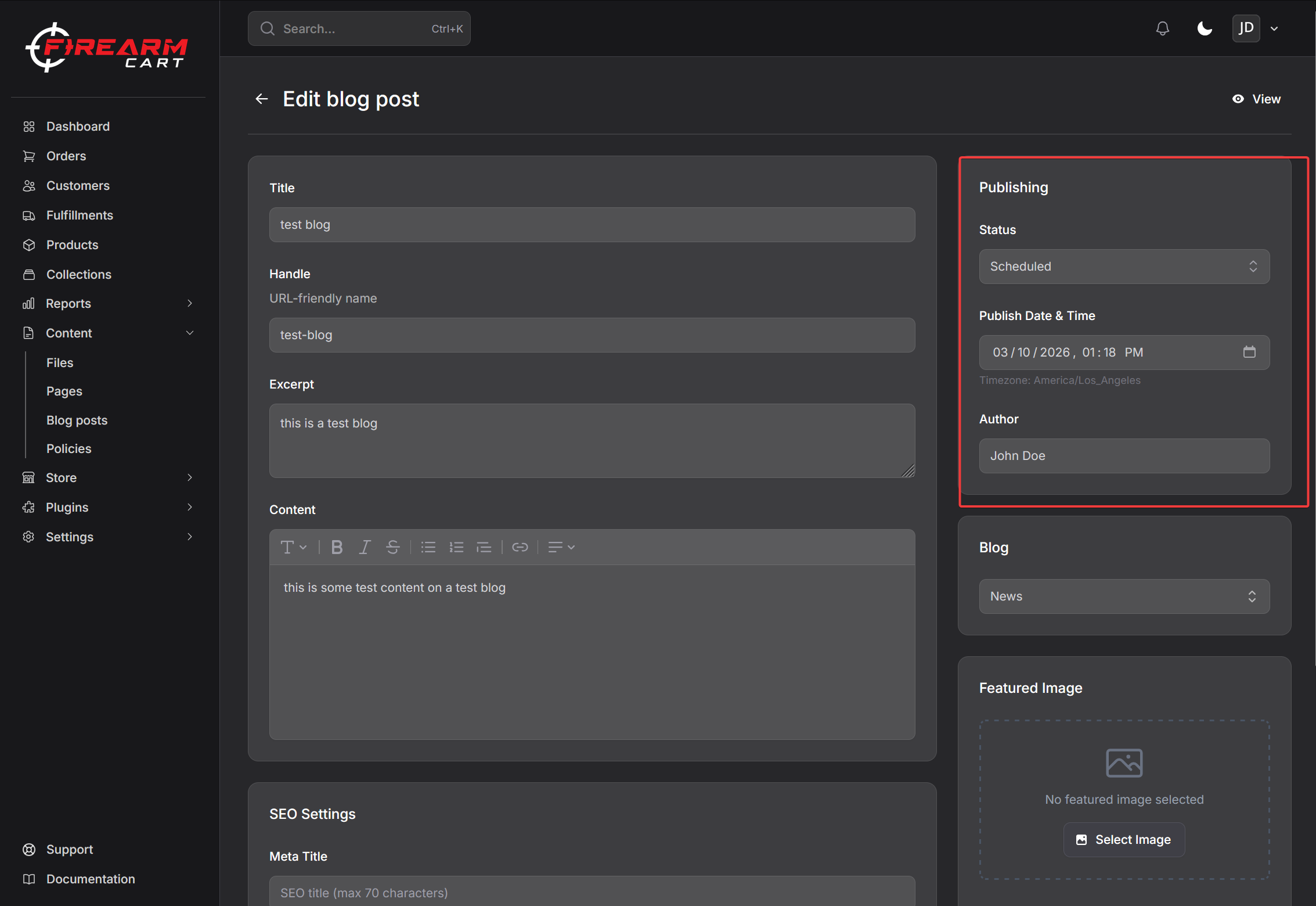
Scheduling Settings
Status
Select Scheduled from the status dropdown to enable scheduling.
Publish Date & Time
Enter when the article should publish:
- Date picker for selecting the date
- Time picker for selecting the time
- Displayed in your local timezone
Note: The time you set is in your account's timezone. The system converts this to UTC for accurate publishing regardless of your location.
Timezone Handling
Your Timezone
The scheduling interface displays times in your account's timezone setting.
Example: If you're in Eastern Time and schedule for 9:00 AM, the article publishes at 9:00 AM Eastern, regardless of where your server is located.
Changing Your Timezone
- Go to Account Settings
- Update your timezone
- Save changes
Scheduled times will display in your new timezone.
Auto-Publishing
Scheduled articles publish automatically:
- System checks every minute for articles ready to publish
- When the scheduled time arrives, status changes to Published
- Article becomes visible on your store
No action required - publishing happens automatically.
Managing Scheduled Articles
Viewing Scheduled Articles
- Navigate to Content > Blog posts
- Use the status filter to show Scheduled articles
- View the scheduled date for each article
Rescheduling
- Edit the scheduled article
- Change the date/time
- Save
Publishing Early
To publish a scheduled article immediately:
- Edit the article
- Change status to Published
- Save
Canceling Scheduled Publication
To keep an article unpublished:
- Edit the article
- Change status to Draft
- Save
Status Indicators
| Badge | Meaning |
|---|---|
| Draft (gray) | Not scheduled, not published |
| Scheduled (amber) | Will publish at scheduled time |
| Published (green) | Live on your store |
Best Practices
Plan Ahead
- Schedule content weeks in advance
- Maintain a consistent posting schedule
- Use scheduling to align with marketing campaigns
Optimal Timing
- Research when your audience is most active
- Consider time zones of your customer base
- Test different posting times
Review Before Publishing
- Preview articles before scheduling
- Double-check publication dates
- Ensure all images and links work
Content Calendar
- Keep a calendar of scheduled content
- Avoid scheduling too many articles on the same day
- Plan around holidays and events
Troubleshooting
Article Didn't Publish
If an article didn't publish at the scheduled time:
- Check the scheduled time was in the past
- Verify the status was set to Scheduled
- Confirm the publish date/time was saved
Wrong Time Published
If the article published at the wrong time:
- Check your account timezone setting
- Verify you selected the correct time
- Remember times display in your local timezone
Related Documentation
- Managing Articles - Create and edit articles
- Blog Categories - Organize posts into blogs