

Team Members
Add team members to your FirearmCart store to help manage day-to-day operations. Assign roles to control what each person can access.
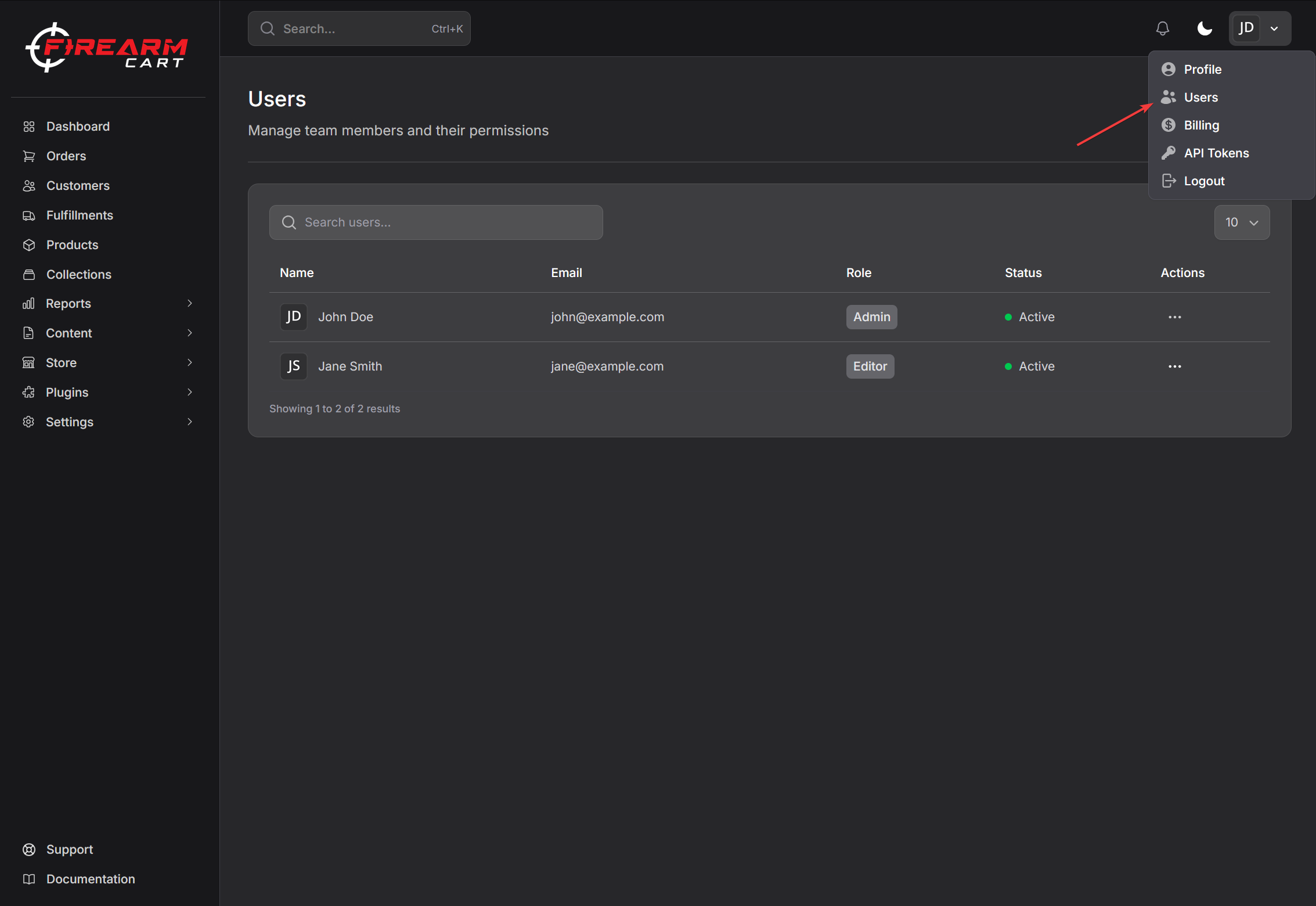
Overview
Why Add Team Members?
- Share the workload - Let others help manage products, orders, and customers
- Control access - Assign roles to limit what each person can do
- Stay organized - Everyone has their own login
Available Roles
| Role | What They Can Do |
|---|---|
| Owner | Everything, including billing and team management |
| Admin | Manage store, products, orders, and team members |
| Member | Manage products, orders, and customers |
Inviting Team Members
How to Invite Someone
- Go to Settings > Team
- Click Invite Member
- Enter their email address
- Choose their role (Admin or Member)
- Click Send Invitation
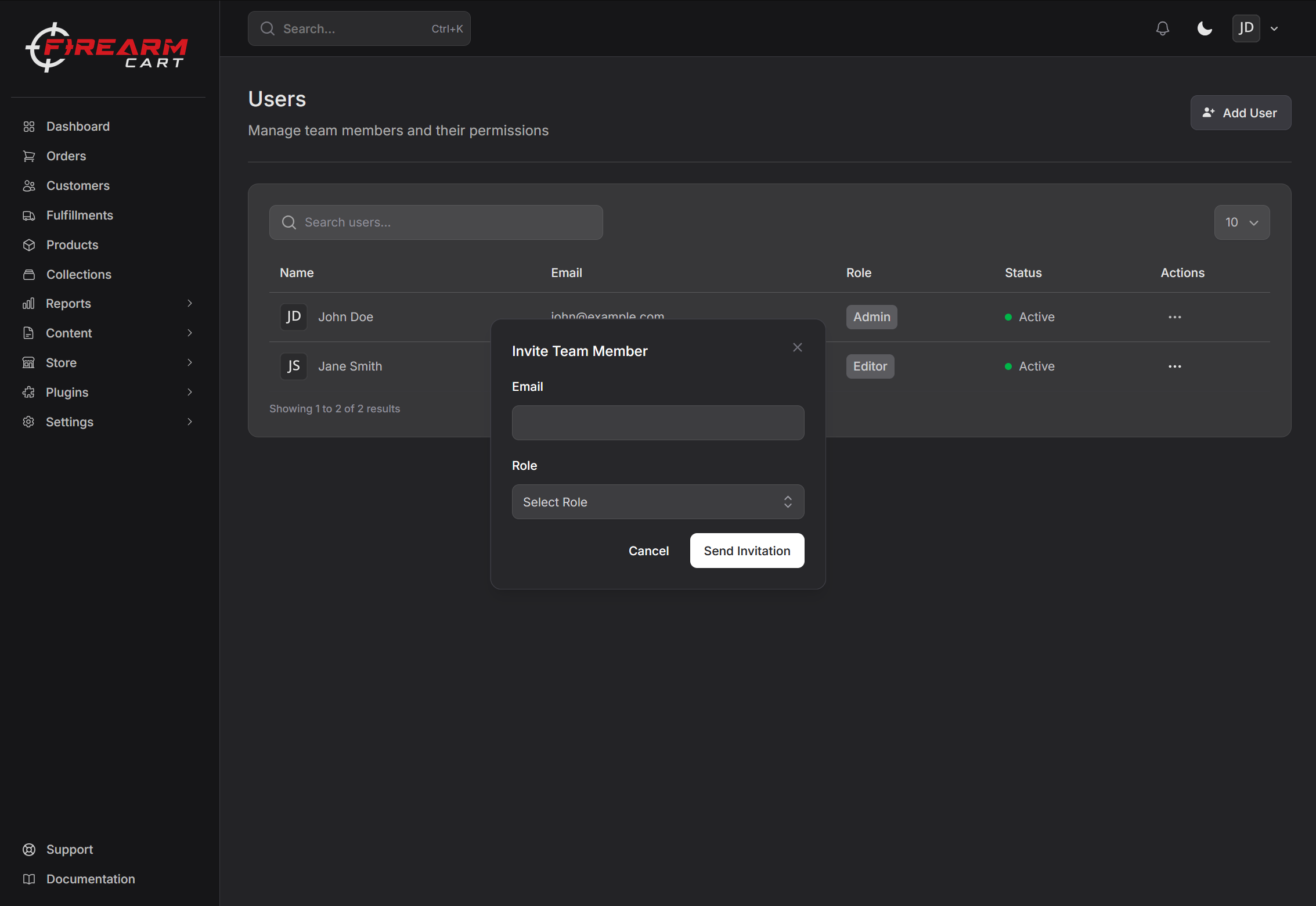
What Happens Next
- They receive an email invitation
- They click the link to accept
- They create their account (or log in if they already have one)
- They now have access to your store
Note: Invitations expire after 24 hours. You can resend if needed.
Managing Your Team
Viewing Team Members
Go to Settings > Team to see:
- All active team members
- Pending invitations
- Each person's role
You can search by name or email to find someone quickly.
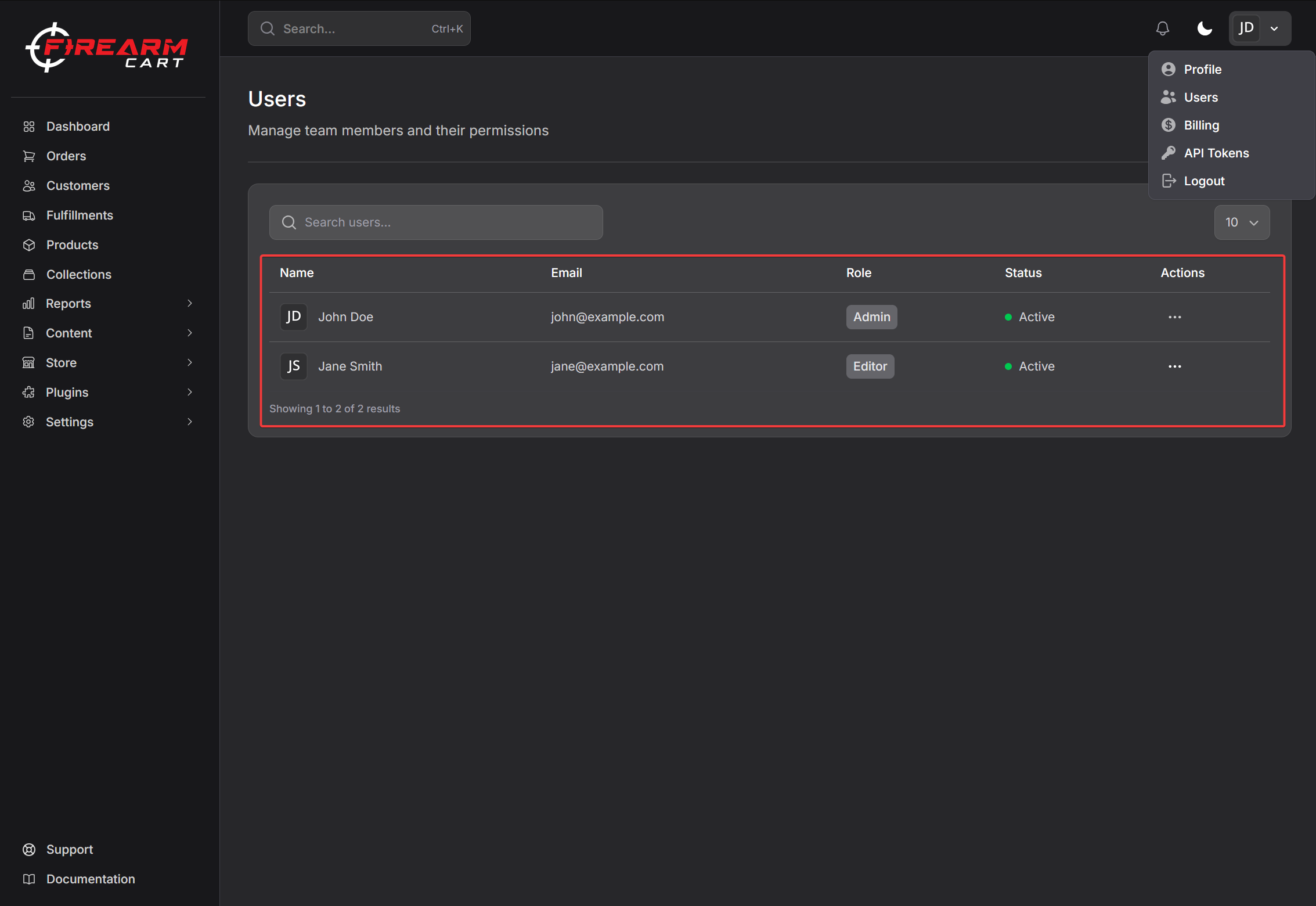
Changing Someone's Role
- Find the team member in the list
- Click the menu (three dots)
- Select Edit
- Choose their new role
- Save
Removing a Team Member
- Find the team member in the list
- Click the menu (three dots)
- Select Remove
- Confirm removal
Their access is revoked immediately.
Managing Invitations
For pending invitations, you can:
- Resend - Send the invitation email again
- Cancel - Remove the invitation
Understanding Roles
Owner
The owner has complete control:
- Access to billing and subscription
- Can add and remove team members
- Can manage all store settings
- Can delete the store
There's one owner per store (the person who created it).
Admin
Admins can manage most things:
- Add and remove team members
- Manage products, orders, and customers
- Access store settings
- Cannot access billing
Member
Members handle day-to-day tasks:
- Manage products and inventory
- Process orders
- View and manage customers
- Cannot manage team or settings
Common Questions
Someone didn't get their invitation
- Ask them to check their spam folder
- Verify you entered the correct email address
- Try resending the invitation
A team member can't access something
- Check their role - they may need Admin access
- Make sure they're logged into the correct account
I need to remove someone quickly
Go to Settings > Team, find them, click the menu, and select Remove. Their access is revoked immediately.
Related Documentation
- Billing - Manage your subscription
- Store Information - Store settings