

Managing Articles
Write, edit, and publish articles to engage your customers.
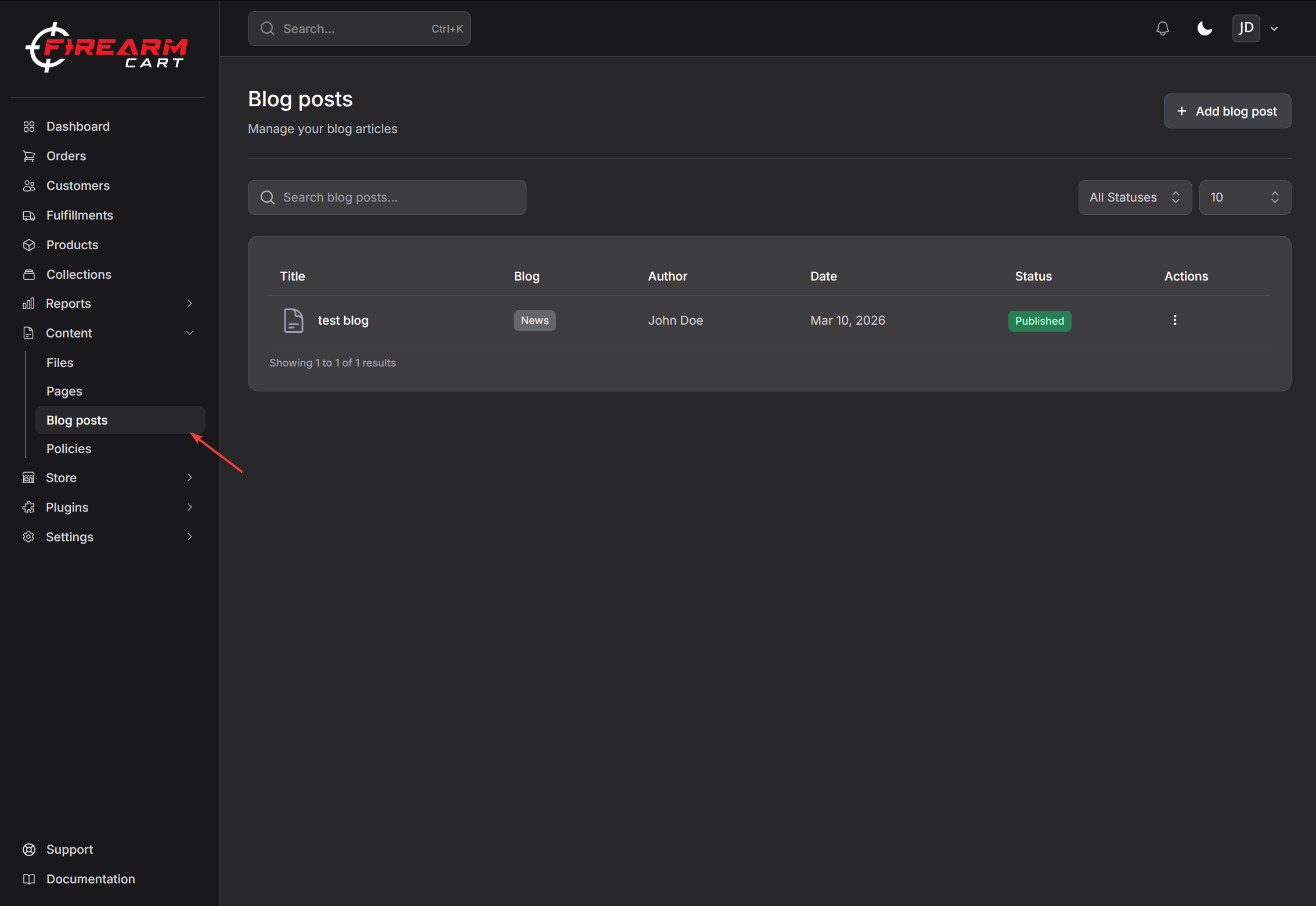
Creating an Article
- Navigate to Content > Blog posts
- Click Add blog post
- Select or create a blog category
- Enter article content
- Click Save or Publish
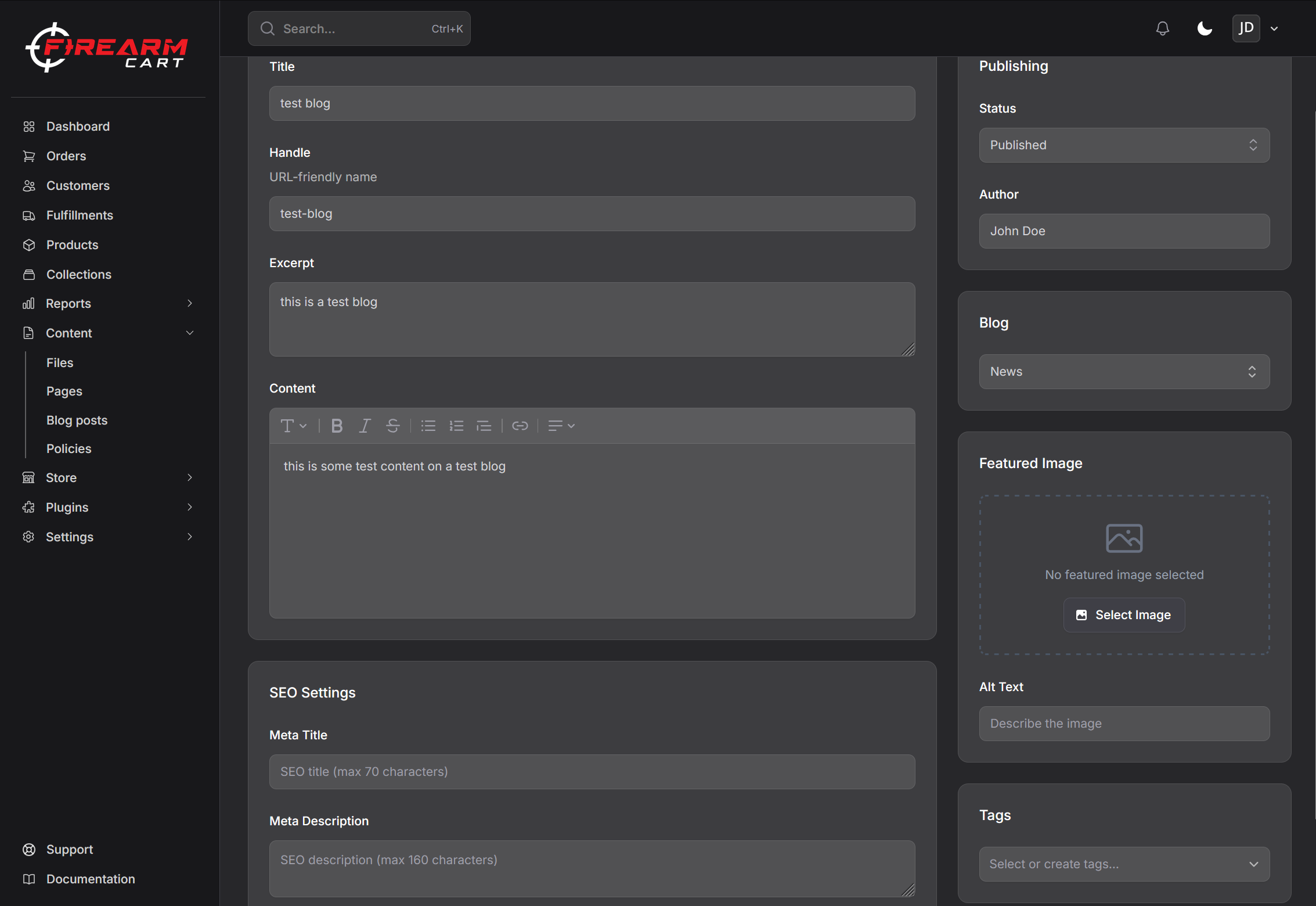
Selecting a Blog
Every article belongs to a blog category. In the article editor:
- Find the Blog dropdown in the sidebar
- Select an existing blog, or
- Type a new name and click Create to add a new blog
If no blogs exist, a "News" blog is created automatically.
Article Details
Title
The article headline displayed to readers.
Tips:
- Use clear, descriptive titles
- Include keywords for SEO
- Keep it engaging
Handle
The URL-friendly slug for your article.
- Automatically generated from the title
- Can be customized
- Must be unique within the blog
Example: yourstore.com/blogs/news/new-product-launch
Excerpt
A short summary displayed in article listings and previews.
- Optional
- If blank, a truncated version of the content is used
- Maximum 500 characters
Content
The full article content using the rich text editor.
Features:
- Bold, italic, underline text
- Headings and paragraphs
- Bullet and numbered lists
- Links
- Images
- Code blocks
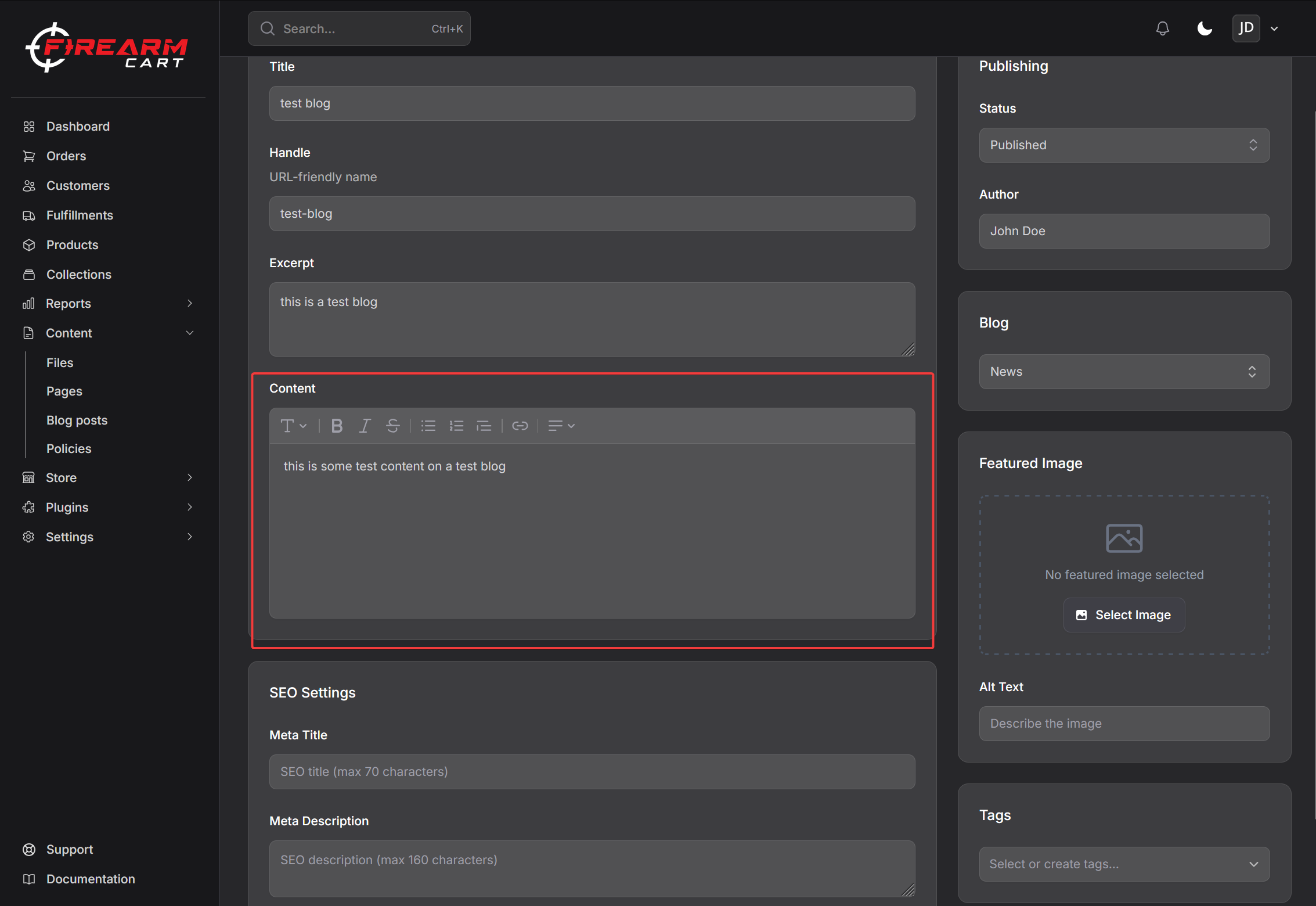
Featured Image
Add a featured image to display in article listings and social shares.
Uploading an Image
- Click Upload Image in the Featured Image section
- Select an image file
- Optionally add alt text for accessibility
Supported formats: JPG, PNG, WebP, GIF
Recommended size: 1200x630 pixels for optimal display
Alt Text
Describe the image for accessibility and SEO. This text is displayed if the image fails to load and read by screen readers.
Article Status
Status Options
| Status | Description |
|---|---|
| Draft | Not visible to customers |
| Published | Live and visible on your store |
| Scheduled | Will publish automatically at a future date/time |
Publishing an Article
- Set status to Published
- Click Save
The article is immediately visible on your store.
Saving as Draft
- Keep status as Draft
- Click Save
Continue editing later without making it public.
SEO Settings
Optimize articles for search engines:
| Setting | Description | Character Limit |
|---|---|---|
| Meta Title | Title shown in search results | 70 characters |
| Meta Description | Description shown in search results | 160 characters |
If not set, the article title and excerpt are used as defaults.
Managing Articles
Viewing All Articles
Navigate to Content > Blog posts to see all articles with:
- Article title and featured image
- Blog category
- Author name
- Published date
- Status badge
Filtering and Searching
- Search - Find articles by title
- Status filter - Filter by Draft, Published, or Scheduled
- Blog filter - Filter by blog category
Quick Actions
| Action | Description |
|---|---|
| Edit | Open the article editor |
| View | View published article on store (published only) |
| Toggle publish | Quickly publish or unpublish an article |
| Delete | Remove the article |
Editing an Article
- Click Edit on any article
- Make changes
- Click Save
Deleting an Article
- Click Delete on an article
- Confirm deletion in the modal
Warning: Deleted articles cannot be recovered.
Author Information
Articles automatically record the author (the user who created or last edited the article). The author name is displayed on the article.
Best Practices
- Use descriptive titles - Help readers understand what the article covers
- Include featured images - Visual content increases engagement
- Write quality excerpts - Compelling summaries encourage clicks
- Optimize for SEO - Fill in meta fields for better search visibility
- Use tags - Help readers discover related content
Related Documentation
- Blog Categories - Organize posts into blogs
- Scheduling - Schedule future publications
- Tags - Organize with tags
- SEO - Search optimization