

Theme Sections
Sections are modular building blocks that make up your store's pages. Add, configure, and rearrange sections to create your perfect layout.
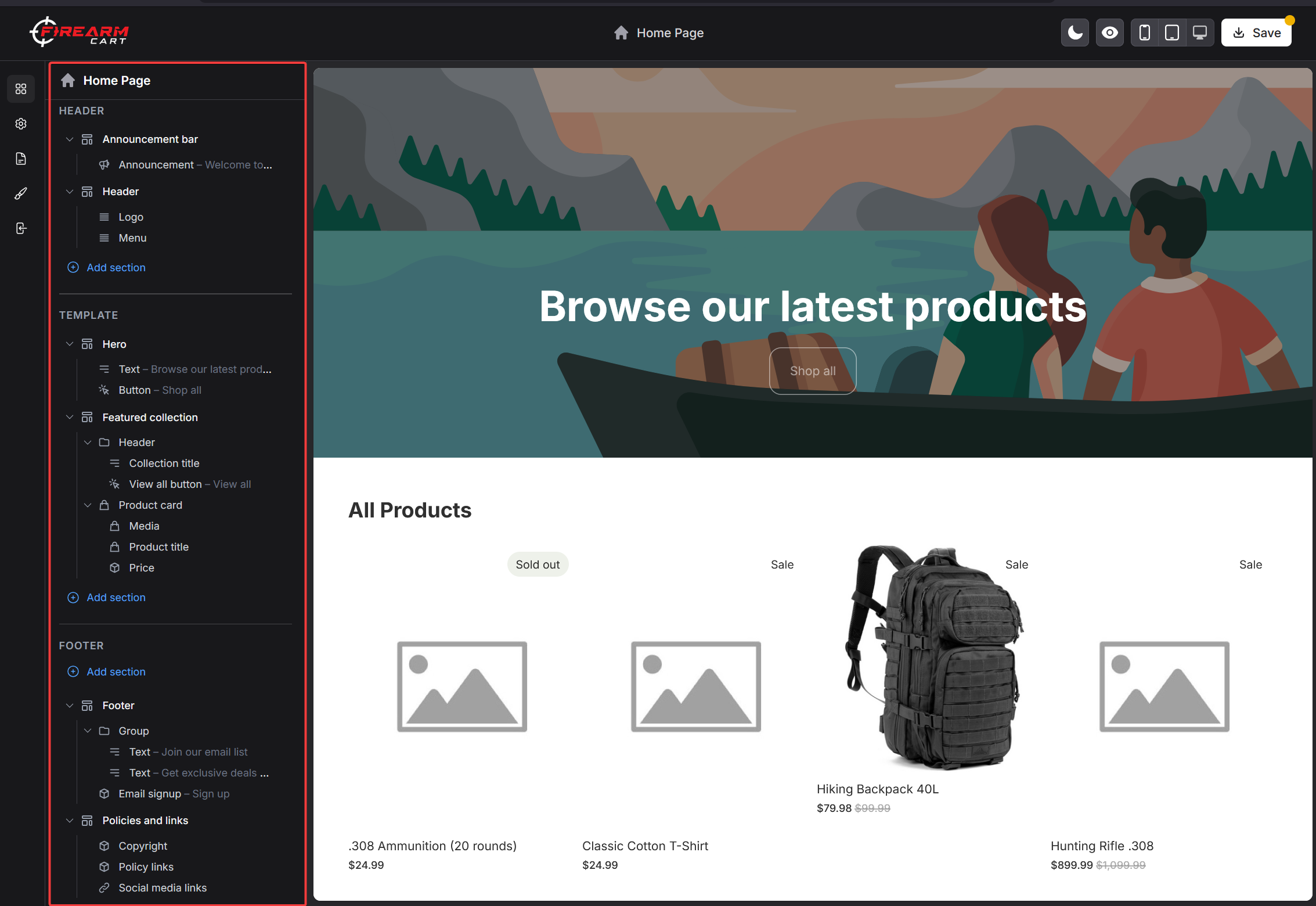
Theme Compatibility
FirearmCart supports modern themes that compose their layout via section groups — headers, footers, and body areas built from reusable sections. Legacy themes that include individual sections directly in their base layout can't be imported.
If a custom theme fails validation during import, a mismatched layout format is the most common cause. Newer themes (2024+) typically meet the requirement out of the box.
Section Overview
What Are Sections?
Sections are:
- Modular - Self-contained page components
- Configurable - Each has its own settings
- Reorderable - Drag to rearrange
- Reusable - Use the same section type multiple times
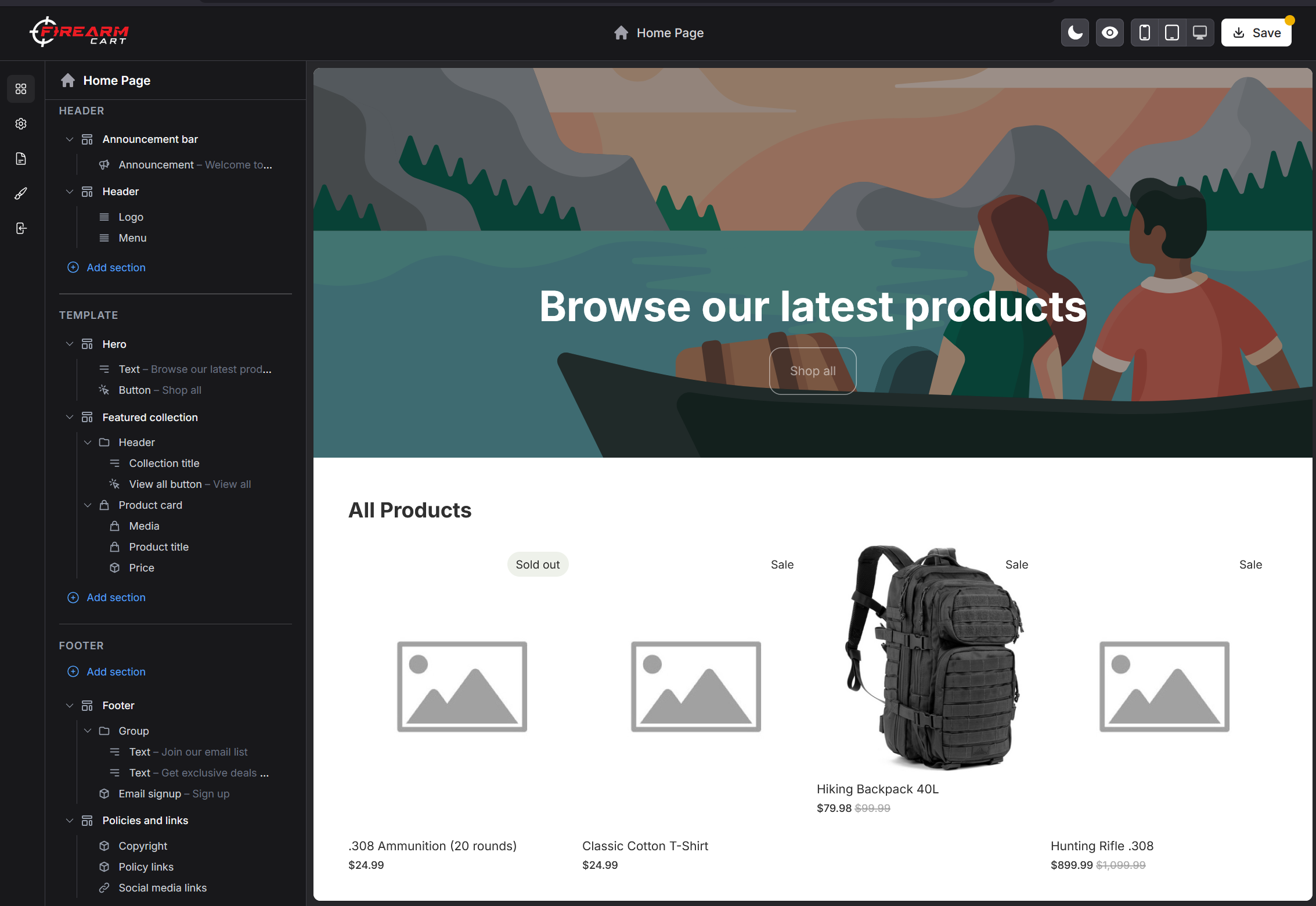
Section Types
| Category | Examples |
|---|---|
| Header/Footer | Header, announcement bar, footer |
| Hero | Slideshow, image banner, video |
| Products | Featured products, product grid |
| Collections | Collection list, featured collection |
| Content | Rich text, image with text, FAQ |
| Marketing | Newsletter, testimonials |
| Custom | Custom HTML, code blocks |
Adding Sections
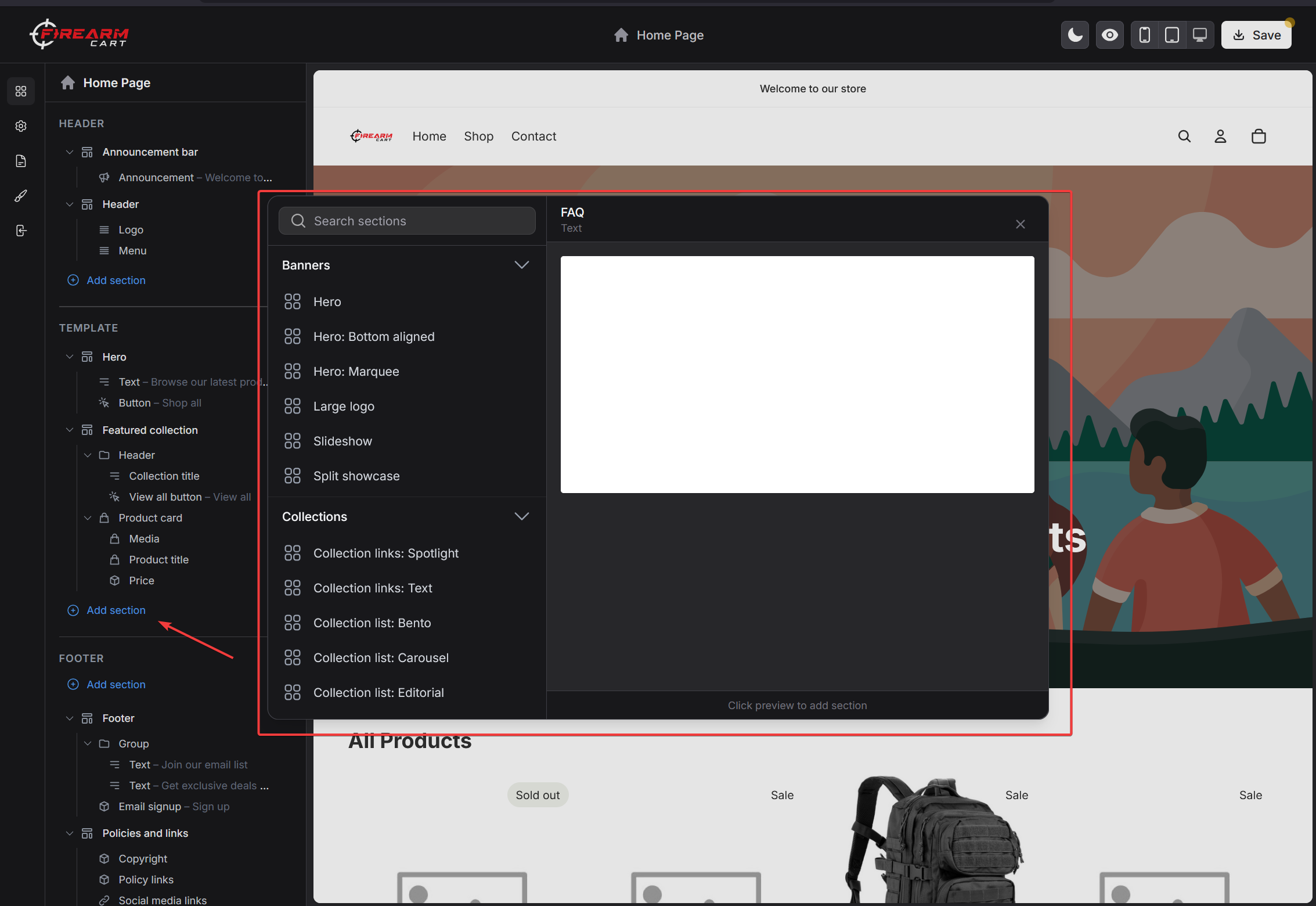
From the Visual Editor
- Open the Visual Editor
- Click Add section in the sidebar
- Browse available sections
- Click a section to add it
- Configure its settings
Section Placement
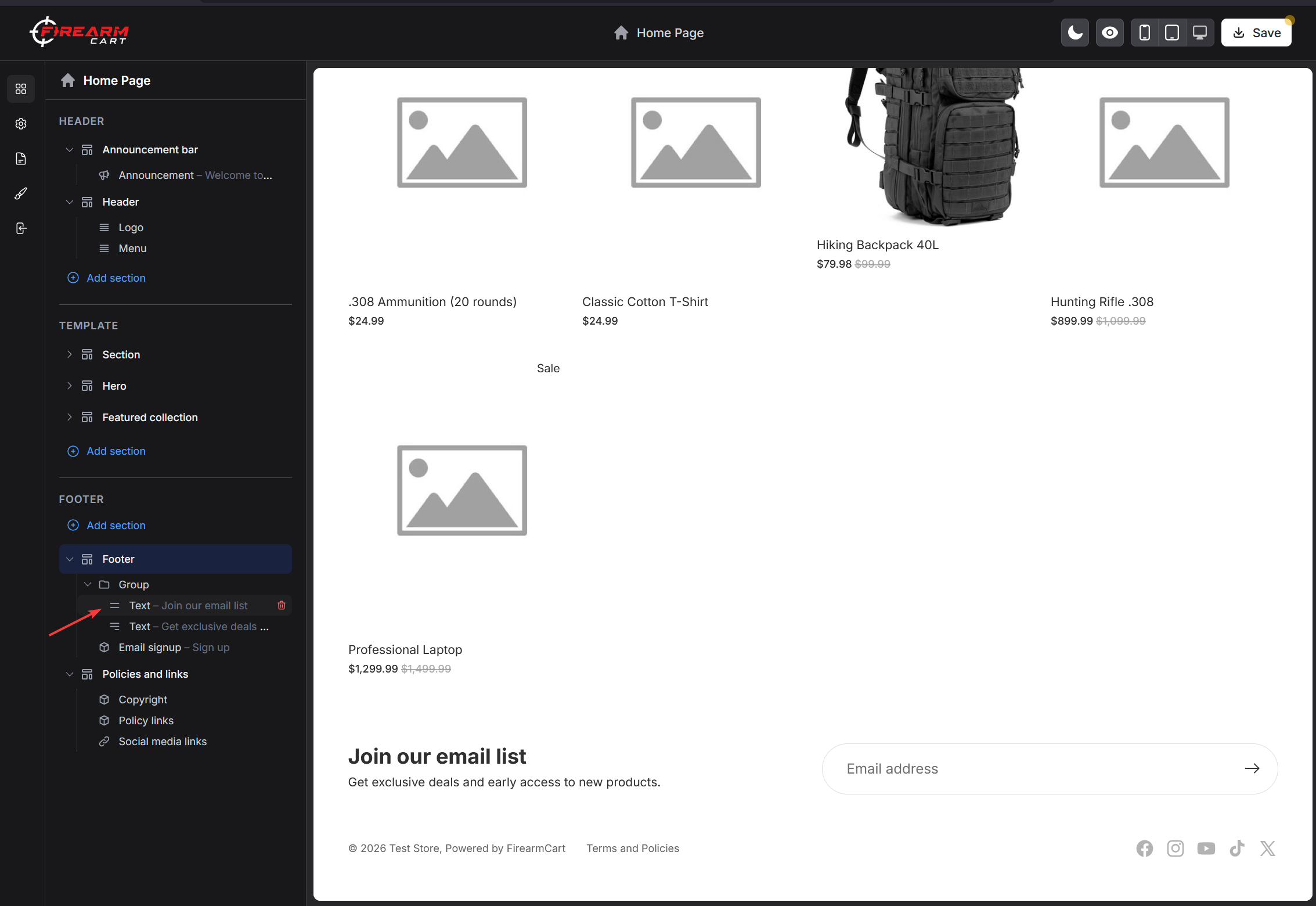
New sections are added at the bottom. To position:
- Drag the section in the sidebar
- Drop at desired position
- Section moves in preview
Adding Multiple Sections
You can add the same section type multiple times:
- Multiple image banners
- Multiple product grids
- Multiple text blocks
Each instance has independent settings.
Section Settings
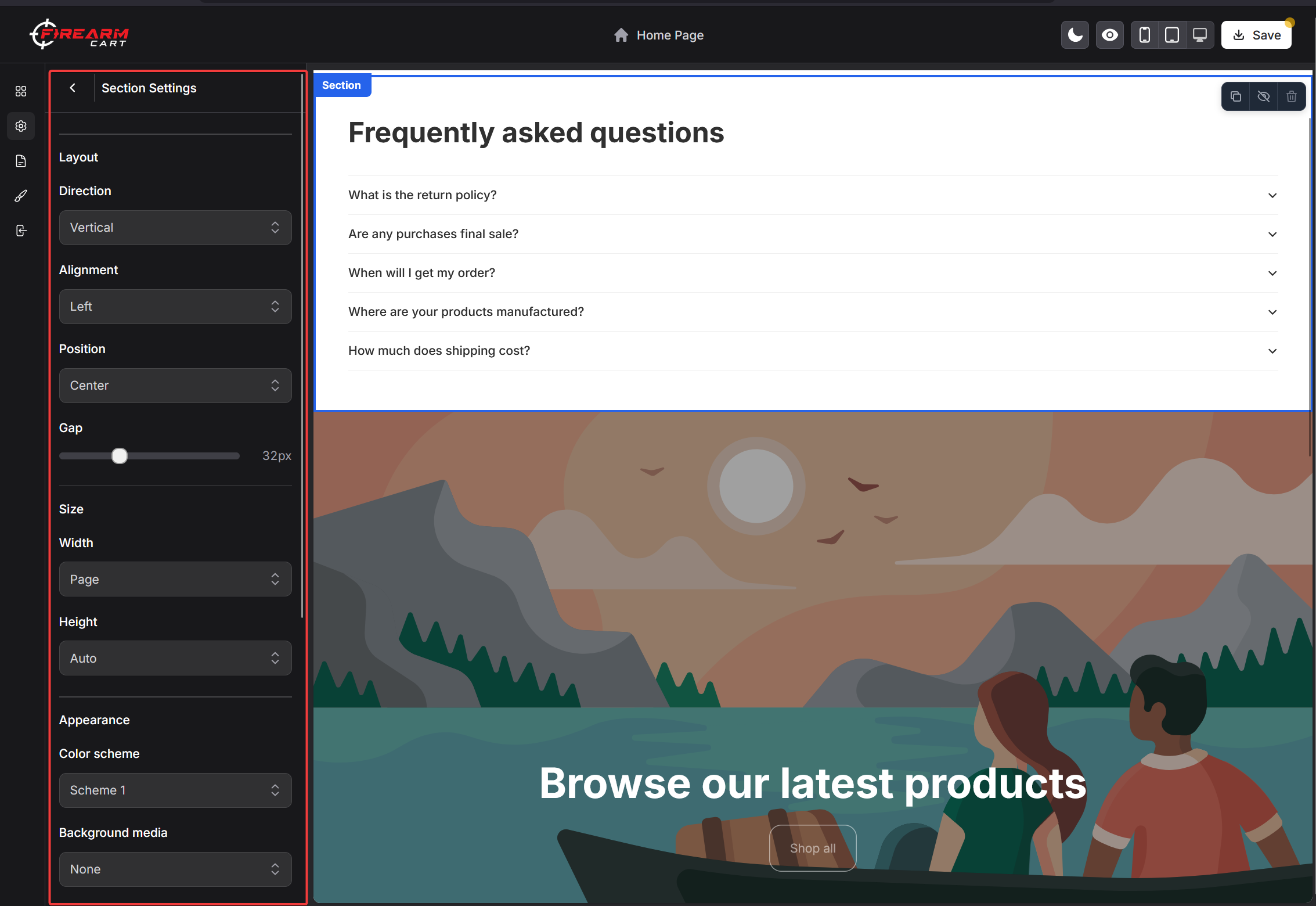
Accessing Settings
- Click on a section in the sidebar
- Settings panel opens
- Make changes
- Preview updates in real-time
Common Settings
Most sections include:
| Setting | Description |
|---|---|
| Heading | Section title |
| Subheading | Secondary text |
| Color scheme | Color palette for section |
| Padding | Top/bottom spacing |
| Full width | Extend to edge |
Setting Types
| Type | Control |
|---|---|
| Text | Text input field |
| Textarea | Multi-line text |
| Rich text | Formatted text editor |
| Number | Numeric input |
| Range | Slider control |
| Color | Color picker |
| Checkbox | On/off toggle |
| Select | Dropdown options |
| Image | Image picker |
| Collection | Collection selector |
| Product | Product selector |
| Link/URL | Link selector |
| Menu | Menu selector |
Available Sections
Available sections depend on your active theme. Open the Visual Editor's Add section panel to see what your theme provides — each section exposes its own settings panel when selected in the sidebar.
Section Blocks
What Are Blocks?
Blocks are repeatable elements within sections:
- Slides in a slideshow
- Columns in a multicolumn
- FAQ items in collapsible content
Adding Blocks
- Open a section with blocks
- Click Add block
- Select block type
- Configure block settings
Managing Blocks
| Action | How |
|---|---|
| Add | Click Add block |
| Edit | Click on block |
| Reorder | Drag and drop |
| Delete | Click trash icon |
| Duplicate | Click duplicate icon |
Block Limits
Some sections have block limits:
- Slideshow: typically 5-10 slides
- Multicolumn: 2-6 columns
- FAQ: unlimited items
Reordering Sections
Drag and Drop
- Hover over section in sidebar
- Grab the drag handle (⠿)
- Drag to new position
- Drop to place
Section Groups
Some sections belong to groups:
- Header group - Top of page
- Footer group - Bottom of page
- Main content - Reorderable area
Header and footer typically can't be moved out of their groups.
Duplicating Sections
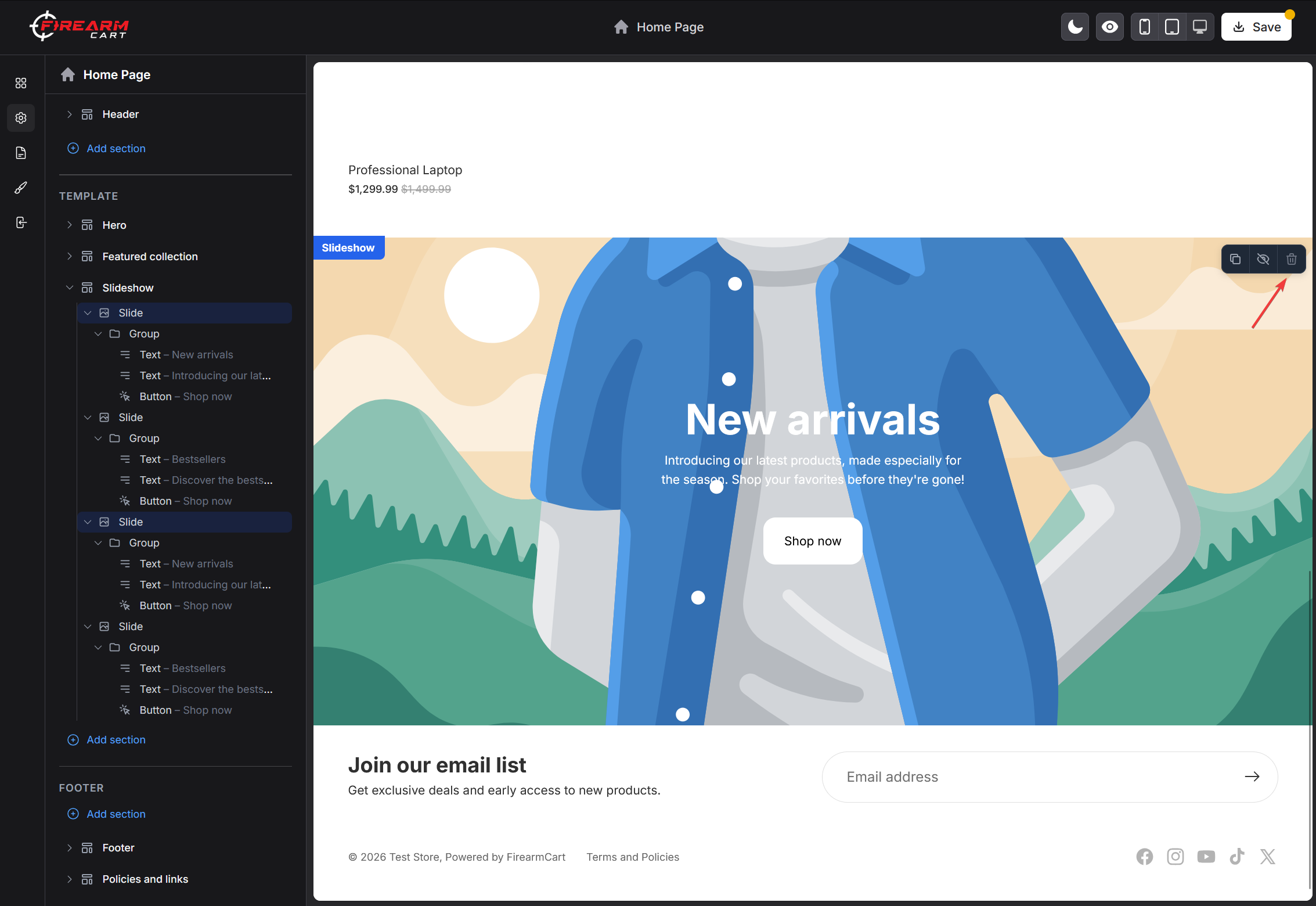
How to Duplicate
- Click section in sidebar
- Click ... menu (or duplicate icon)
- Select Duplicate
- New copy appears below
Use Cases
- Create similar sections with different content
- Test variations
- Backup before major changes
Removing Sections
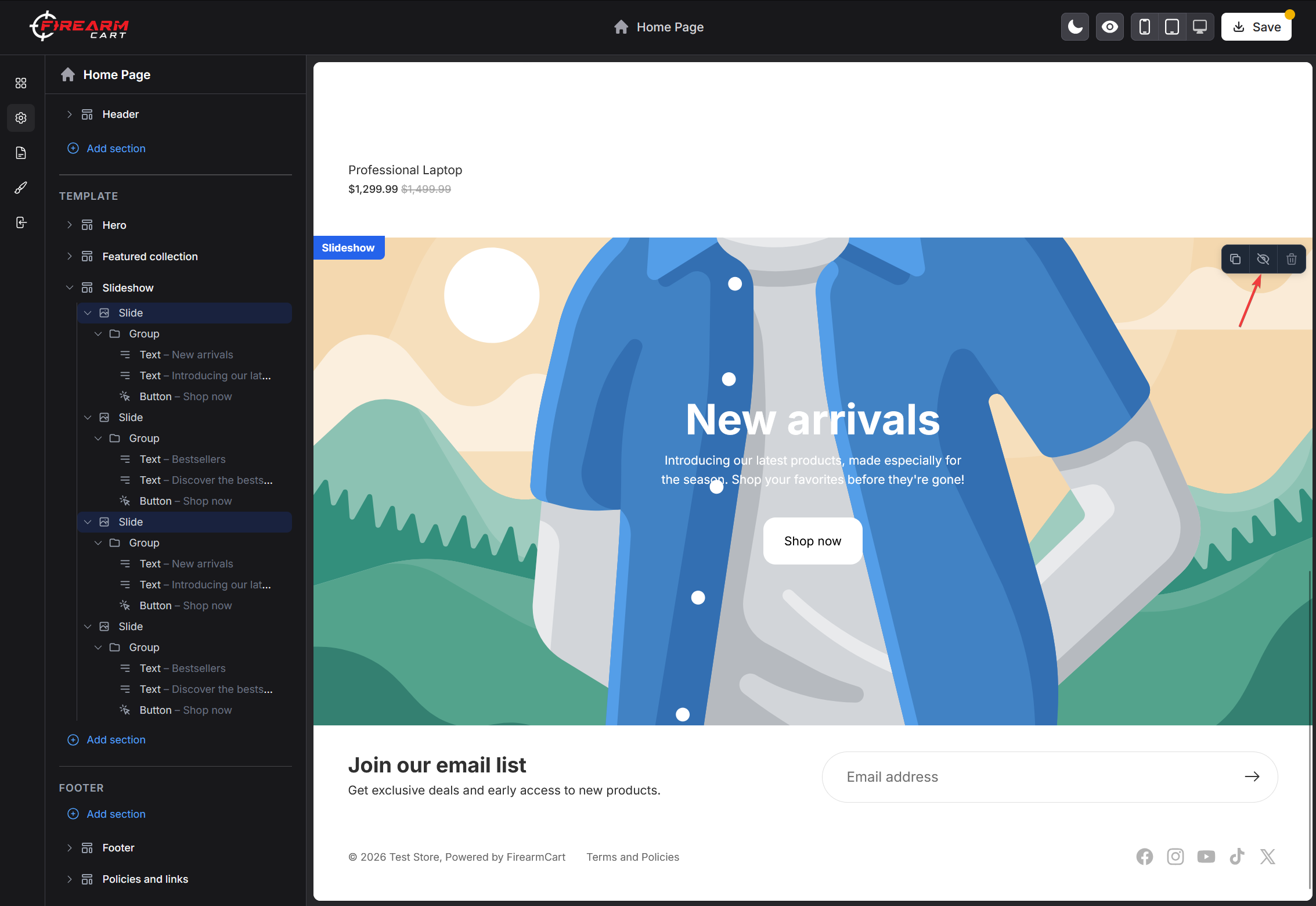
How to Remove
- Click section in sidebar
- Click ... menu (or trash icon)
- Select Remove
- Confirm deletion
Restoration
Removed sections cannot be recovered. If you need it back:
- Add the section type again
- Reconfigure settings
- Or revert all changes (don't save)
Section Visibility
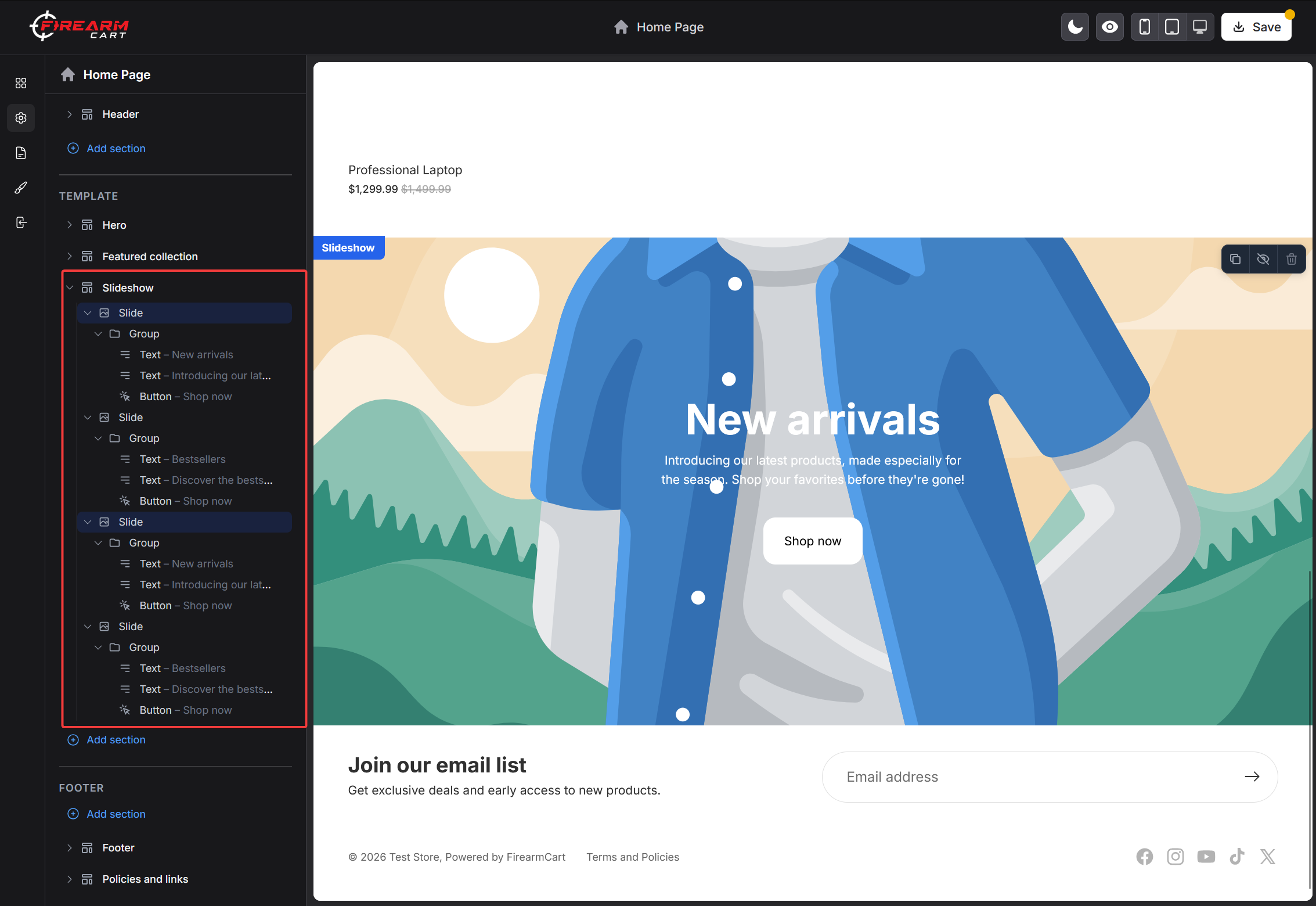
Hiding Sections
Some themes allow hiding sections:
- Open section settings
- Find visibility toggle
- Turn off to hide
- Section stays configured but hidden
Conditional Visibility
Some sections have conditions:
- Show only on certain pages
- Show only for logged-in users
- Show only when cart has items
Section Presets
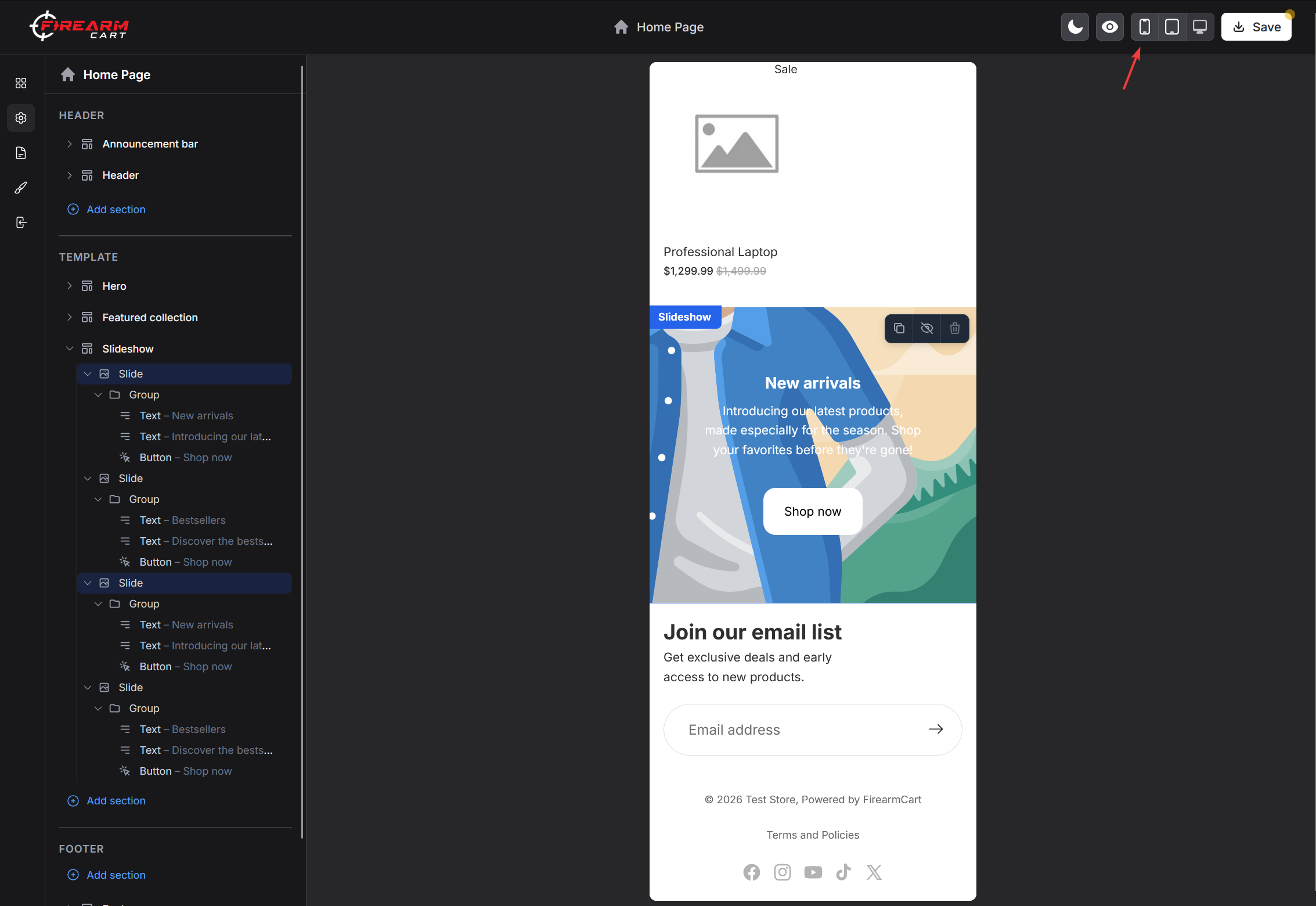
What Are Presets?
Pre-configured section setups:
- Ready to use
- Professional designs
- Customizable after adding
Using Presets
- Add section
- Some sections offer preset choices
- Select a preset
- Customize as needed
Firearm-Specific Sections
Product Specifications
Display firearm specifications:
- Caliber, action, barrel length
- Capacity, weight
- Uses
{{ product.specifications }}variable
FFL Information
For checkout/product pages:
- FFL selection interface
- Transfer information
- Compliance messaging
Age Verification
For age-restricted content:
- Age confirmation gate
- 18+ or 21+ requirement
- Cookie-based remembering
Mobile Responsiveness
Automatic Adaptation
Sections automatically adapt to mobile:
- Stacked layouts
- Smaller images
- Collapsed menus
- Touch-friendly controls
Mobile-Specific Settings
Some sections have mobile options:
| Setting | Description |
|---|---|
| Mobile image | Different image for mobile |
| Mobile columns | Fewer columns on mobile |
| Hide on mobile | Only show on desktop |
| Mobile height | Adjust section height |
Performance Considerations
Image Optimization
For sections with images:
- Use appropriately sized images
- Prefer WebP format
- Don't use images larger than needed
- Consider lazy loading (automatic)
Section Count
| Concern | Recommendation |
|---|---|
| Too many sections | May slow page load |
| Heavy sections | Limit per page |
| Video sections | Use sparingly |
Best Practices
- Keep home page focused
- Use appropriate section types
- Optimize all images
- Test page speed
Troubleshooting
Section Not Appearing
Symptoms: Added section not visible
Solutions:
- Check visibility settings
- Scroll to find it on page
- Verify content is added
- Check if hidden on current device
Settings Not Saving
Symptoms: Changes revert after save
Solutions:
- Ensure clicking Save button
- Check for validation errors
- Try refreshing and re-editing
- Clear browser cache
Layout Issues
Symptoms: Section looks wrong
Solutions:
- Check all required settings
- Verify images are uploaded
- Review color scheme
- Compare with theme demo
Mobile Display Problems
Symptoms: Section looks bad on mobile
Solutions:
- Use responsive preview
- Check mobile-specific settings
- Reduce content if needed
- Test on actual device
Best Practices
Design
- Consistent styling - Use color schemes
- Visual hierarchy - Important content first
- White space - Don't overcrowd
- Clear CTAs - Obvious buttons
Content
- Quality images - High resolution
- Concise text - Get to the point
- Relevant products - Curated selections
- Updated content - Keep fresh
Organization
- Logical order - Sensible flow
- Limit sections - Quality over quantity
- Test thoroughly - All devices
- Regular review - Keep current
Related Documentation
- Visual Editor - Editor overview
- Liquid Variables - Template variables
- Product Media - Image guidelines
- Collections - Collection setup