
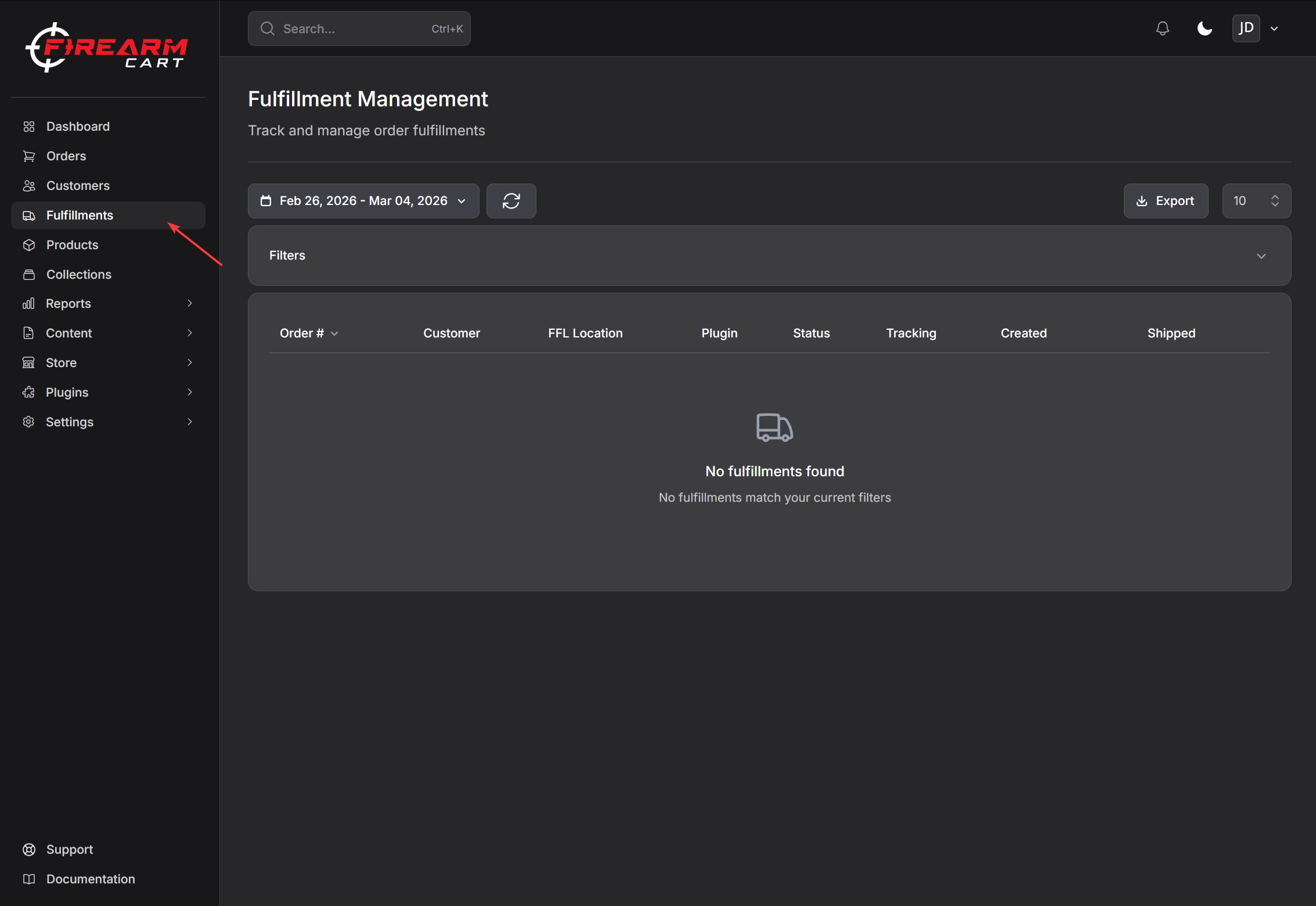
Fulfillment
Manage shipments and track order fulfillment.
Fulfillment Types
| Type | Description |
|---|---|
| Internal | You ship from your location |
| Chattanooga | Fulfilled by Chattanooga |
| Lipseys | Fulfilled by Lipseys |
| RSR | Fulfilled by RSR |
| 2AW | Fulfilled by 2AW |
| ShipStation | Managed via ShipStation integration |
Fulfillment Status
| Status | Description |
|---|---|
| Pending | Awaiting processing |
| Processing | Being prepared |
| Shipped | In transit |
| Delivered | Customer received |
| Canceled | Shipment cancelled |
| Error | Processing error |
Viewing Fulfillments
On an order detail page, the Fulfillment section shows:
- Current status
- Tracking number (when available)
- Carrier information
- Timeline of events
Fulfillment Actions
Cancel Fulfillment
- Open the order
- Find the fulfillment
- Click Cancel Fulfillment
- Confirm cancellation
Reship Fulfillment
If a shipment was lost or damaged:
- Open the order
- Find the fulfillment
- Click Reship
- A new fulfillment is created
Firearm Fulfillment
For orders containing firearms:
- Ship to the customer's selected FFL dealer
- Use approved carriers (UPS or FedEx)
- Adult signature required
- Follow all ATF shipping requirements
See Shipping Firearms for detailed requirements.
Ammunition Fulfillment
Ammunition ships with special requirements:
| Requirement | Details |
|---|---|
| Ground only | No air shipping |
| ORM-D label | Required marking |
| Weight limit | Per carrier guidelines |
Dropship Fulfillment
For products fulfilled by distributors:
- Order is automatically sent to distributor
- Distributor ships to customer (or FFL)
- Tracking syncs back to FirearmCart
- Status updates automatically
Integrated distributors:
- Lipseys
- RSR
- Chattanooga
- 2AW
Fulfillment Settings
Configure how orders are fulfilled in Settings > Fulfillment:
Automatic Processing
| Setting | Description |
|---|---|
| Enabled | Orders automatically dispatch to dropshippers when completed |
| Disabled | Orders wait for manual processing from the orders page |
Supplier Selection Strategy
When a product has multiple suppliers available:
| Strategy | Description |
|---|---|
| Lowest Price | Automatically select the supplier with the lowest cost |
| Highest Stock | Automatically select the supplier with the most inventory |
Manual Fulfillment Processing
When automatic processing is disabled, orders show a Needs Processing indicator.
Processing Orders Manually
- Open the order details page
- Orders needing processing show an orange Needs Processing badge
- For items with multiple suppliers, click the supplier button to open a comparison modal
- Select the desired supplier for each item
- Click Process Fulfillments to dispatch to dropshippers
Supplier Selection Modal
When selecting a supplier, you'll see:
- All available suppliers for the product
- SKU, cost, and stock for each supplier
- Preferred badge on the default supplier
- Out-of-stock suppliers shown but disabled
Stock Shortage Handling
If order quantity exceeds available stock:
- A warning modal appears showing the shortage
- You can choose to:
- Process Anyway - Let the dropshipper handle backorders
- Cancel - Return to the order to contact the customer
Tracking Numbers
When a tracking number is assigned:
- Customer receives shipping confirmation email
- Tracking appears in order details
- Status updates as package moves
Related Documentation
- Managing Orders - Order management
- Refunds - Processing refunds
- Shipping - Shipping configuration
- FFL Compliance - Firearm requirements