

Managing Orders
View and manage all customer orders from the Orders dashboard.
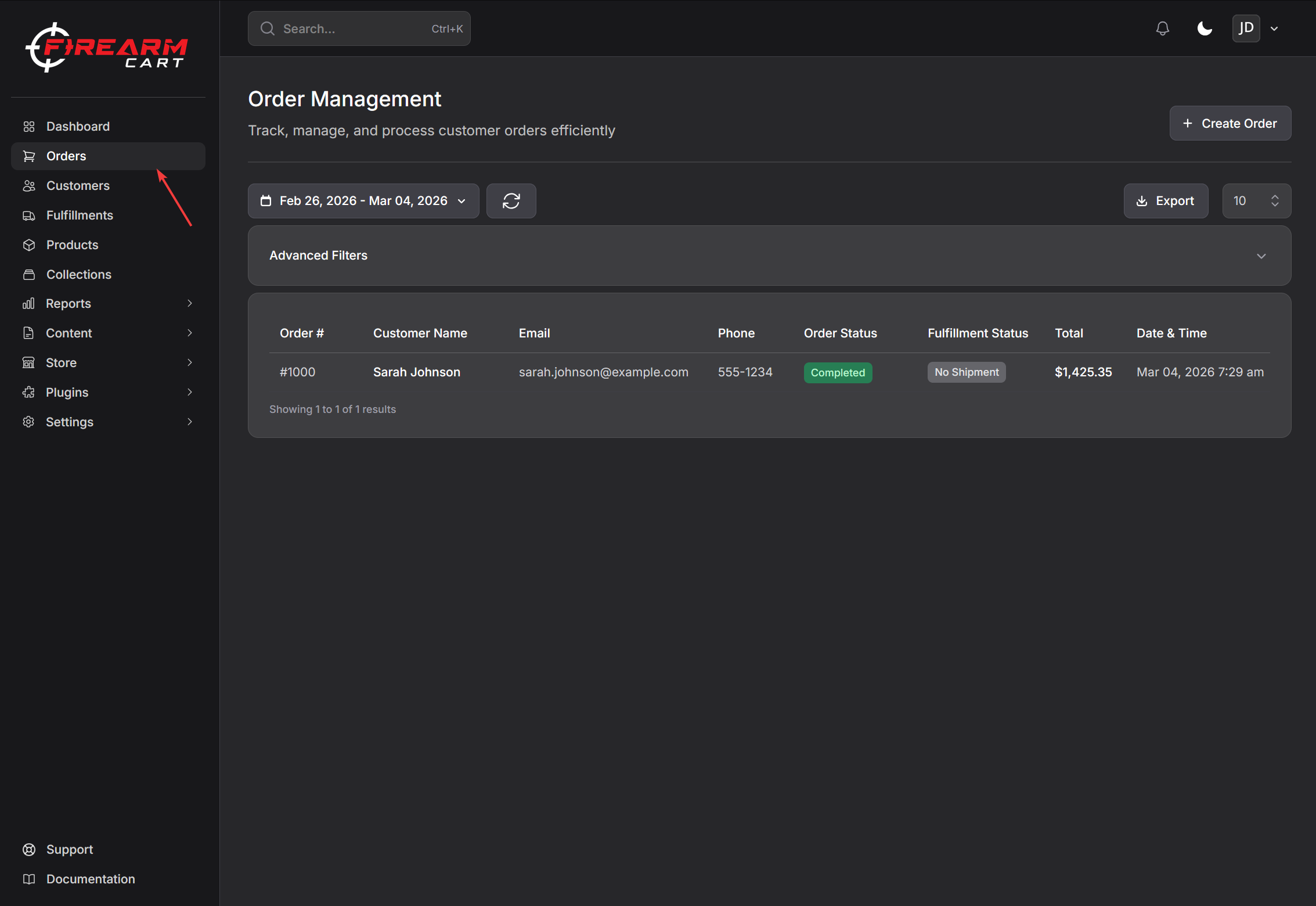
Orders Dashboard
- Click Orders in the left sidebar
- View all orders with status indicators
- Use filters and search to find specific orders
Searching Orders
Search orders by:
- Order ID
- Customer name
- Customer email
- Customer phone
- Address, city, state, ZIP
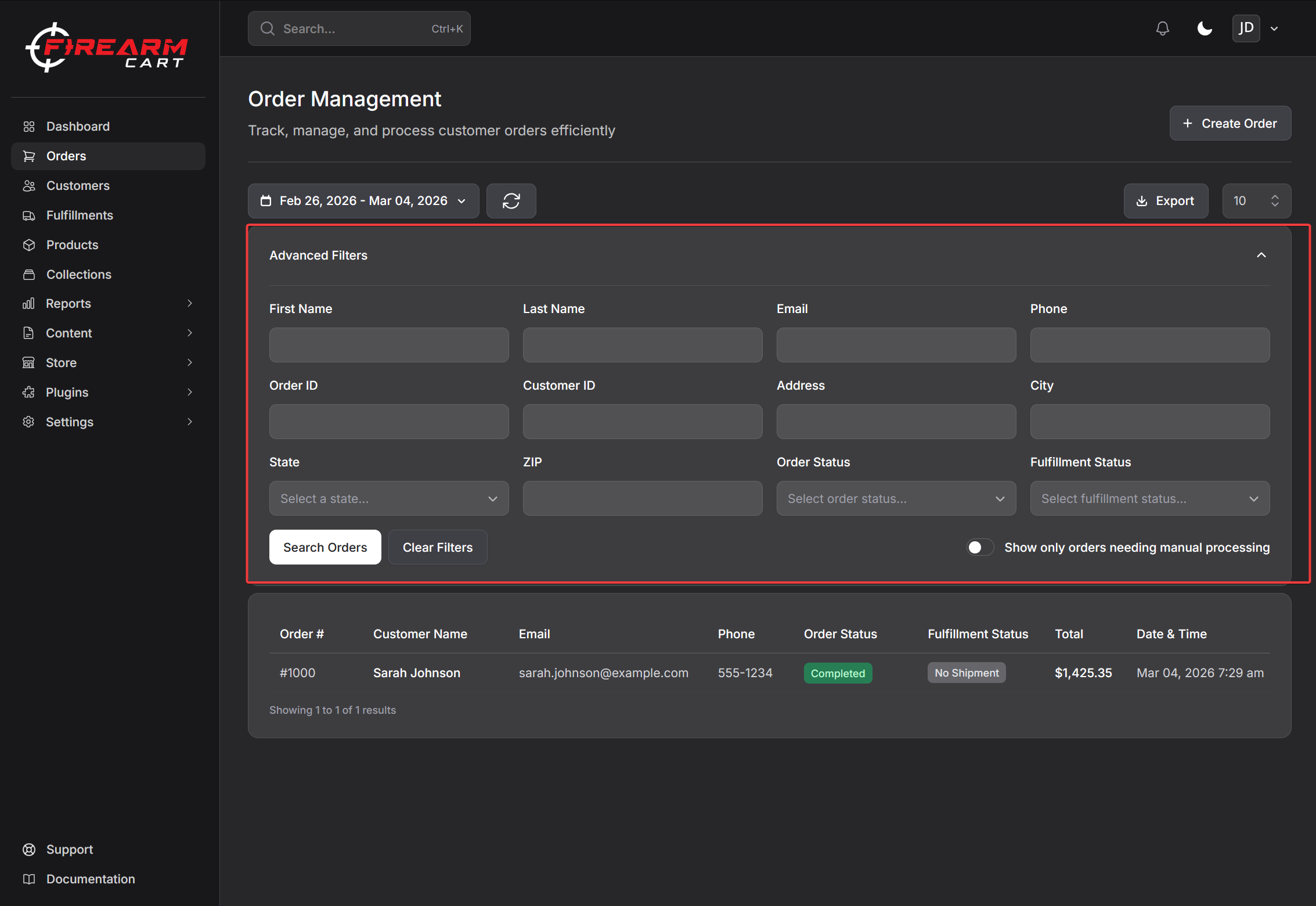
Filtering Orders
By Order Status
| Status | Description |
|---|---|
| Pending | Awaiting payment or processing |
| Completed | Payment received |
| Refunded | Full refund issued |
| Partially Refunded | Partial refund issued |
| Chargeback | Customer disputed charge |
| Void | Transaction voided |
| Declined | Payment declined |
By Fulfillment Status
| Status | Description |
|---|---|
| No Shipment | Not yet shipped |
| Pending | Awaiting processing |
| Shipped | In transit |
| Delivered | Customer received |
| Canceled | Shipment cancelled |
By Date
Use preset ranges (Today, Yesterday, Last 7 Days, This Month) or select a custom date range.
Sorting and Pagination
- Sort by Order ID, Customer Name, Email, Status, Total, or Date
- Choose items per page: 10, 50, 100, 250, or 500
Order Details
Click an order to view:
Customer Information
- Name and contact details
- Billing address
- Shipping address
Order Items
- Product names
- Quantities
- Prices
- Variants selected
FFL Information
For firearm orders:
- FFL dealer name
- FFL address
- License information
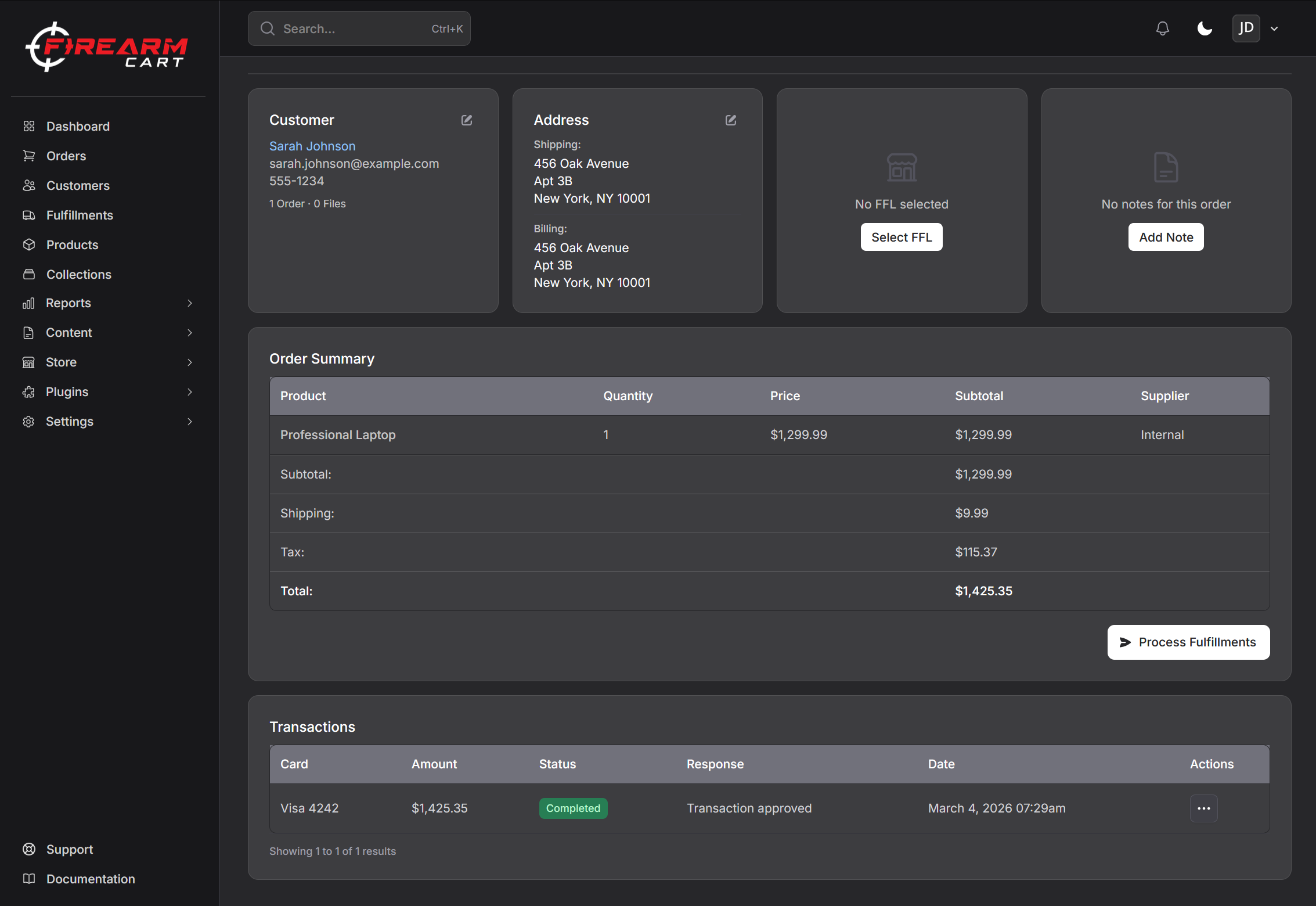
Order Notes
Add notes to orders for internal tracking:
- Open the order
- Find the Notes section
- Enter your note
- Save
Notes appear in the order timeline.
Editing Orders
You can edit:
- Billing address
- Shipping address
- FFL location
- Order notes
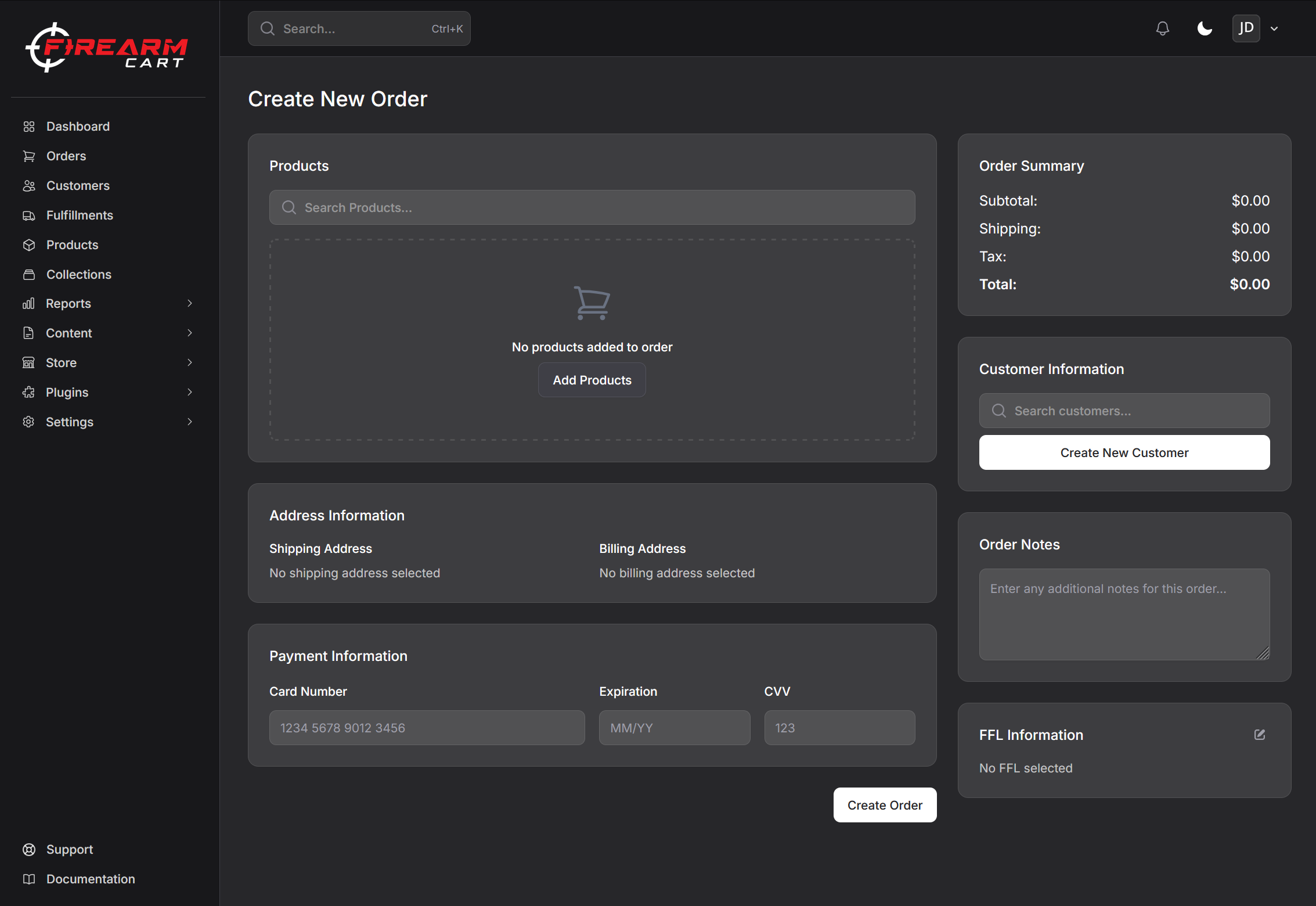
Creating Manual Orders
Create orders for phone or in-person sales:
- Click Create Order
- Search and select a customer (or create new)
- Add products to the order
- Set billing and shipping addresses
- Select payment method
- Process payment
Order Notifications
Automatic Emails
| When Sent | |
|---|---|
| Order Confirmation | Order placed |
| Shipping Confirmation | Tracking assigned |
| Delivery Confirmation | Order delivered |
| Refund Confirmation | Refund processed |
Resending Notifications
- Open the order
- Click Resend on the notification
- Customer receives the email again
Exporting Orders
Export orders to Excel:
- Apply filters (optional)
- Click Export
- Download the file
Export includes order details, items, and fulfillment information.
Related Documentation
- Fulfillment - Shipping orders
- Refunds - Processing refunds
- FFL Compliance - Firearm requirements
- Customers - Customer management