
Webhooks
Webhooks allow you to send real-time HTTP notifications to external services when specific events occur in your store, such as order completions, refunds, or tracking updates.
What Are Webhooks?
Webhooks are automated messages sent from FirearmCart to a URL you specify when certain events happen. They're useful for:
- Syncing with external systems - Update inventory, CRM, or accounting software
- Triggering automations - Send notifications, update databases, trigger workflows
- Custom integrations - Connect with any service that accepts HTTP requests
Available Events
Standard Events
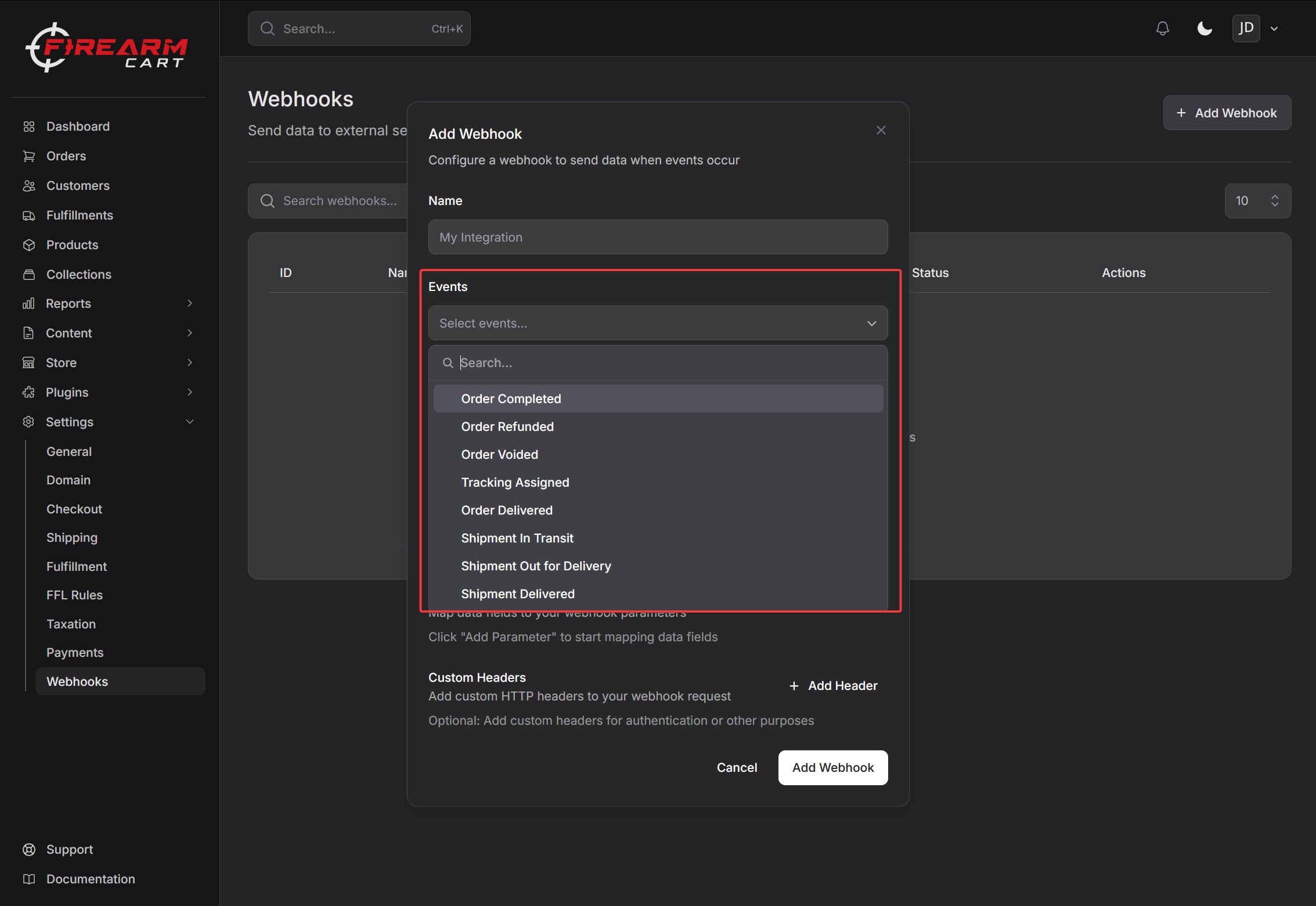
All plans include these webhook events:
| Event | Description |
|---|---|
| Order Completed | Triggered when a customer completes checkout |
| Order Refunded | Triggered when an order is refunded |
| Order Voided | Triggered when an order is voided |
| Tracking Assigned | Triggered when tracking information is added |
| Order Delivered | Triggered when an order is marked as delivered |
Enhanced Tracking Events
These events require Enhanced Shipment Tracking (Pro plan or above):
| Event | Description |
|---|---|
| Shipment In Transit | Triggered when carrier scans package in transit |
| Shipment Out for Delivery | Triggered when package is out for delivery |
| Shipment Delivered | Triggered when carrier confirms delivery |
Creating a Webhook
Step 1: Open Webhook Settings
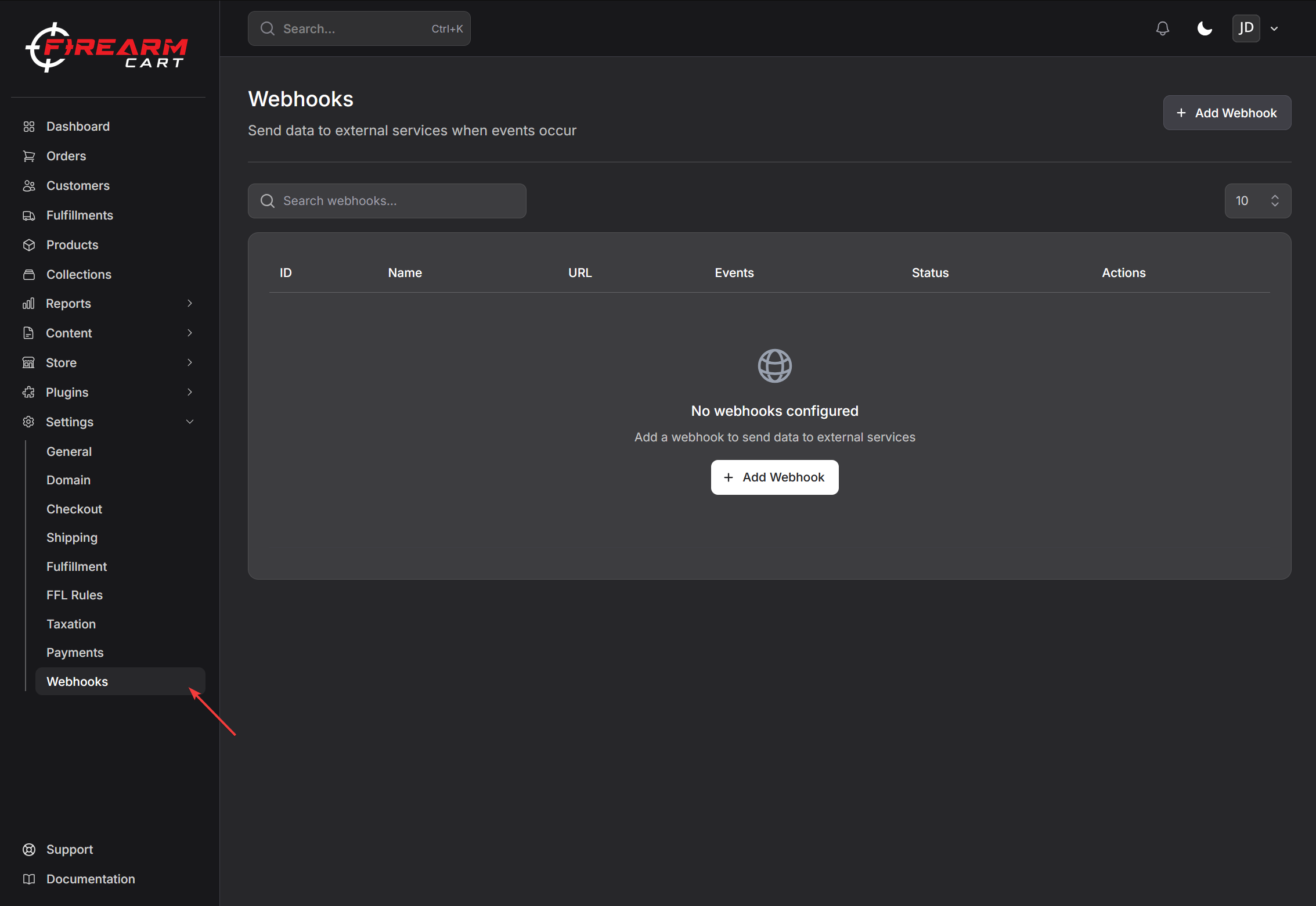
- Go to Settings > Webhooks
- Click Add Webhook
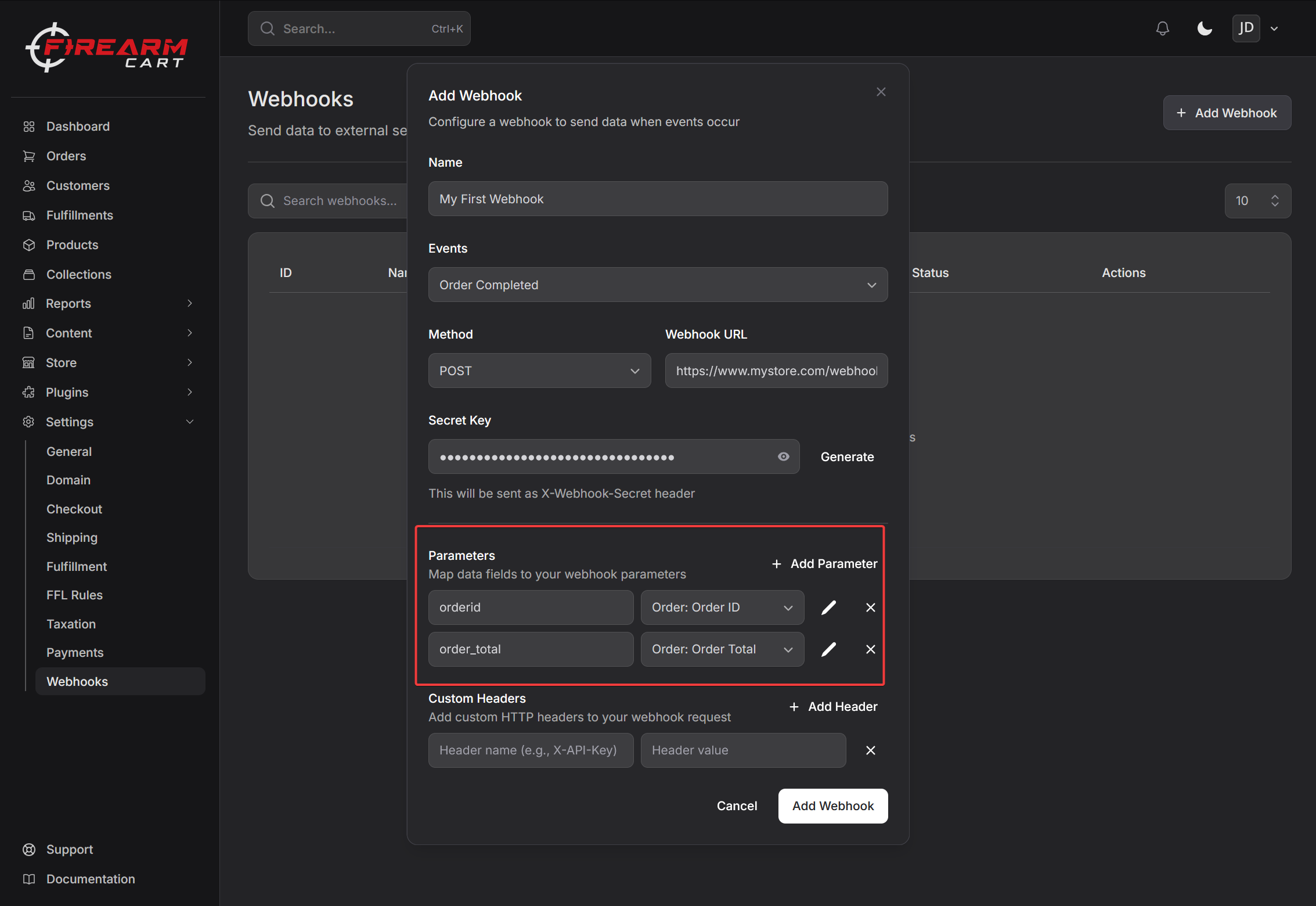
Step 2: Configure Basic Settings
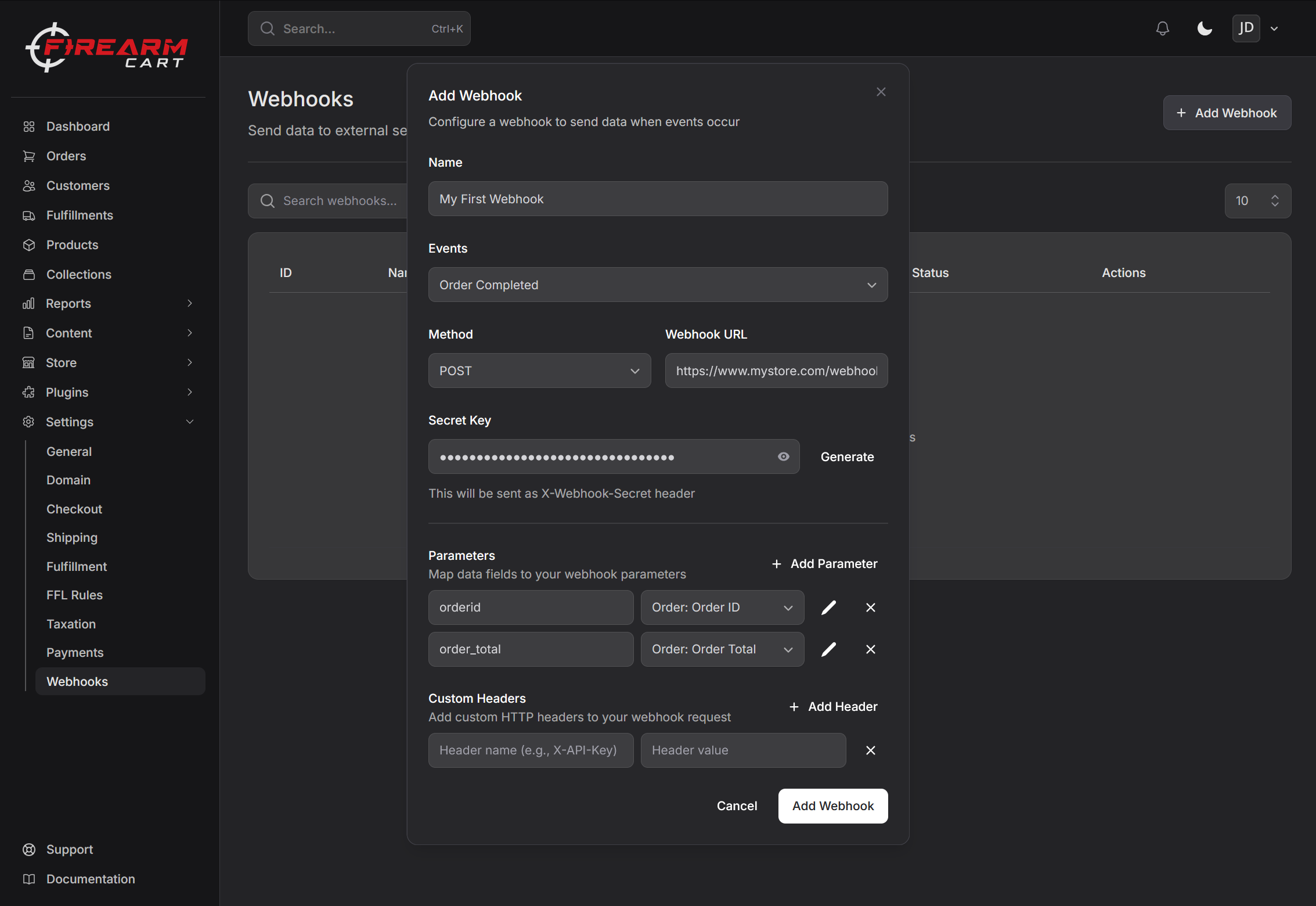
- Name - Enter a descriptive name (e.g., "Inventory Sync", "CRM Update")
- Events - Select which events should trigger this webhook
- Method - Choose POST or GET
- Webhook URL - Enter the endpoint URL that will receive the webhook
Step 3: Set Up Security
- Secret Key - Enter or generate a secret key
- This secret is sent as the
X-Webhook-Secretheader with every request - Use it to verify requests are from FirearmCart
Tip: Click Generate to create a secure random secret.
Step 4: Configure Parameters
Map data fields to your webhook payload:
- Click Add Parameter
- Enter the parameter name (what your endpoint expects)
- Select a value from the dropdown, or use a custom static value
- Click the pencil icon to enter a custom value instead
Step 5: Add Custom Headers (Optional)
Add any additional HTTP headers your endpoint requires:
- Click Add Header
- Enter the header name (e.g., "X-API-Key")
- Enter the header value
Step 6: Save
Click Add Webhook to create the webhook.
Available Data Fields
When configuring parameters, you can map these data fields:
Order Data
| Field | Description |
|---|---|
| Order ID | Internal order identifier |
| Order Status | Current order status |
| Order Total | Total amount |
| Order Subtotal | Subtotal before tax/shipping |
| Order Tax | Tax amount |
| Order Shipping | Shipping cost |
| Order Discount | Discount applied |
| Order Created Date | When the order was placed |
Customer Data
| Field | Description |
|---|---|
| Customer ID | Internal customer identifier |
| Customer First Name | Customer's first name |
| Customer Last Name | Customer's last name |
| Customer Email | Customer's email address |
| Customer Phone | Customer's phone number |
Shipping Address
| Field | Description |
|---|---|
| Shipping First Name | Recipient first name |
| Shipping Last Name | Recipient last name |
| Shipping Address 1 | Street address line 1 |
| Shipping Address 2 | Street address line 2 |
| Shipping City | City |
| Shipping State | State/Province |
| Shipping ZIP | Postal/ZIP code |
| Shipping Country | Country |
Billing Address
| Field | Description |
|---|---|
| Billing First Name | Billing first name |
| Billing Last Name | Billing last name |
| Billing Address 1 | Street address line 1 |
| Billing Address 2 | Street address line 2 |
| Billing City | City |
| Billing State | State/Province |
| Billing ZIP | Postal/ZIP code |
| Billing Country | Country |
Fulfillment Data
| Field | Description |
|---|---|
| Fulfillment ID | Internal fulfillment identifier |
| Tracking Number | Carrier tracking number |
| Tracking Carrier | Shipping carrier name |
| Tracking URL | Direct link to tracking page |
| Fulfillment Status | Current fulfillment status |
Webhook Headers
Every webhook request includes these headers:
| Header | Description |
|---|---|
Content-Type |
Always application/json |
X-Webhook-Secret |
Your configured secret key |
X-Webhook-Event |
The event that triggered the webhook |
Plus any custom headers you configure.
Webhook Payload
The payload includes:
- Your configured parameters with their mapped values
_event- The event name that triggered the webhook_timestamp- ISO 8601 timestamp of when the webhook was sent
Example payload:
{
  "order_id": "1042",
  "customer_email": "[email protected]",
  "total": "299.99",
  "tracking_number": "1Z999AA10123456784",
  "_event": "tracking.assigned",
  "_timestamp": "2026-01-11T15:30:00Z"
}
Managing Webhooks
Viewing Webhooks
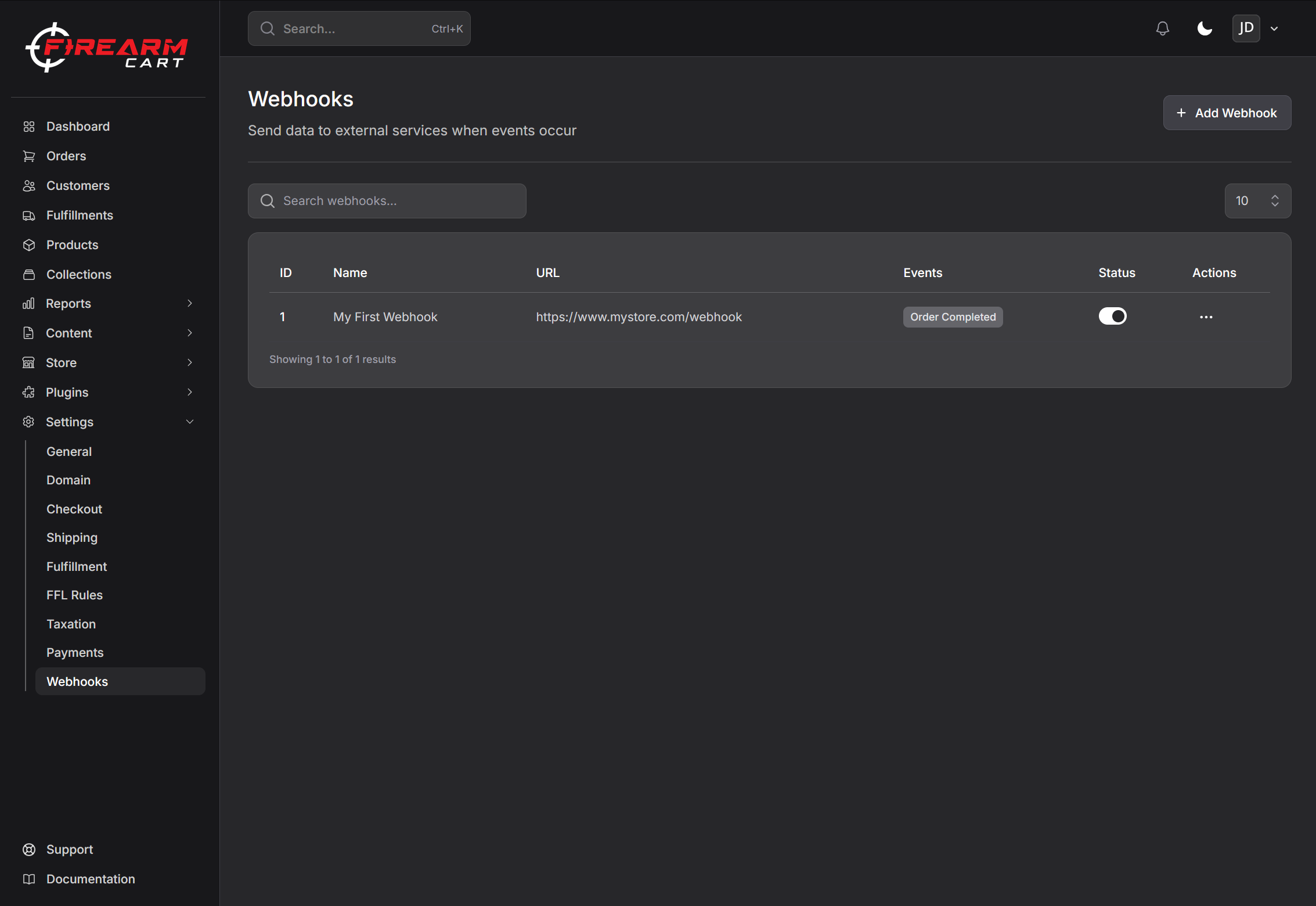
Go to Settings > Webhooks to see all your webhooks with:
- Name and URL
- Subscribed events
- Active/Inactive status
- Action menu
Editing a Webhook
- Click the ... menu on a webhook
- Select Edit
- Update settings as needed
- Click Save Changes
Enabling/Disabling
Toggle the switch to enable or disable a webhook without deleting it.
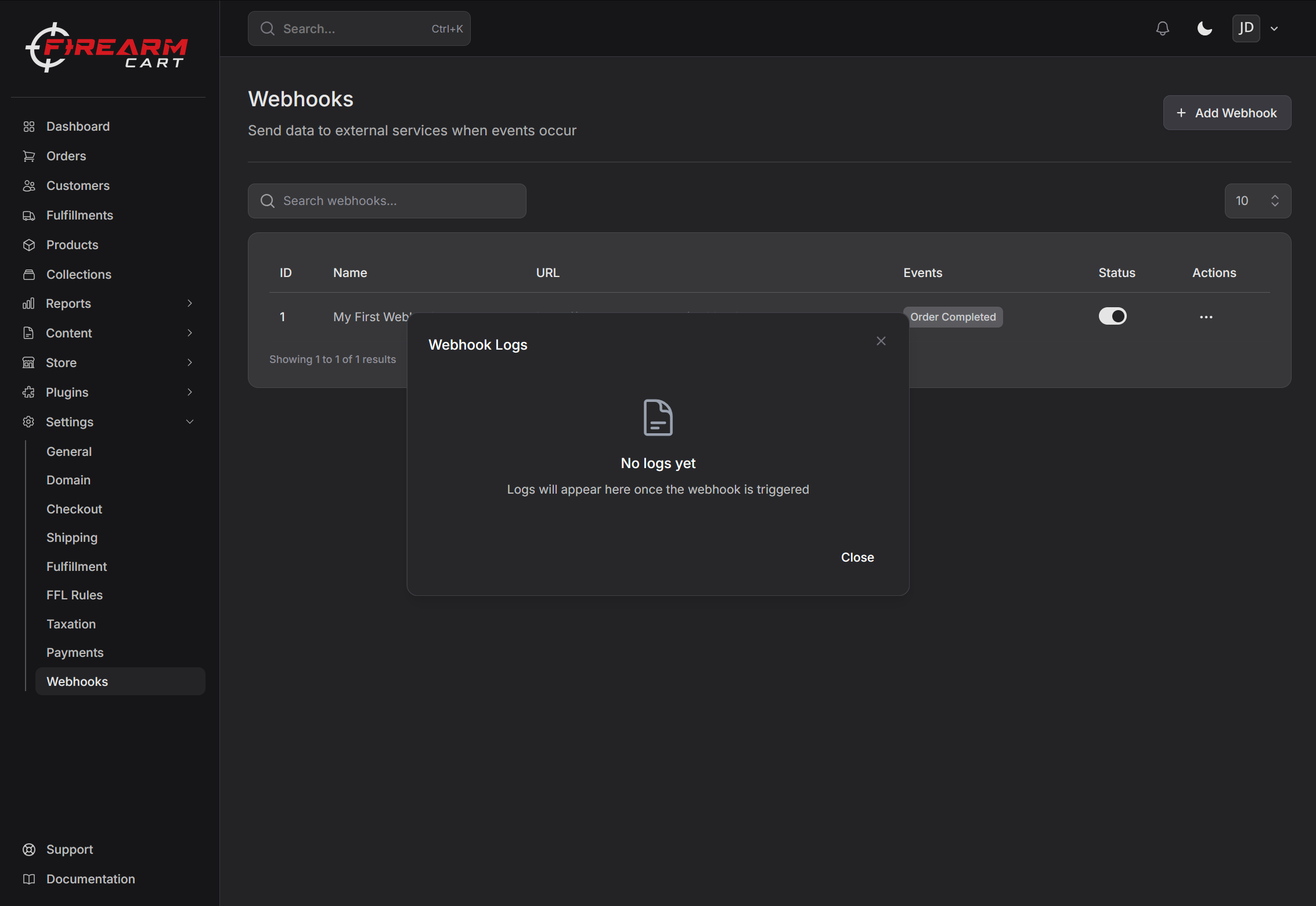
Viewing Logs
- Click the ... menu on a webhook
- Select View Logs
- Review delivery history including:
- Event type
- Response status code
- Delivery attempts
- Timestamp
Deleting a Webhook
- Click the ... menu on a webhook
- Select Delete
- Confirm deletion
Note: Deleting a webhook also removes all associated delivery logs.
Delivery & Retries
Delivery Behavior
- Webhooks are delivered within seconds of the event
- Timeout: 30 seconds per request
- Successful delivery: HTTP 2xx response
Retry Policy
If delivery fails, FirearmCart retries automatically:
| Attempt | Delay |
|---|---|
| 1st retry | 1 minute |
| 2nd retry | 5 minutes |
| 3rd retry | 30 minutes |
After 3 failed attempts, the webhook is marked as failed.
Log Retention
Webhook logs are retained for 30 days.
Troubleshooting
Webhooks Not Triggering
Symptoms: Events occur but webhooks aren't sent
Solutions:
- Verify the webhook is Active (switch is on)
- Check that the event is selected
- Review webhook logs for errors
Delivery Failures
Symptoms: Webhook logs show failed status
Solutions:
- Verify your endpoint URL is correct
- Check your server is accepting connections
- Ensure your endpoint returns HTTP 2xx for success
- Check server logs for errors
Invalid Secret Error
Symptoms: Your endpoint rejects the webhook
Solutions:
- Compare the secret in FirearmCart with your endpoint configuration
- Ensure you're reading the
X-Webhook-Secretheader correctly - Check for whitespace or encoding issues
Missing Data
Symptoms: Webhook payload is missing expected fields
Solutions:
- Review your parameter configuration
- Ensure you've mapped all needed fields
- Check that the data exists for the order (e.g., customer has phone number)
Security Best Practices
Verify the Secret
Always verify the X-Webhook-Secret header matches your configured secret before processing.
Use HTTPS
Always use HTTPS URLs to encrypt webhook data in transit.
Validate Data
Don't trust webhook data blindly. Validate and sanitize before using.
Respond Quickly
Return a response within 30 seconds to avoid timeouts and retries.
Related Documentation
- Integrations - All available integrations
- Orders - Order management
- ShipStation - Shipping integration