

Refunds
Process refunds when customers need order adjustments or returns.
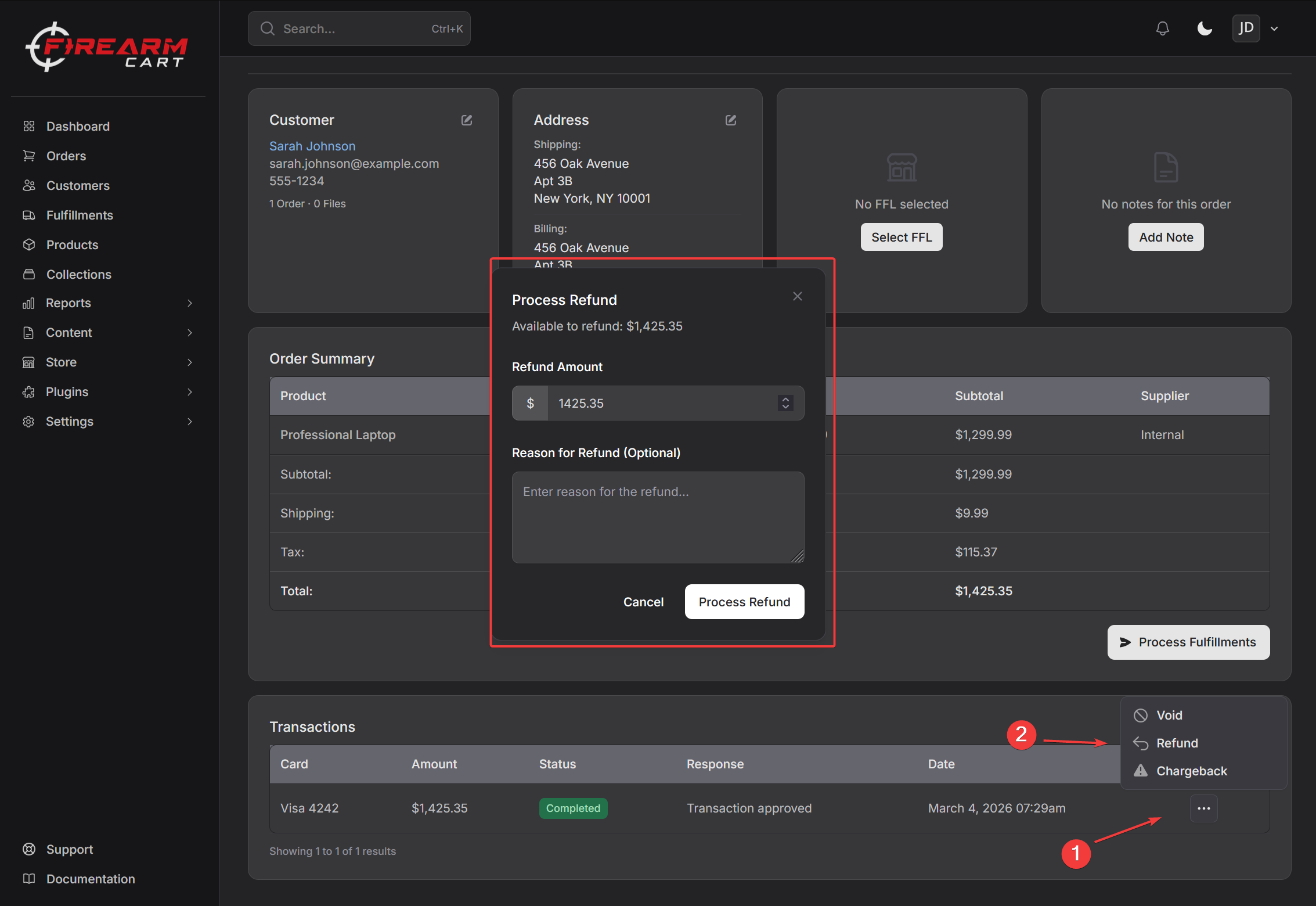
Refund Types
| Type | Description |
|---|---|
| Full refund | Refund entire order amount |
| Partial refund | Refund a portion of the order |
Processing a Refund
- Open the order
- Click Refund
- Enter the refund amount
- Add a refund reason
- Click Process Refund
Refund Amount
- Cannot refund more than the original payment
- Minus any previous refunds already issued
- System validates the refund amount before processing
Refund Reasons
Add a reason for the refund:
- Customer request
- Defective product
- Wrong item shipped
- Damaged in shipping
- Not as described
- Order cancelled
The reason is recorded in the order's transaction history.
Order Status After Refund
| Refund Type | Order Status |
|---|---|
| Full refund | Refunded |
| Partial refund | Partially Refunded |
Refund Notifications
When a refund is processed:
- Customer receives a refund confirmation email
- Email includes refund amount and reason
- You can resend the notification if needed
Transaction History
View all refunds on an order:
- Open the order
- Scroll to Transaction History
- See all payments and refunds with dates and amounts
Void vs Refund
| Action | When to Use |
|---|---|
| Void | Same day, before settlement |
| Refund | After payment has settled |
To void a transaction:
- Open the order
- Find the transaction
- Click Void
Voiding is faster and avoids refund processing fees.
Chargebacks
If a customer disputes a charge with their bank:
- The order shows as Chargeback status
- Gather evidence (order details, tracking, communications)
- Work with your payment processor to respond
You can mark a transaction as chargeback manually if needed.
Refund Timeline
Refunds typically take 5-10 business days to appear in the customer's account, depending on their bank.
Related Documentation
- Managing Orders - Order management
- Fulfillment - Shipping orders
- Payment Providers - Payment processing