

Managing Customers
View and manage your customer database. Track purchase history and maintain customer relationships.
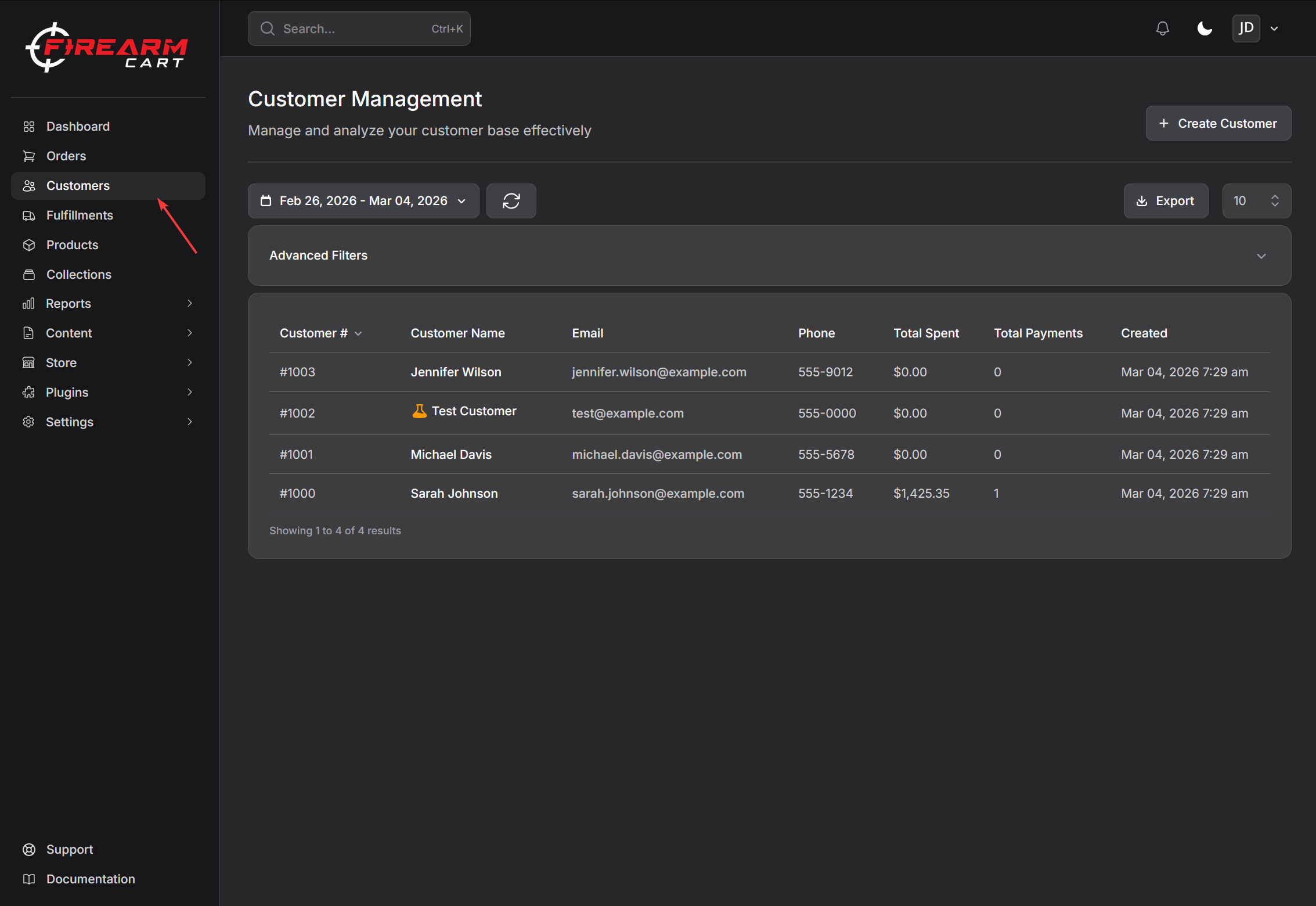
Customers Dashboard
- Click Customers in the left sidebar
- View all customers with key information
- Use search and filters to find specific customers
Searching Customers
Search customers by:
- First name
- Last name
- Email address
- Phone number
- IP address
- Customer ID
- Address (street, city, state, ZIP)
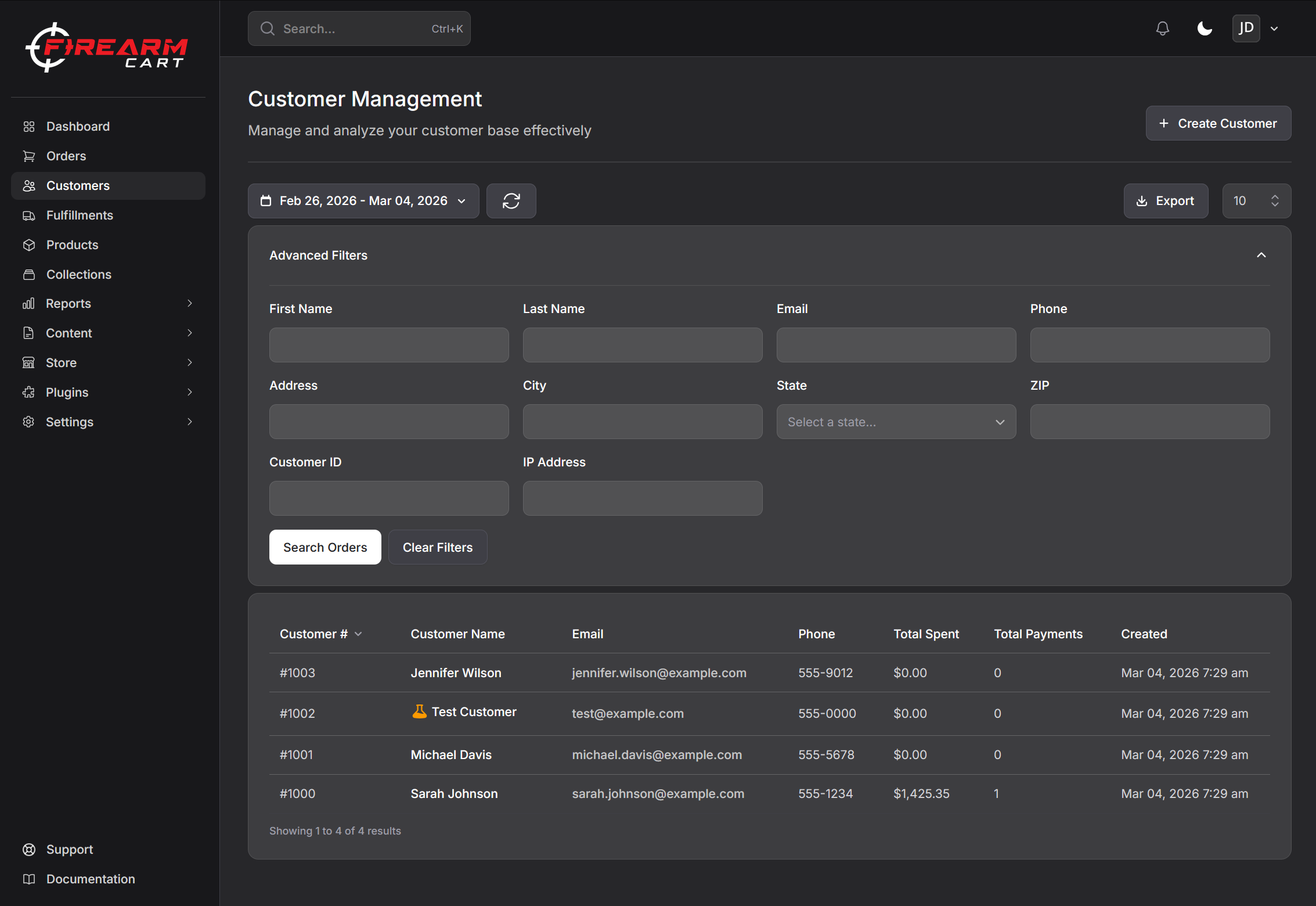
Filtering Customers
By Date
Filter by when customers were created using preset ranges or custom dates.
Sorting
Sort by:
- Customer ID
- Name
- Phone
- IP Address
- Created Date
Pagination
Choose items per page: 10, 50, 100, 250, or 500.
Customer Profile
Click a customer to view their full profile.
Customer Statistics
| Metric | Description |
|---|---|
| Total Spent | Lifetime purchase amount |
| Total Orders | Lifetime order count |
| Average Order Value | Average order total |
| Last Order | Date of most recent purchase |
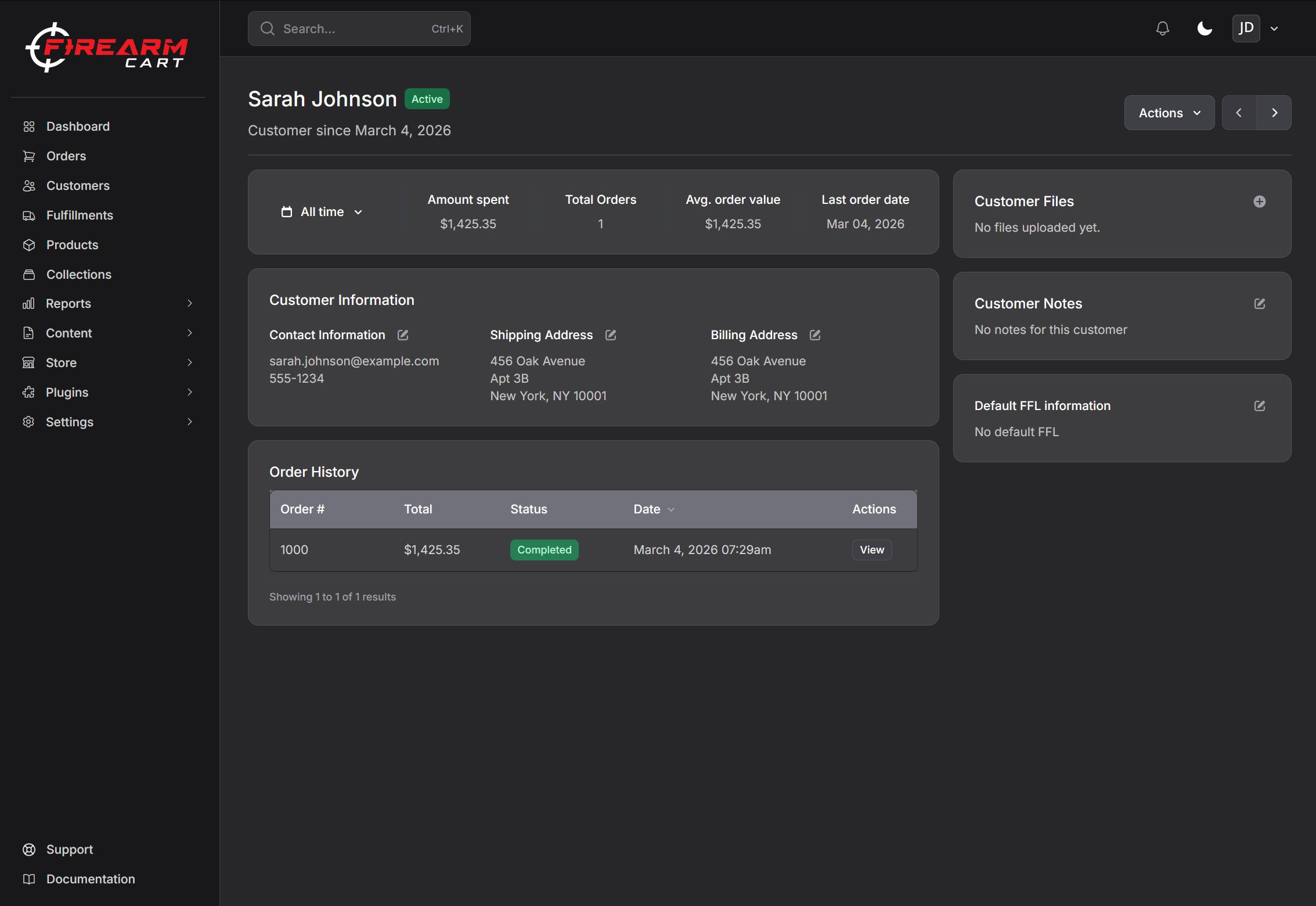
Contact Information
Edit customer contact details:
- Open customer profile
- Click Edit on contact information
- Update email or phone
- Save
Customer Addresses
Customers can have multiple addresses for billing and shipping.
Viewing Addresses
The Addresses section shows all saved addresses with default indicators.
Adding an Address
- Click Add Address
- Enter address details
- Set as default billing or shipping (optional)
- Save
Editing Addresses
- Find the address
- Click Edit
- Update information
- Save
Setting Default Address
- Find the address
- Click Set as Default Billing or Set as Default Shipping
Deleting Addresses
- Find the address
- Click Delete
- Confirm deletion
Preferred FFL
For customers who purchase firearms, you can set their preferred FFL dealer.
- Open customer profile
- Find the FFL section
- Click Set FFL
- Search for the FFL
- Select and save
Customer Files
Upload and manage customer documents for verification.
Uploading Files
- Click Upload File
- Select file type:
- CCW Permit
- License
- State ID
- Passport
- Other
- Choose file (images up to 10MB)
- Upload
Viewing Files
Click on a file to view it. Files are stored securely with temporary access URLs.
Deleting Files
- Find the file
- Click Delete
- Confirm deletion
Customer Notes
Add notes for internal reference.
- Find the Notes section
- Enter your note
- Save
Notes are visible only to your team.
Order History
View all orders for this customer:
- Order number
- Date
- Status
- Total
Click an order to view full details.
Blacklisting Customers
Block problematic customers from placing orders.
To Blacklist
- Open customer profile
- Click Blacklist
- Enter reason
- Confirm
To Remove from Blacklist
- Open customer profile
- Click Remove from Blacklist
Creating Customers
Add customers manually:
- Navigate to Customers
- Click Create Customer
- Enter information:
- First name
- Last name
- Phone
- Address
- Notes
- FFL (optional)
- Click Create
Deleting Customers
- Open customer profile
- Click Delete
- Confirm deletion
Note: Deleting a customer also removes their orders.
Exporting Customers
Export customer data to Excel:
- Apply filters (optional)
- Click Export
- Download the file
Export includes customer details and addresses.
Related Documentation
- Managing Orders - Order management
- FFL Directory - FFL management