

Avalara AvaTax for FirearmCart
Configuration / User Guide
Avalara AvaTax is a cloud-based solution automating transaction tax calculations and the tax filing process. Avalara provides real-time tax calculation using tax content from more than 12,000 US taxing jurisdictions and over 200 countries, ensuring your transaction tax is calculated based on the most current tax rules.
Connect to AvaTax
- Go to Plugins.
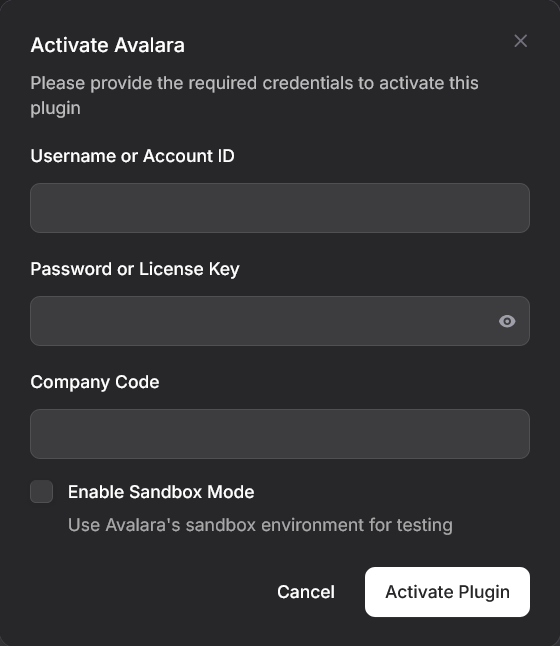
- Find Avalara in the marketplace and click Activate.
- Enter your Avalara AvaTax credentials. AvaTax accepts either of two authentication pairs — both work the same way over the API; the second is recommended for production:
- Username or Account ID — your AvaTax login username, or your numeric Account ID (e.g.
1234567890) when using a license key. - Password or License Key — your AvaTax password, or your License Key. License Keys are recommended for production: they can be revoked independently of your user login and never expose your actual credentials.
- Company Code — Company profile identifier in the AvaTax Admin Console (Settings → Manage Companies → Code column).
- Enable Sandbox Mode — Check while testing against
sandbox-rest.avatax.com; uncheck for production.
- Username or Account ID — your AvaTax login username, or your numeric Account ID (e.g.
- Click the Activate Plugin button. FirearmCart verifies your credentials against Avalara automatically — if they're valid the plugin activates and a success toast appears; if not, an error message points to the field that failed.
Where to get a License Key: In the AvaTax Admin Console, go to Settings → All AvaTax Settings → Reset license key. Pair it with your Account ID (visible at the top of the AvaTax Admin Console) for license-key authentication.
Once the plugin is active, an Avalara entry appears under Plugins in the sidebar — that page hosts Settings and Activity. To edit your credentials later, click Configure on the Avalara card in the marketplace. The Configure modal includes a Test Connection button so you can re-verify credentials any time, plus an Open Avalara Dashboard link that takes you to the matching AvaTax admin URL (sandbox-admin.avalara.com or admin.avalara.com) based on the Sandbox checkbox state.
Configure Avalara AvaTax
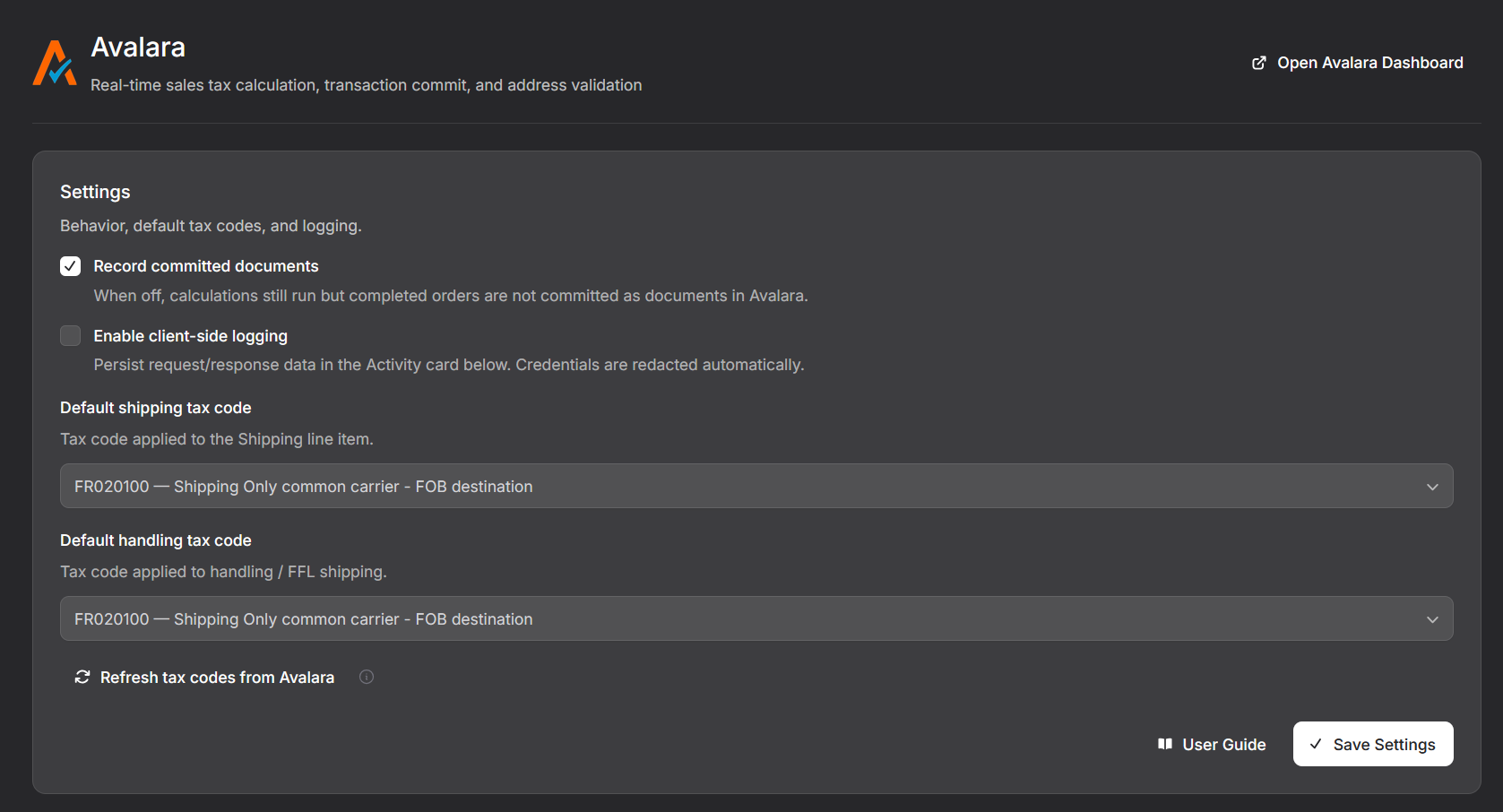
Open Plugins → Avalara in the sidebar. The page stacks two cards: Settings and Activity. The header includes an Open Avalara Dashboard button that opens the matching AvaTax admin URL.
- Record committed documents — Enables tax document submission to Avalara's AvaTax service for record keeping. With this setting enabled, completed orders are committed as
SalesInvoicedocuments in your AvaTax Admin Console. - Enable client-side logging — Log detailed transaction activity (request, response, status, round-trip duration) for troubleshooting purposes. Enable only when diagnosing an issue. Credentials are auto-redacted.
- Default shipping tax code — The default Avalara AvaTax System Tax code used for Freight / Shipping. Default:
FR020100. Pick from the searchable list (loaded from your AvaTax account). - Default handling tax code — Avalara tax code applied to handling / FFL shipping.
- Refresh tax codes from Avalara — Bust the 7-day cache and re-pull the latest tax-code list.
- User Guide — Link to this document.
- Open Avalara Dashboard — Button in the page header; opens sandbox-admin.avalara.com or admin.avalara.com based on your Sandbox checkbox state.
To stop AvaTax calculation entirely, open the marketplace, click Configure on the Avalara card, and click Deactivate.
Assign an Avalara tax-exempt category to a customer
-
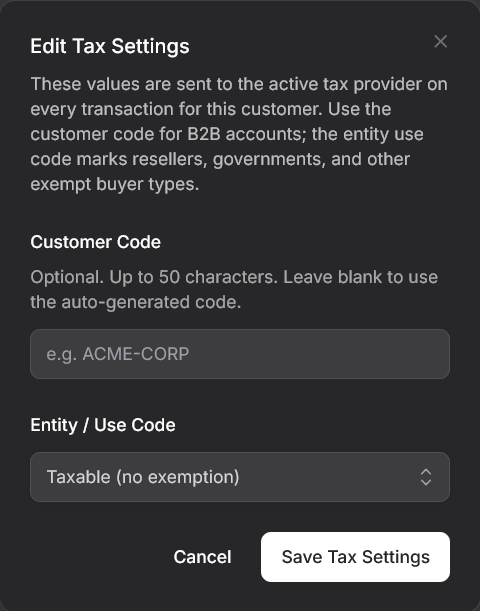
Click Customers → click any customer to open the Customer Detail screen.
-
Find the Tax card and click the pencil icon.
-
In the Customer Code field, enter the customer's AvaTax customer code (optional — leave blank to use the auto-generated
CUST-{internal_id}). Up to 50 characters. -
In the Entity / Use Code field, select the appropriate customer type letter code:
Code Description A Federal government (United States) B State government (United States) C Tribe / Status Indian / Indian Band D Foreign diplomat E Charitable / exempt organization F Religious / educational organization G Resale H Commercial agricultural production I Industrial production / manufacturer J Direct pay permit (United States) K Direct mail (United States) L Other / custom exemption M Educational organization N Local government (United States) -
Click Save Tax Settings.
Per-address exemption
A single ship-to location can be flagged exempt independent of the customer's default. On the address edit modal, check This ship-to location is tax exempt and pick the per-address Entity / Use Code. That code overrides the customer's default for any order shipping to this address.
Assign an AvaTax System Tax Code to an item
- Go to Products → select a product to open the Product Detail screen.
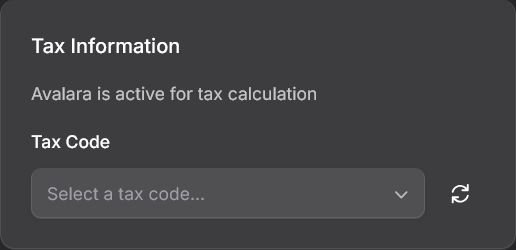
- Scroll to the Tax Code card.
- Search the listbox and pick the applicable AvaTax System Tax Code. Use the Refresh button next to the picker to pull the latest list from Avalara if needed.
- Click Save.
- To browse the full list of AvaTax System Tax Codes outside FirearmCart, visit taxcode.avatax.avalara.com.
The selected code is snapshotted onto each line item at order time, so refunds replay the same taxability the customer was originally charged under, even if you later change the product's tax code.
Validate a customer address
- Click Customers → click any customer to open the Customer Detail screen.
- In the Addresses card, click the pencil icon next to the address you want to validate.
- In the address modal, click the Validate Address button.
- Review the returned validated address. If it differs from your input, a suggestion card appears with two options:
- Use suggested — Apply Avalara's normalized address (recommended).
- Keep my entry — Keep the address as entered.
- Click Save Address.
Address validation also runs automatically at storefront checkout. When the customer enters a shipping address, the resolver runs in the background; if the normalized address differs, a non-blocking modal asks "Use suggested address?" before continuing past the shipping step.
Refund a transaction
Refunds processed through the Order Detail page automatically post a matching ReturnInvoice document to AvaTax.
- Open Orders → select the order.
- Find the original payment in the Transactions card and click the action menu (•••).
- Click Refund.
- Enter the refund amount and (optionally) a reason.
- Click Refund to confirm.
The matching AvaTax ReturnInvoice is posted with:
- Per-line negative amounts with positive quantities (Avalara's required format).
- The original invoice date sent as
taxOverride.taxDateso tax is recalculated at the rates in effect on the day of sale. - Today's date sent as the document date.
- Each line's original
itemCodeand snapshottedtaxCode.
Partial refunds scale every line proportionally. Idempotent — duplicate refund attempts are treated as success so queue retries don't double-post.
Void a transaction
When you void a payment Transaction (within the void window of your gateway), the matching AvaTax SalesInvoice is also voided automatically.
- Open Orders → select the order.
- In the Transactions card, click the action menu (•••) on the original payment.
- Click Void.
- Confirm the void.
Voids are only available within the gateway's void window (typically 24 hours from the original capture). After that window, use Refund instead.
Review tax activity for an order
Each order's detail page shows a Tax card with one row per taxed payment Transaction.
| Field | Description |
|---|---|
| Provider | The active tax plugin (Avalara). |
| Transaction Code | The AvaTax document code for this payment. |
| Correlation ID | UUID linking calc → commit → void/refund logs. |
| Status | Calculated, Committed, Voided, or Refunded. |
| Purchase Order Number | Optional B2B reference, sent as purchaseOrderNo on the next tax calculation for this order. |
Click Show provider activity for this order to expand the request/response log scoped to this order's correlation IDs.
Review team-wide AvaTax activity
The Activity card on the Plugins → Avalara page lists the last 50 Avalara API calls for your team:
- Filter by All requests, Successful only, or Errors only.
- Each row shows status code, method, endpoint (path), duration in milliseconds, and timestamp.
- Credentials and other sensitive payload keys (
password,api_key,authorization, etc.) are auto-redacted before persistence.
Logging must be enabled on the Settings card for new requests to be captured. When logging is off (or no calls have been made yet), the Activity card shows an empty state pointing you back to the toggle.
Calc-to-commit ratio: Avalara's badge program asks integrations to keep tax calculation calls at or below ~10 per committed document. FirearmCart memoizes calculation responses for 5 minutes per team using a deterministic hash of the cart fingerprint, so re-rendering the cart, toggling between checkout steps, or browser refreshes during checkout don't drive up your AvaTax usage.
Stop AvaTax recording while keeping calculations
If you need calculations to keep running but want another connector (or a manual workflow) to handle the official document of record in AvaTax:
- Open Plugins → Avalara in the sidebar.
- In the Settings card, turn off Record committed documents.
- Click Save Settings.
Calculations will continue to run on every transaction, but completed orders will no longer be committed as SalesInvoice documents in your AvaTax Admin Console.
To fully stop AvaTax calculations, open the marketplace, click Configure on the Avalara card, and click Deactivate — this removes the integration entirely; credentials and settings are wiped.
Troubleshooting
| Symptom | Likely cause | Fix |
|---|---|---|
| Test Connection fails | Wrong username / password / company code, or wrong sandbox setting | Double-check credentials at admin.avalara.com → License and API Keys; confirm Company Code in Manage Companies; toggle the Sandbox checkbox to match the environment your credentials belong to |
| Tax = $0 at checkout when it shouldn't be | Avalara plugin deactivated, or AvaTax couldn't resolve nexus for the destination | Re-activate from the marketplace; verify nexus configuration in AvaTax for the destination state |
| Refund didn't post to AvaTax | Original Transaction had no tax_transaction_code, OR record_documents was off when the original sale was committed |
Check the Activity card for the refund's correlation_id; if there's no original SalesInvoice in AvaTax, there's nothing to refund — handle manually in AvaTax admin |
| Wrong tax code on a product | Product was created before Avalara was activated, or the merchant changed the tax code after sales already occurred | New sales pick up the change immediately; existing orders use the snapshotted code at sale time, which is what AvaTax expects for refund accuracy |
| Activity card is empty | "Enable client-side logging" is off | Toggle it on in the Settings card; new requests will be captured |