

Inventory
Manage stock levels for your products and variants.
How Inventory Works
| Product Type | Tracking Level |
|---|---|
| Simple products | Product level |
| Products with variants | Per variant |
Enabling Inventory Tracking
- Edit the product
- Find the Inventory section
- Toggle Track inventory on
- Enter current stock level
- Save
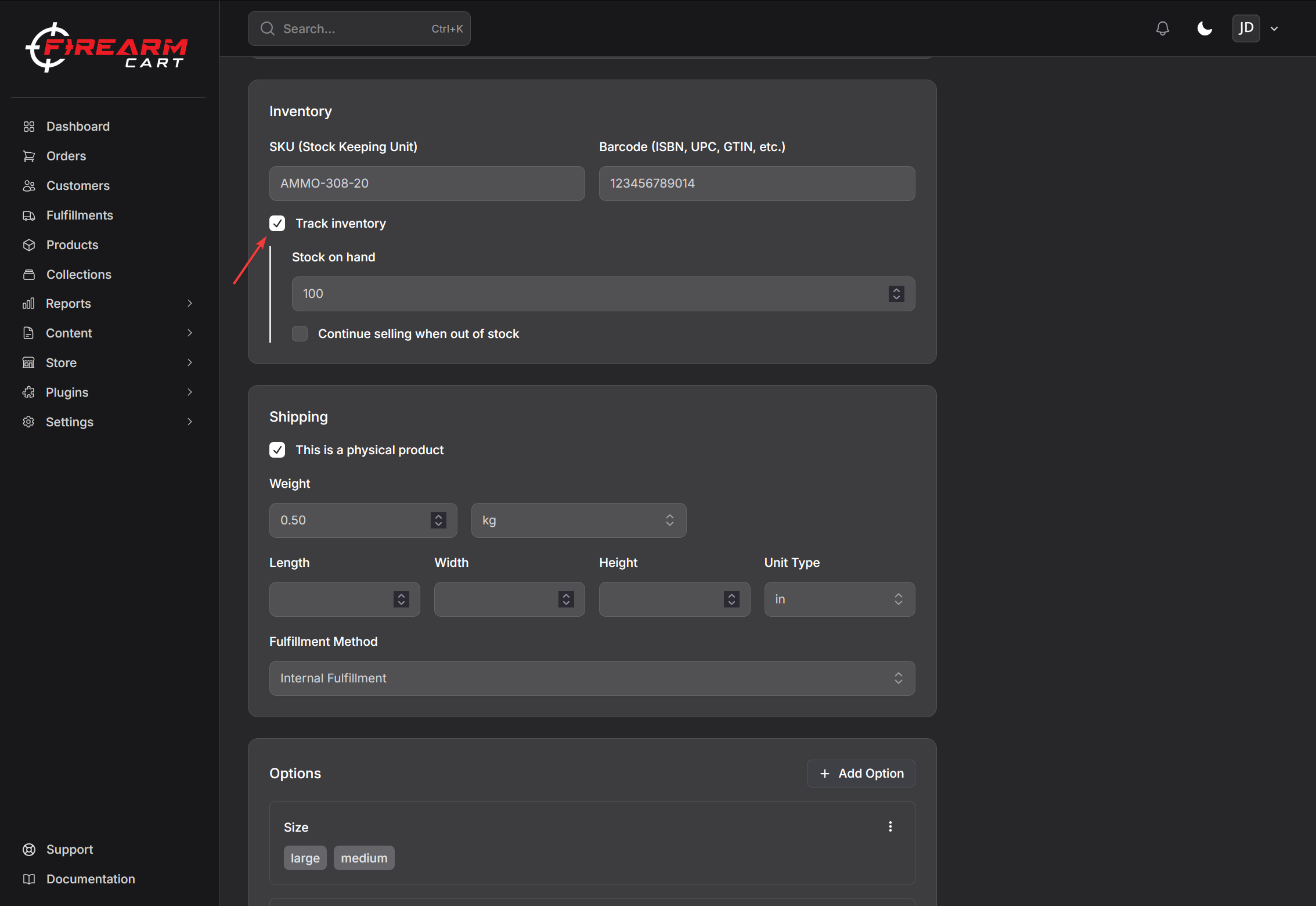
Inventory Settings
| Setting | Description |
|---|---|
| Track inventory | Enable stock tracking |
| Stock quantity | Current units in stock |
| Continue selling when out of stock | Allow orders even when stock is zero |
Variant Inventory
For products with variants, each variant has its own inventory:
- Edit the product
- Click on a variant
- Set stock quantity for that variant
- Save
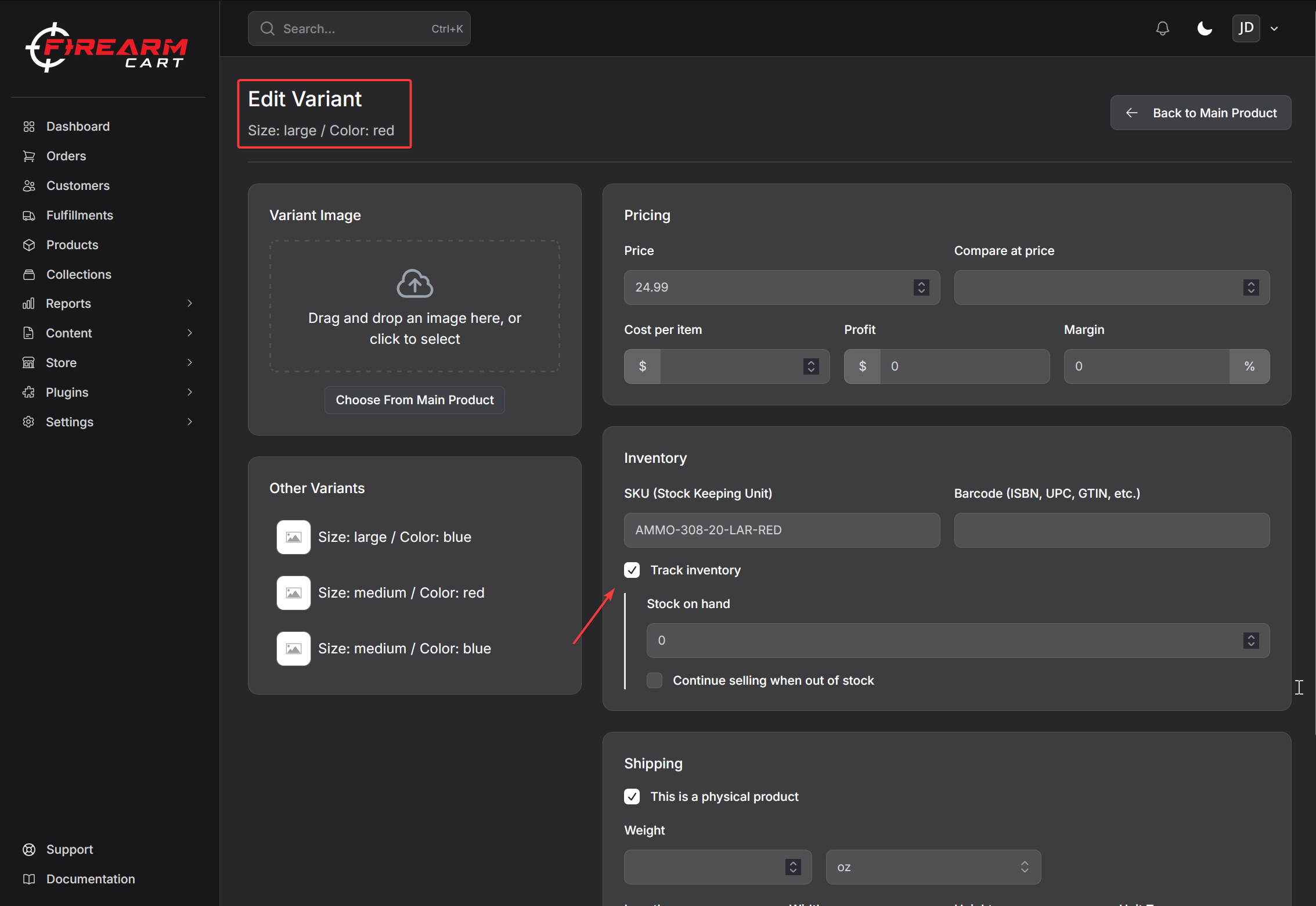
Out of Stock Behavior
When Continue selling when out of stock is:
- Off - Product cannot be purchased when stock reaches zero
- On - Customers can still order (backorder)
Dropship Inventory
For products fulfilled by distributors, inventory syncs automatically:
| Distributor | Sync |
|---|---|
| Lipseys | Automatic |
| RSR | Automatic |
| Chattanooga | Automatic |
| 2AW | Automatic |
Stock levels update periodically from the distributor's feed.
Product Deduplication by UPC/Barcode
When importing products from multiple dropshippers, products are automatically grouped by their UPC/barcode to prevent duplicates.
How It Works
- When you import a product, the system checks if a product with the same UPC/barcode already exists in your catalog
- If found: The dropshipper is added as an alternate supplier to the existing product
- If not found: A new product is created
Benefits
| Benefit | Description |
|---|---|
| No duplicates | One product listing even when available from multiple suppliers |
| Price comparison | Compare pricing across dropshippers |
| Supplier selection | Choose which supplier fulfills each order |
| Aggregated stock | Total stock shown is the sum across all suppliers |
Multi-Supplier Products
When a product has multiple suppliers:
- View all suppliers on the product details page in the Suppliers card
- Set a Preferred Supplier for automatic fulfillment
- Stock quantity shows the total across all suppliers
- Expand product rows in the products list to see all suppliers
Stock Calculation
Product stock is automatically calculated as the sum of all supplier stock. When any supplier's inventory updates, the product's total stock is recalculated.
Manual Fulfillment
When automatic fulfillment is disabled in Settings > Fulfillment, you can manually select which dropshipper fulfills each item in an order. The order details page shows:
- A comparison table of all available suppliers
- Price, stock, and SKU for each supplier
- The ability to select different suppliers for different items
Best Practices
Accuracy
- Update stock after receiving shipments
- Adjust for damaged or lost items
- Regular physical counts
Firearm Compliance
- Maintain accurate bound book records
- Track serial numbers separately as required
- Follow ATF requirements
Related Documentation
- Creating Products - Product setup
- Product Variants - Variant inventory
- Integrations - Distributor inventory sync