

Set up your store’s basic information including your business name, contact details, logo, and social media links.
Accessing Settings
- Go to Settings > General
- Update your store information
- Click Save Settings
Basic Information
Store Name
Your store name appears in the header, emails, and browser tabs. It’s required.
Contact Details
| Field | Description |
|---|---|
| Email Address | Your main business email for customer inquiries. Required. |
| Phone Number | Your business phone number |
About the Email Address field: This email appears as the
Reply-Toon every customer message your store sends, so replies come straight to you. If you also set up branded email on your primary domain and the Email Address field matches that domain (e.g.hello@yourdomain.com), outgoing messages will send from that address too — otherwise they send from a defaultorders@on your domain. You can override where replies land with the Reply-to address field in the branded email setup.
Business Address
Enter your physical business location:
- Street Address
- City
- State
- ZIP/Postal Code
Note: A physical address is expected for FFL dealers, and PO Boxes are not appropriate here. Your store address is also used to pre-fill payment-provider onboarding.
Store Branding
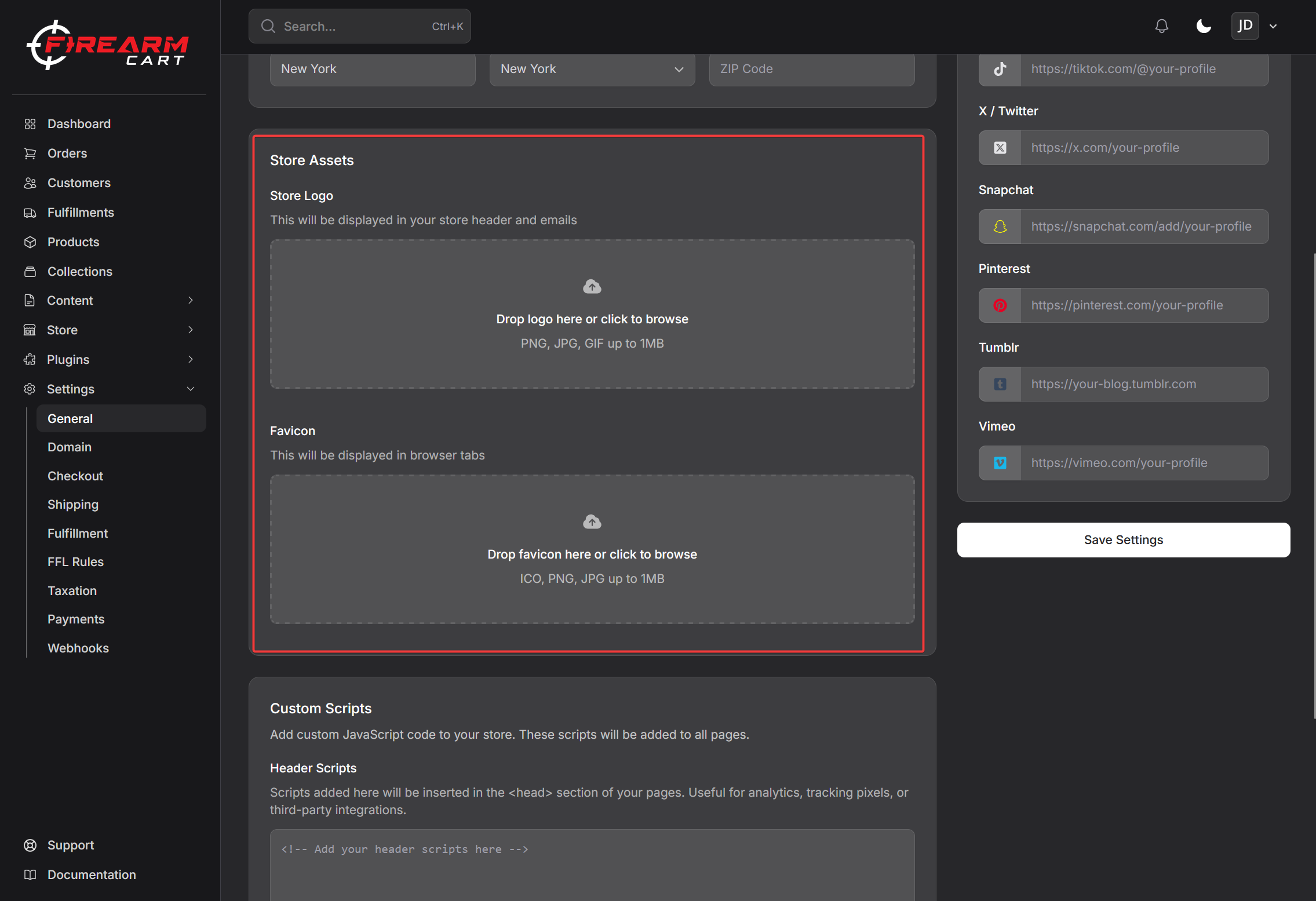
Store Logo
Upload your store logo to display in your store header and emails.
To upload a logo:
- Click the logo upload area (or drop a file on it)
- Select your image file
- Click Save Settings
Accepted files:
- PNG, JPG, or GIF
- Max file size: 1 MB
- PNG with a transparent background works best
Tip: Checkout always renders on a light background. If this logo is built for a dark header, upload a light-background version under Checkout Settings.
Favicon
Upload a square image for browser tabs and bookmarks.
To upload a favicon:
- Click the favicon upload area
- Select a square image
- Click Save Settings
Accepted files:
- ICO, PNG, or JPG
- Max file size: 1 MB
Social Media Links
Connect your social media profiles so customers can find you:
- YouTube
- TikTok
- X / Twitter
- Snapchat
- Tumblr
- Vimeo
Enter the full URL for each profile (e.g., https://facebook.com/yourstore). Each field must be a complete, valid URL — a bare handle or a domain without https:// is rejected.
Custom Scripts
Add custom code to your store’s header or footer. This is useful for:
- Analytics tracking (Google Analytics, Facebook Pixel)
- Chat widgets
- Other third-party integrations
Header Scripts
Code added here is inserted in the <head> section of every page. Useful for analytics, tracking pixels, or third-party integrations.
Footer Scripts
Code added here is inserted before the closing </body> tag on every page. Useful for chat widgets, conversion tracking, or deferred scripts.
Caution: Only add scripts from trusted sources. Incorrect code can break your store.
Saving Changes
After making changes:
- Review all fields
- Click Save Settings
- Changes take effect immediately
Related Documentation
- Custom Domains - Connect your own domain
- Payment Providers - Set up payment processing
- Getting Started - Complete setup guide